

If you need to add a payment card to your Facebook Ads account but the standard method doesn’t work — don’t panic, there’s a solution! We’ve gathered all up-to-date methods as of 2025 that will help you do this quickly and without unnecessary complications. Choose any option: through Ads Manager, Business Manager, Fanpage, browser extensions, or mobile apps.
Method 1: Adding a card through the personal Ads account
- Open Ads Manager — you can follow the direct link: facebook.com/ads/manager/account_settings/account_billing.
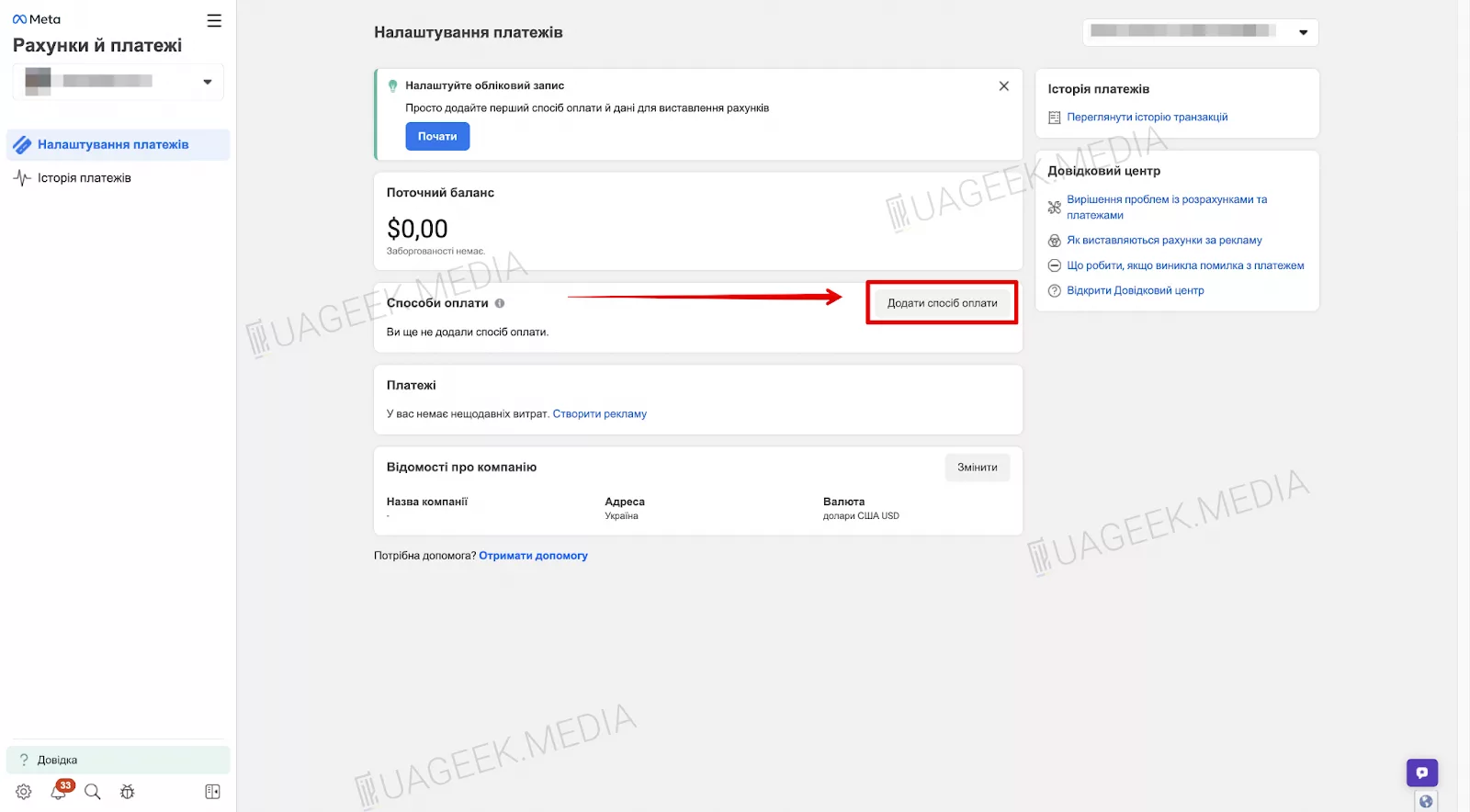
- Go to the “Billing & Payments” tab.
- Click “Add payment method”.
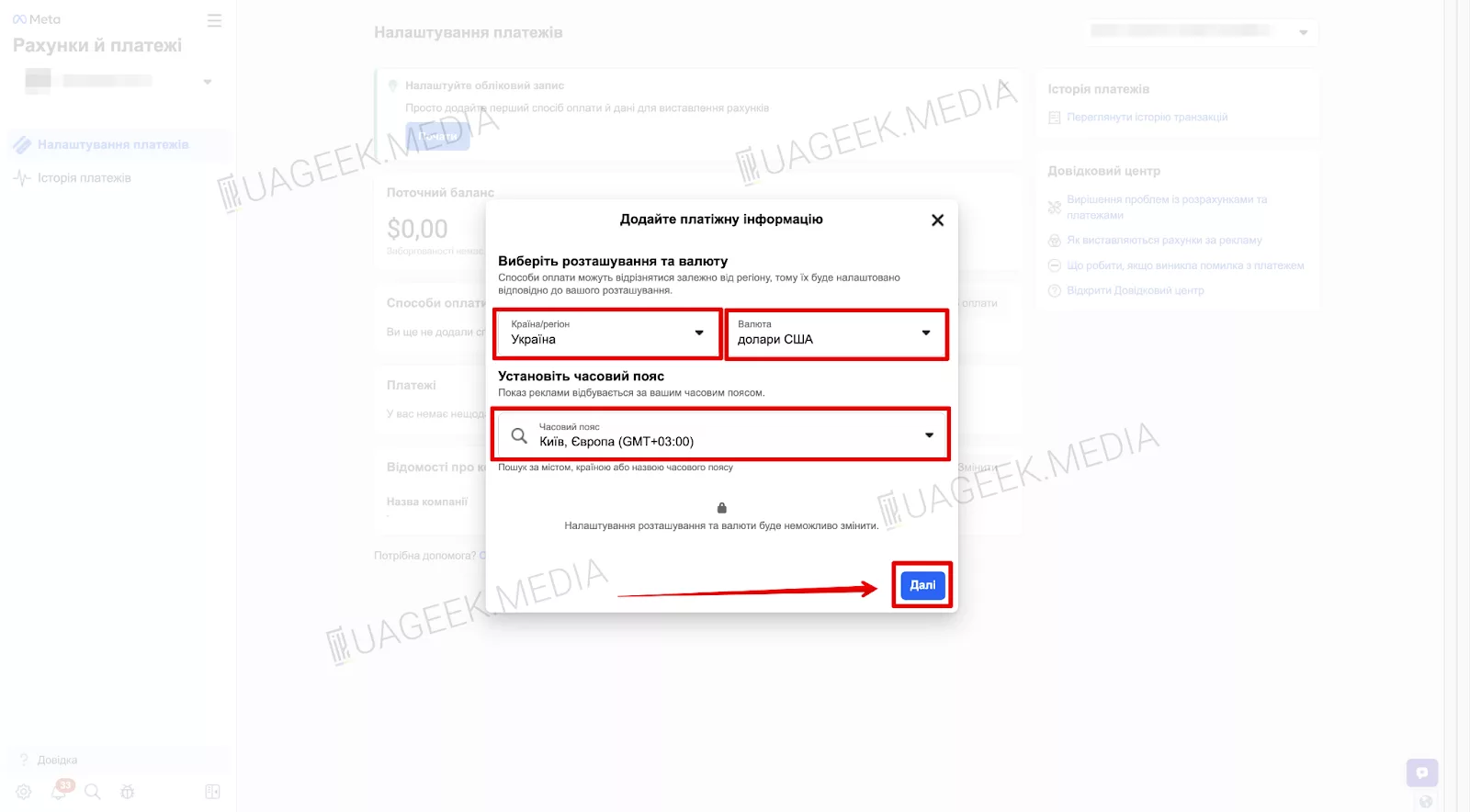
In the “Business location” field, choose the GEO and currency. It’s also important to check the time zone.
Select “Debit or credit card”, enter the card details, and save the changes.
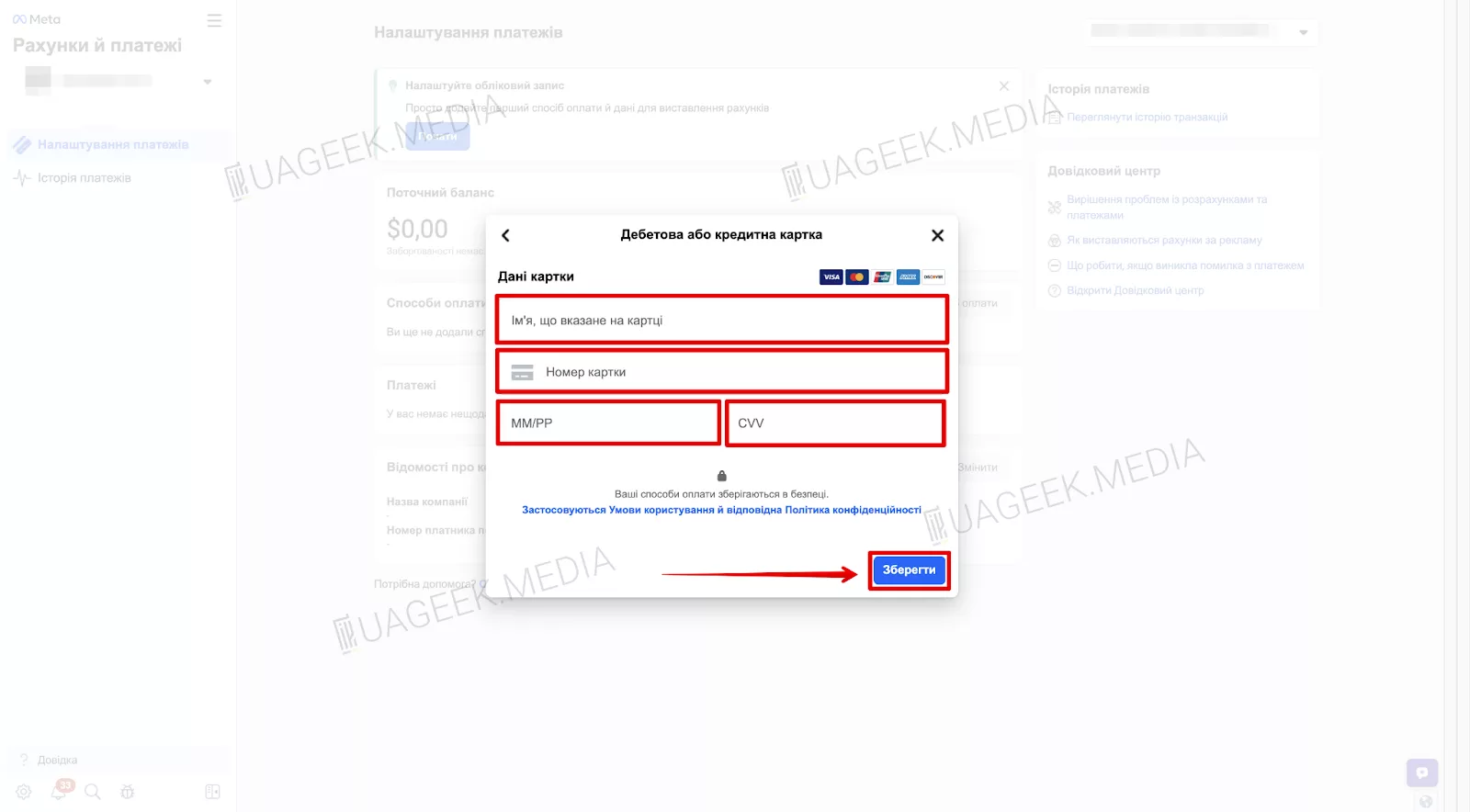
Done! The new card will be added to the list of payment methods and can be set as the primary payment method for automatic ad payments.
Method 2: Adding a card through Fanpage
If you have a Facebook business page (Fanpage), you can add the card directly through it.
- Open your Fanpage, or create a new one.
- Open the Page management panel.
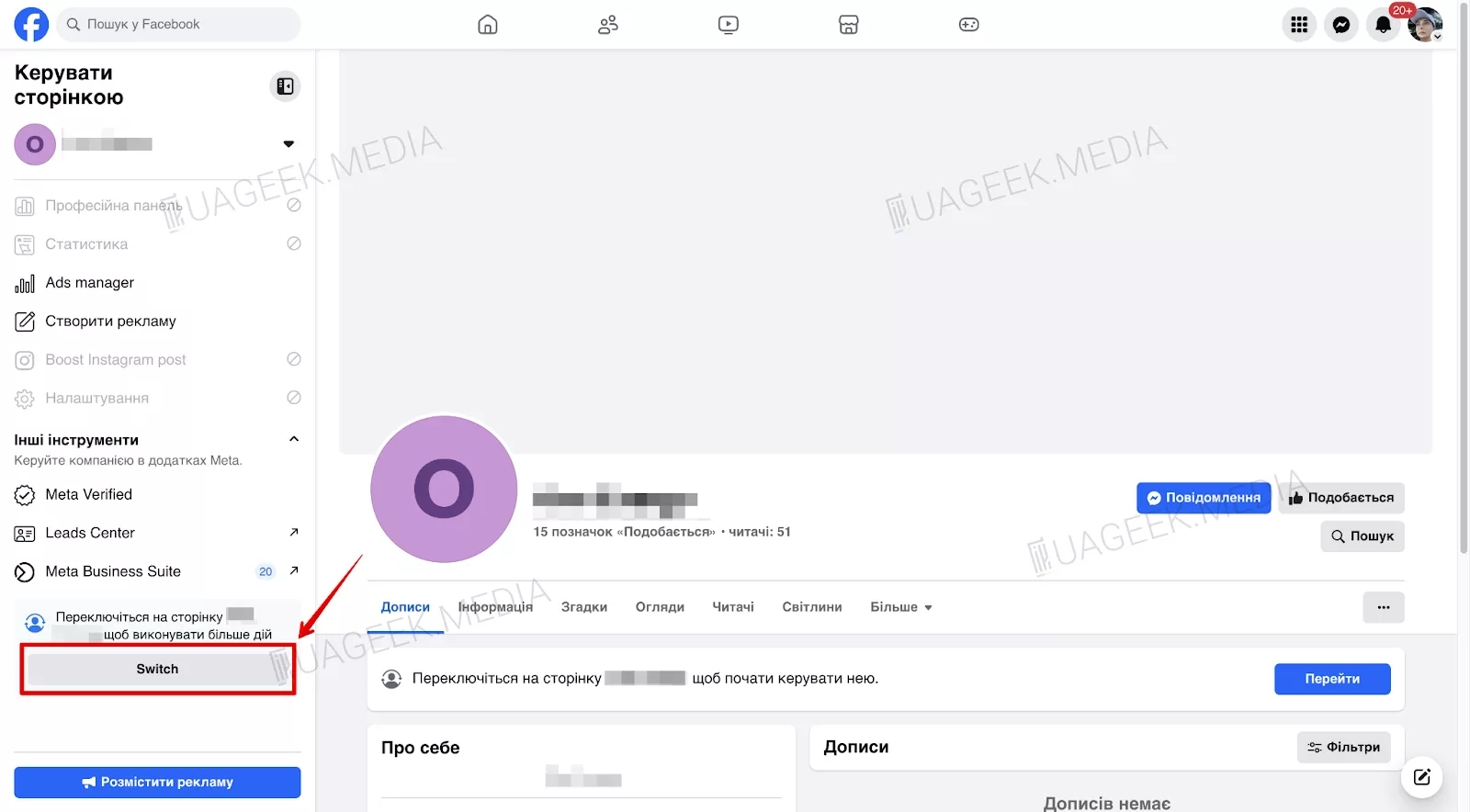
Click “Promote”.
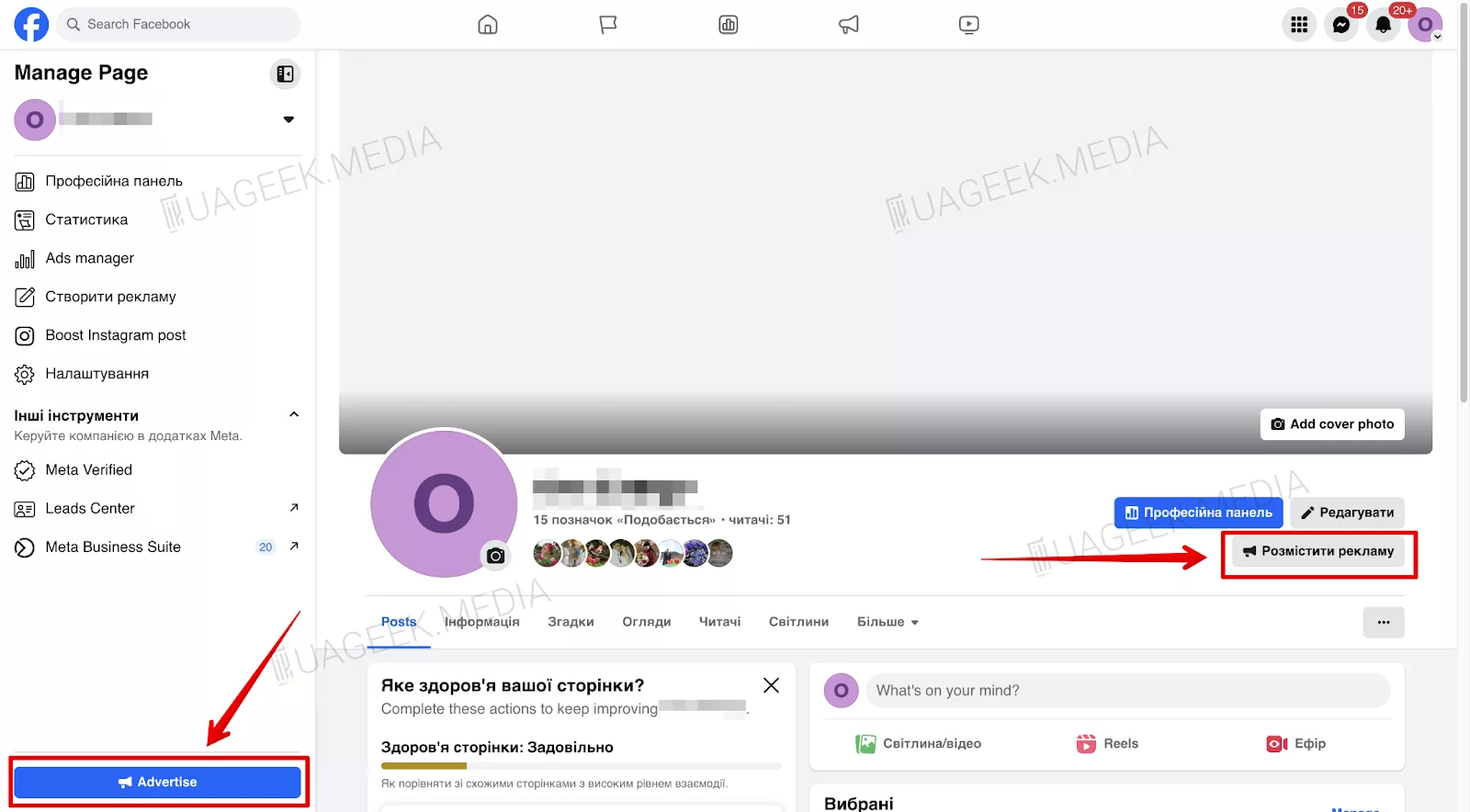
A selection of ad formats will appear.
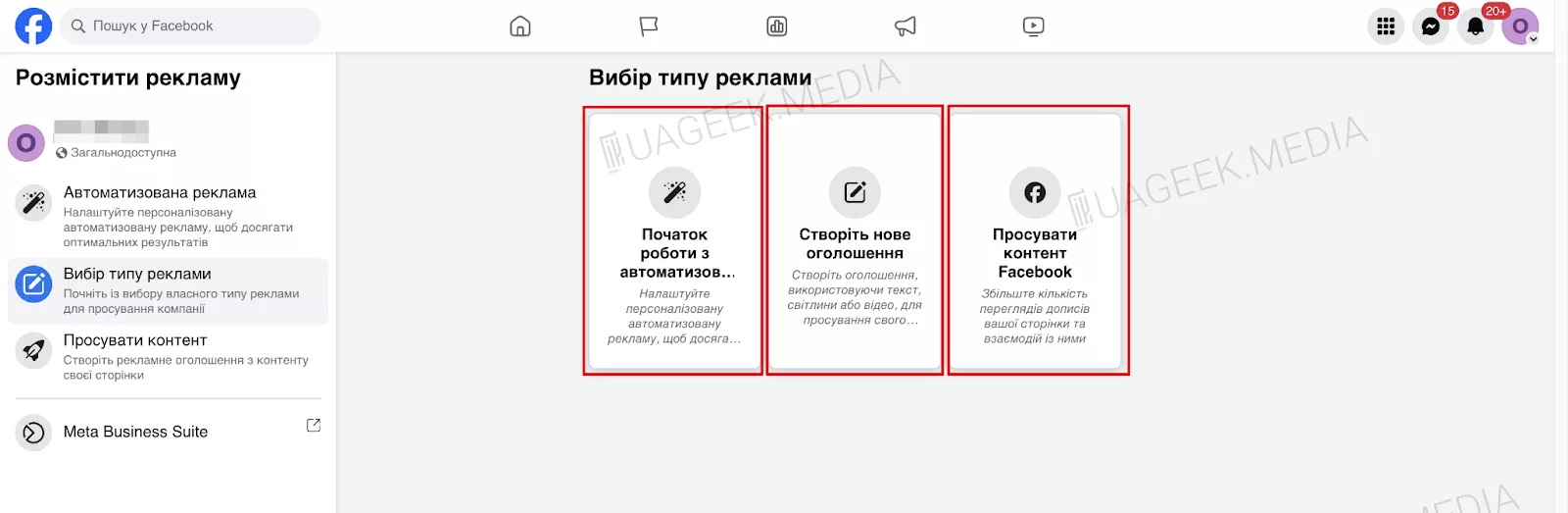
Let’s look at three methods of adding a card through Fanpage.
Method 2.1: Adding a card through Automated Ads
Select “Get started with Automated Ads”.
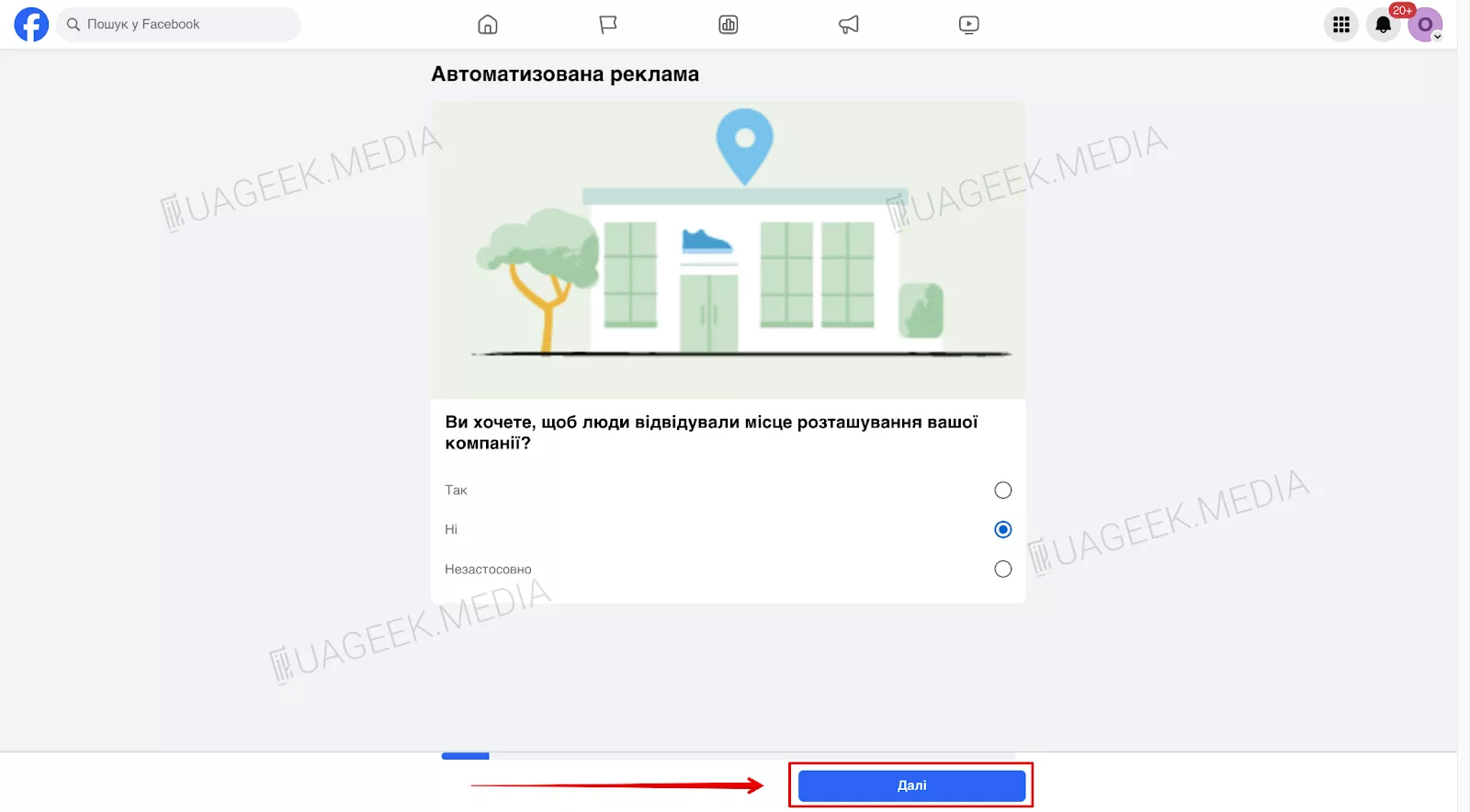
Answer the questions — choose “No” until the GEO selection step. Select your GEO and continue. Interest selection and description can be skipped.
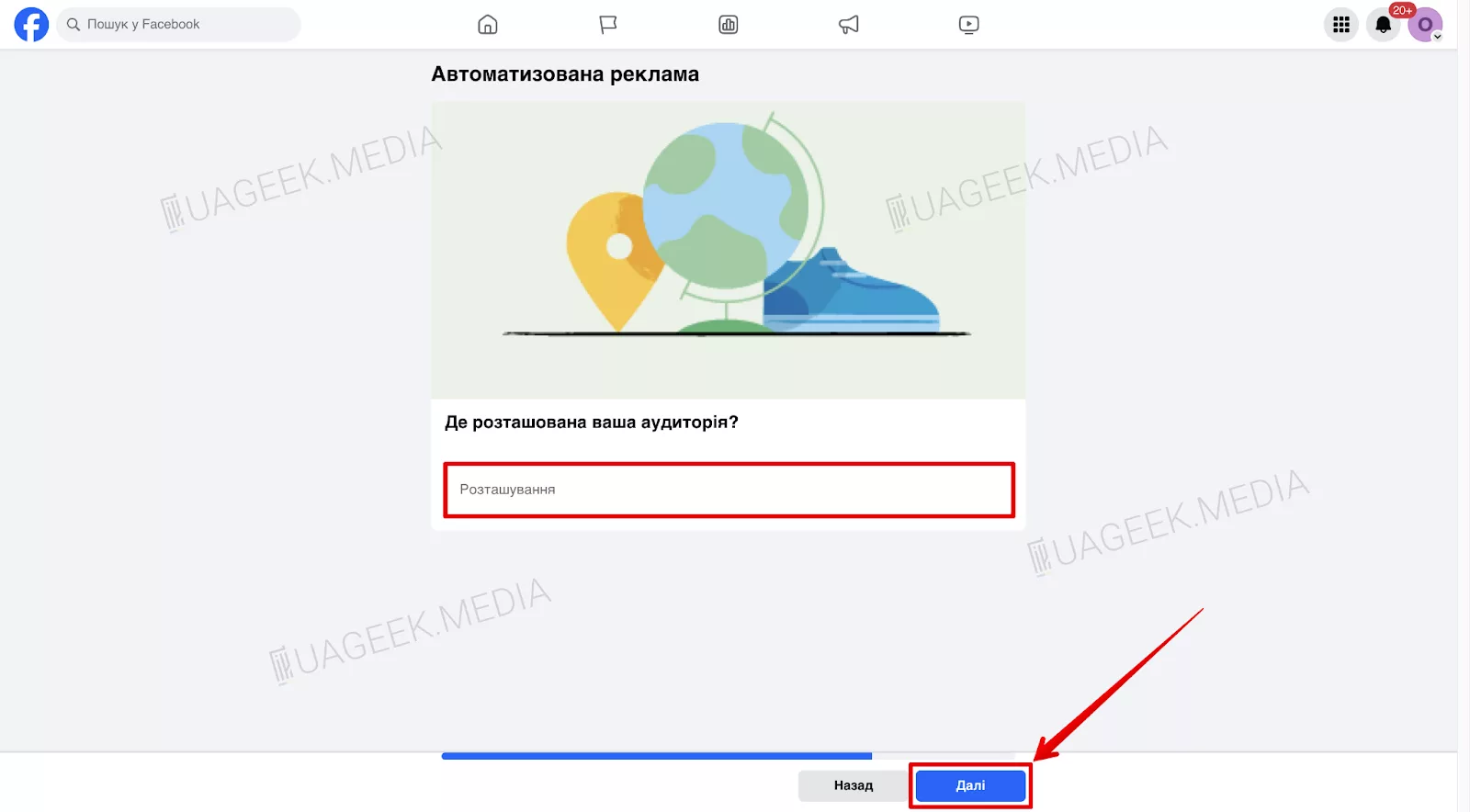
In the “Payment method” tab, add a new card by filling in all required fields. Then click “Publish”.
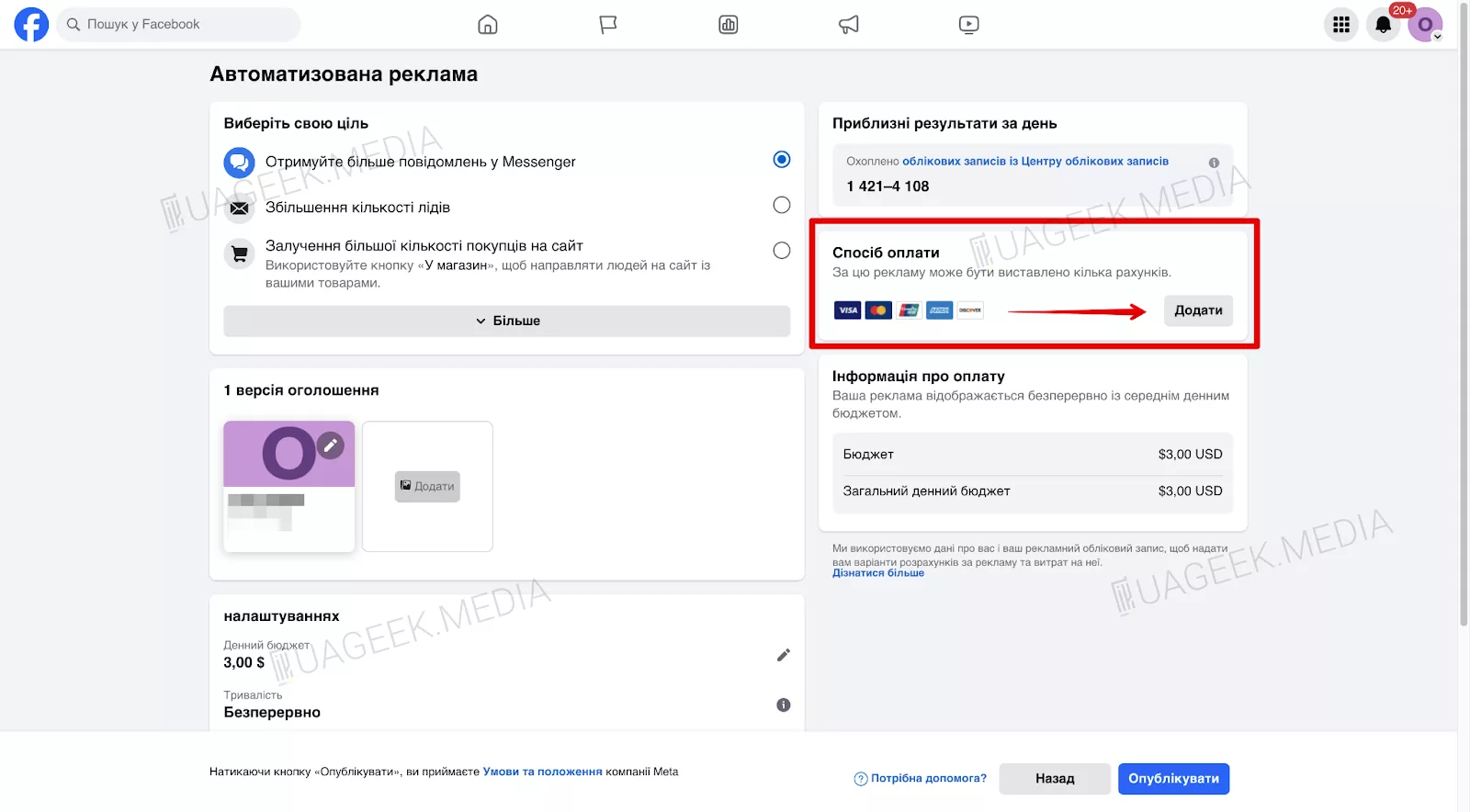
Method 2.2: Adding a card when creating an ad
Select “Create ad”. Then choose the Ads account to which the card will be linked.
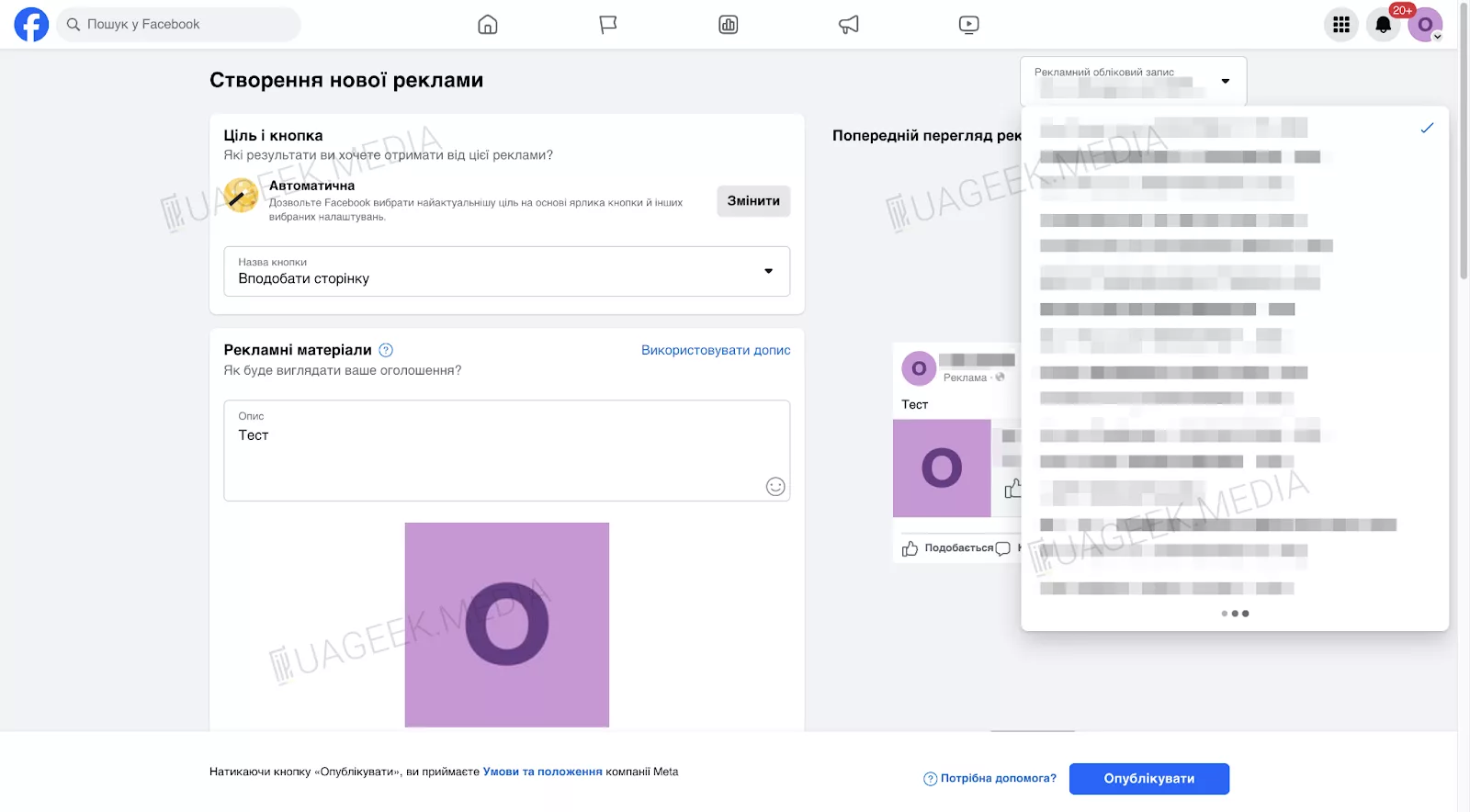
Scroll down to the “Payment method” section and click “Add card”. Fill in the payment information just like in the previous method and confirm the changes.
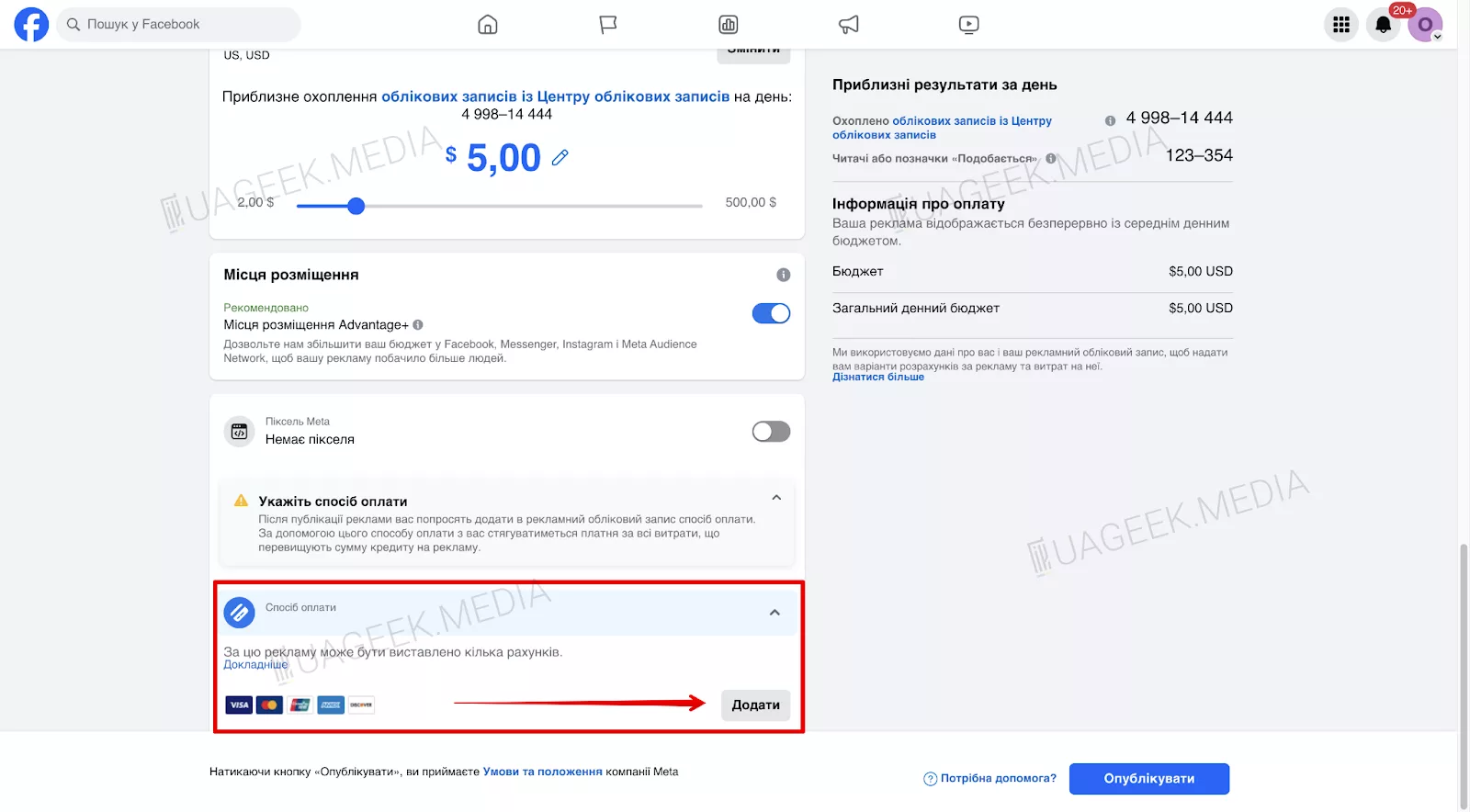
Method 2.3: Adding a card through “Content promotion”
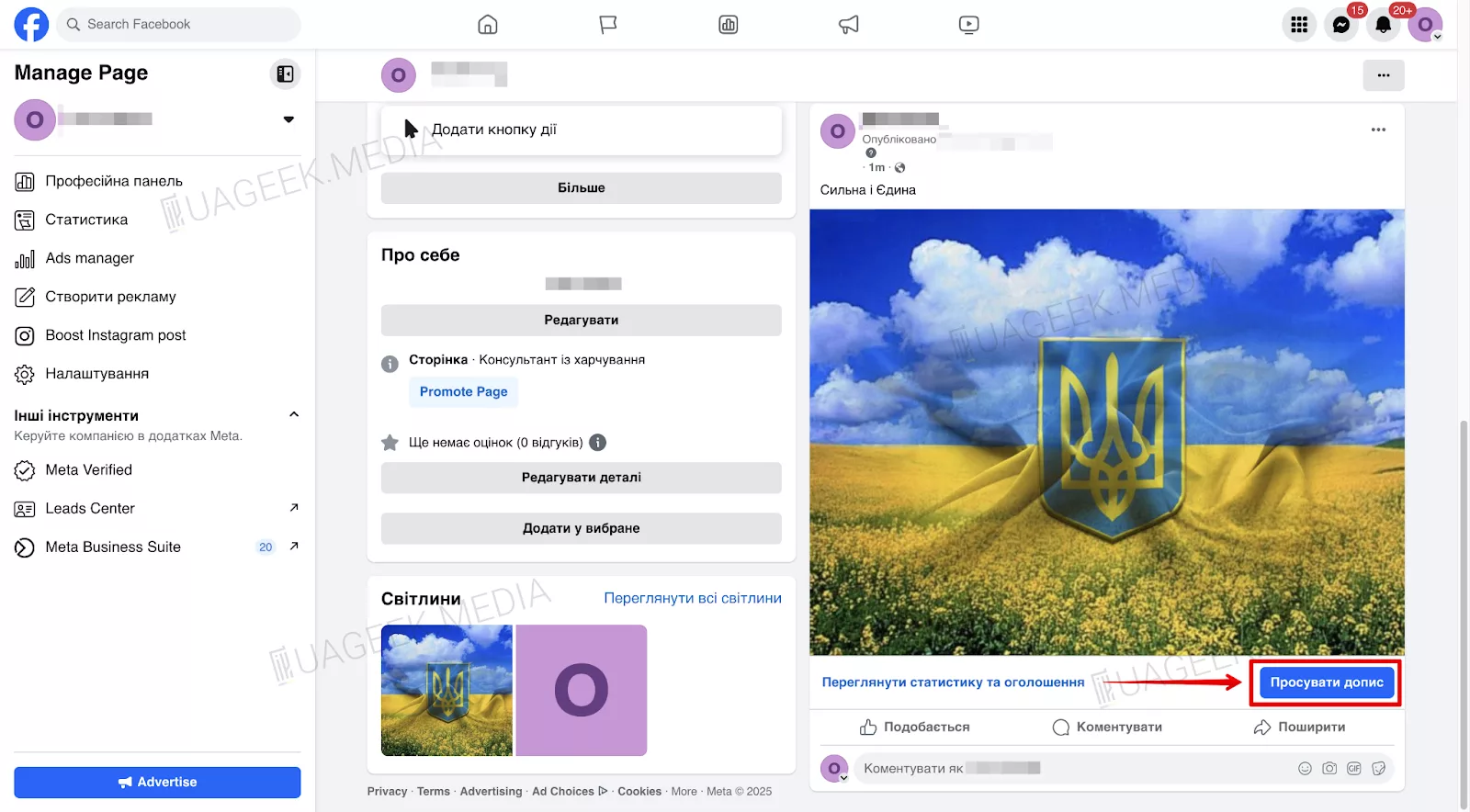
Go to your Fanpage, click “Create post”. Add an image, video, or text. Then click “Promote”.

Repeat the steps from previous methods. Scroll to “Payment method” and add your card.
You can also add a card directly from the Fanpage feed by clicking “Boost post”.
If there are no posts — create a new one and immediately set up promotion parameters (adding the card using the same algorithm).
Method 3: Adding a card through Business Manager
Method 3.1: Adding a card through Business Manager
Open Business Manager.
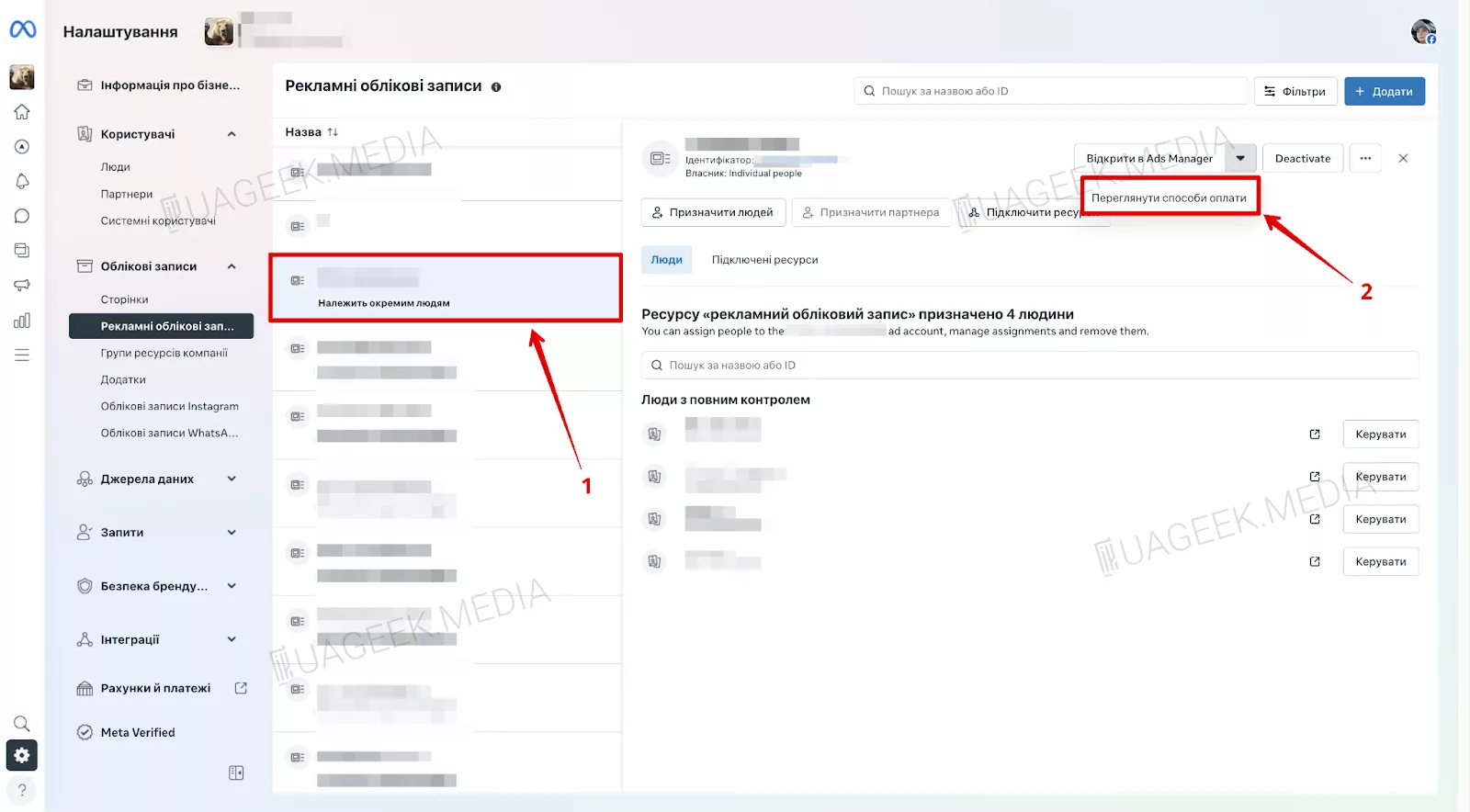
Go to “Billing & Payments”.
Click “Add payment method”, enter your payment details, and confirm.
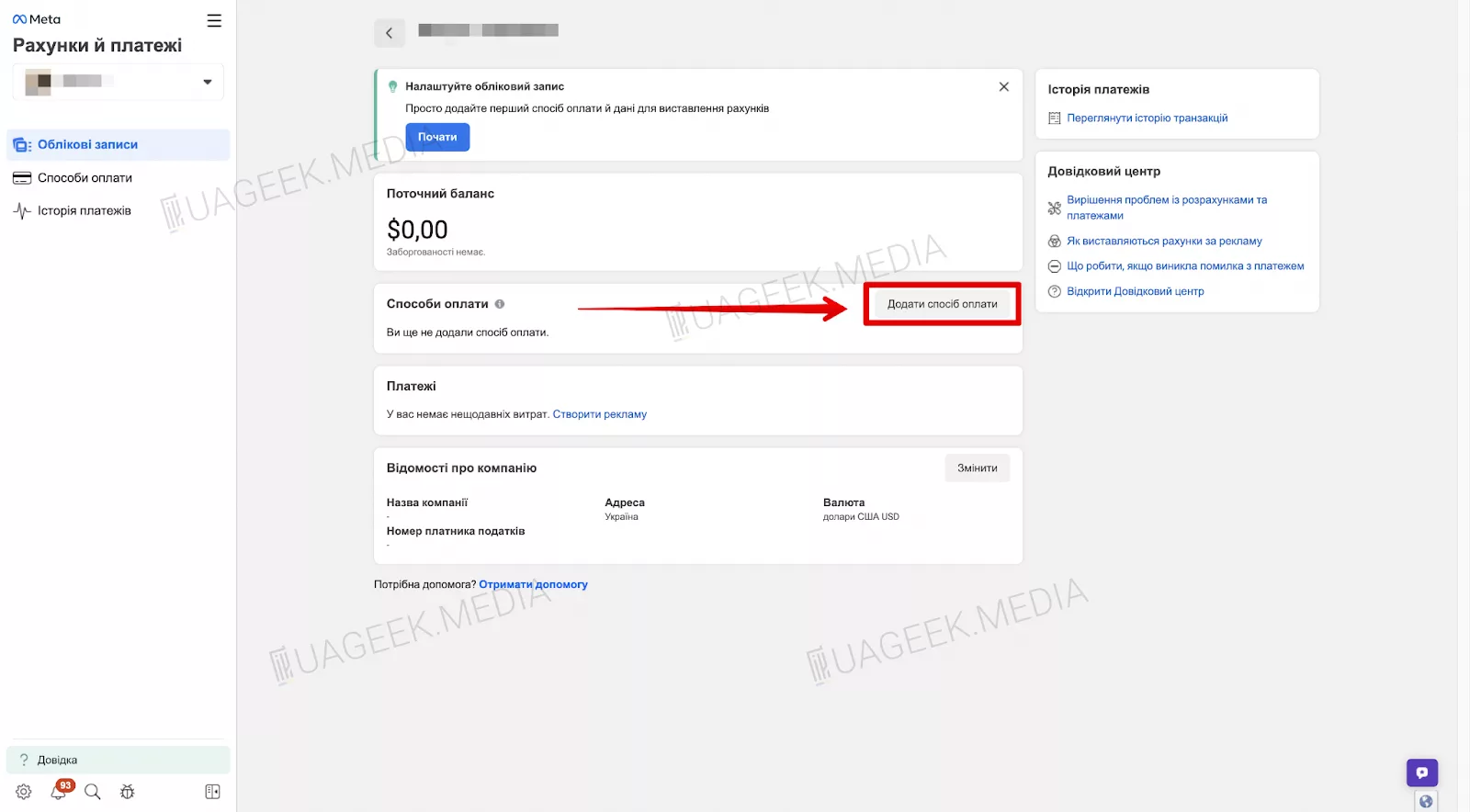
Method 3.2: Adding a card through Business Portfolio
In the Business Portfolio, go to “Payment methods”.
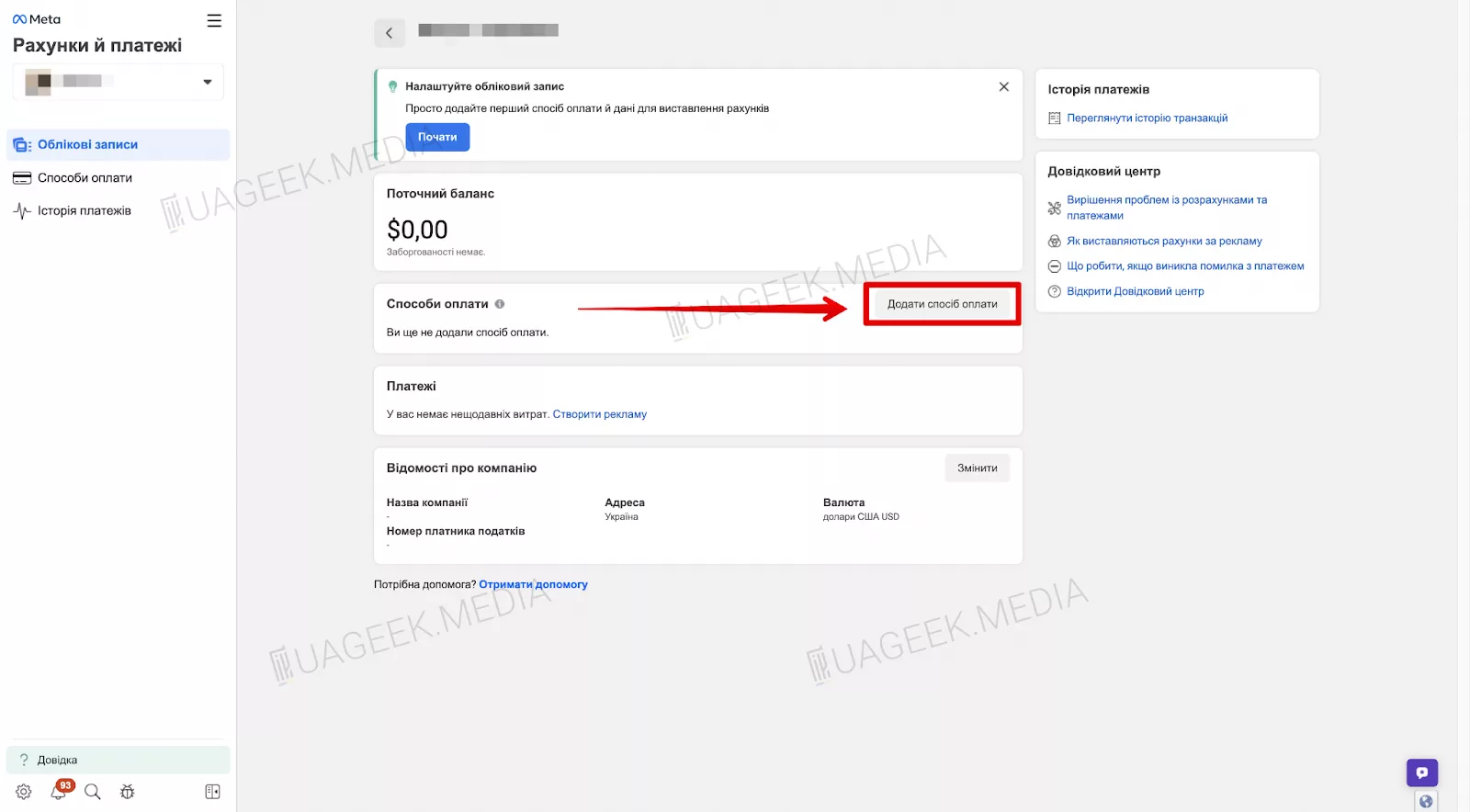
Edit the financial permissions and add yourself as a “Financial editor”.
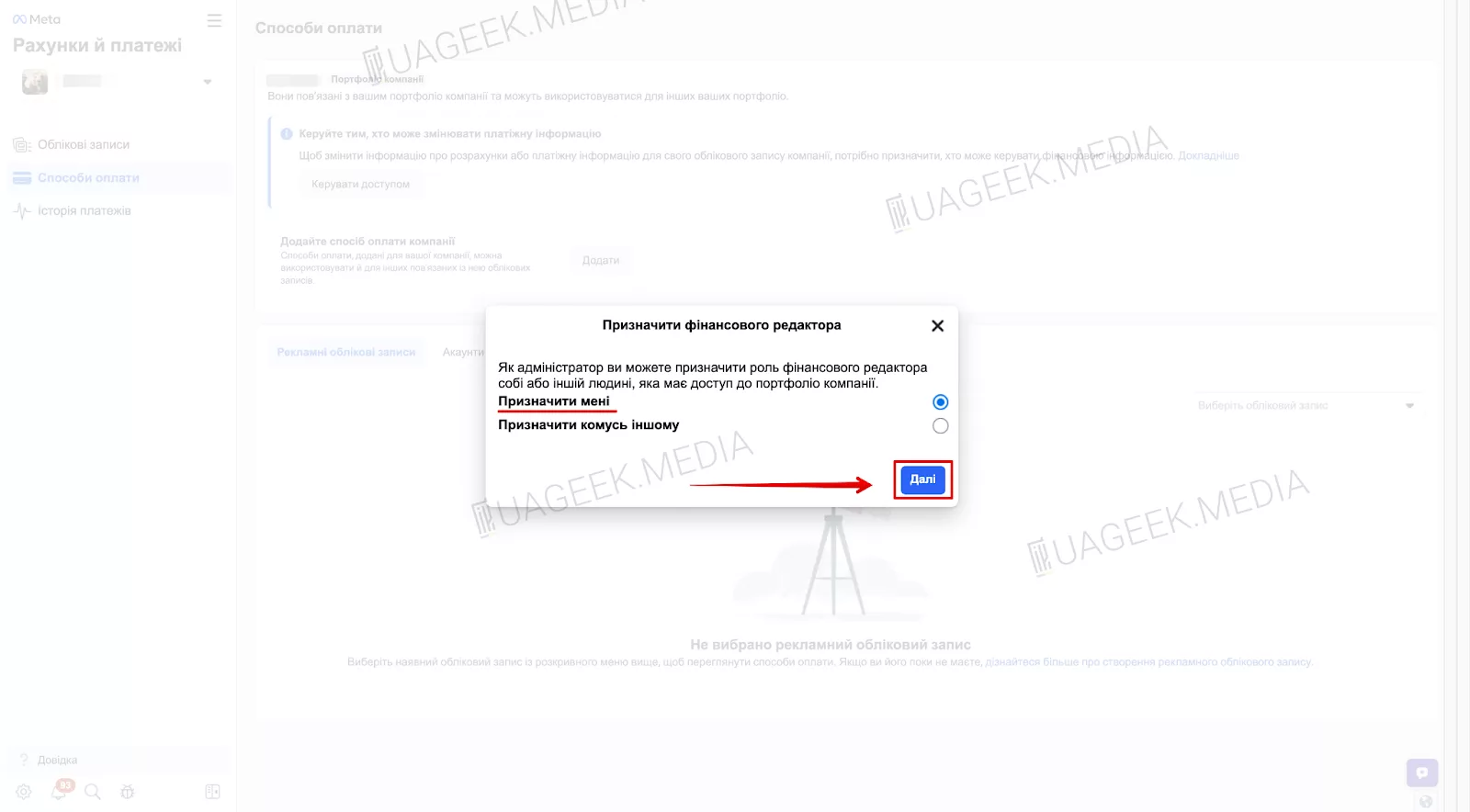
Click “Next” to continue.
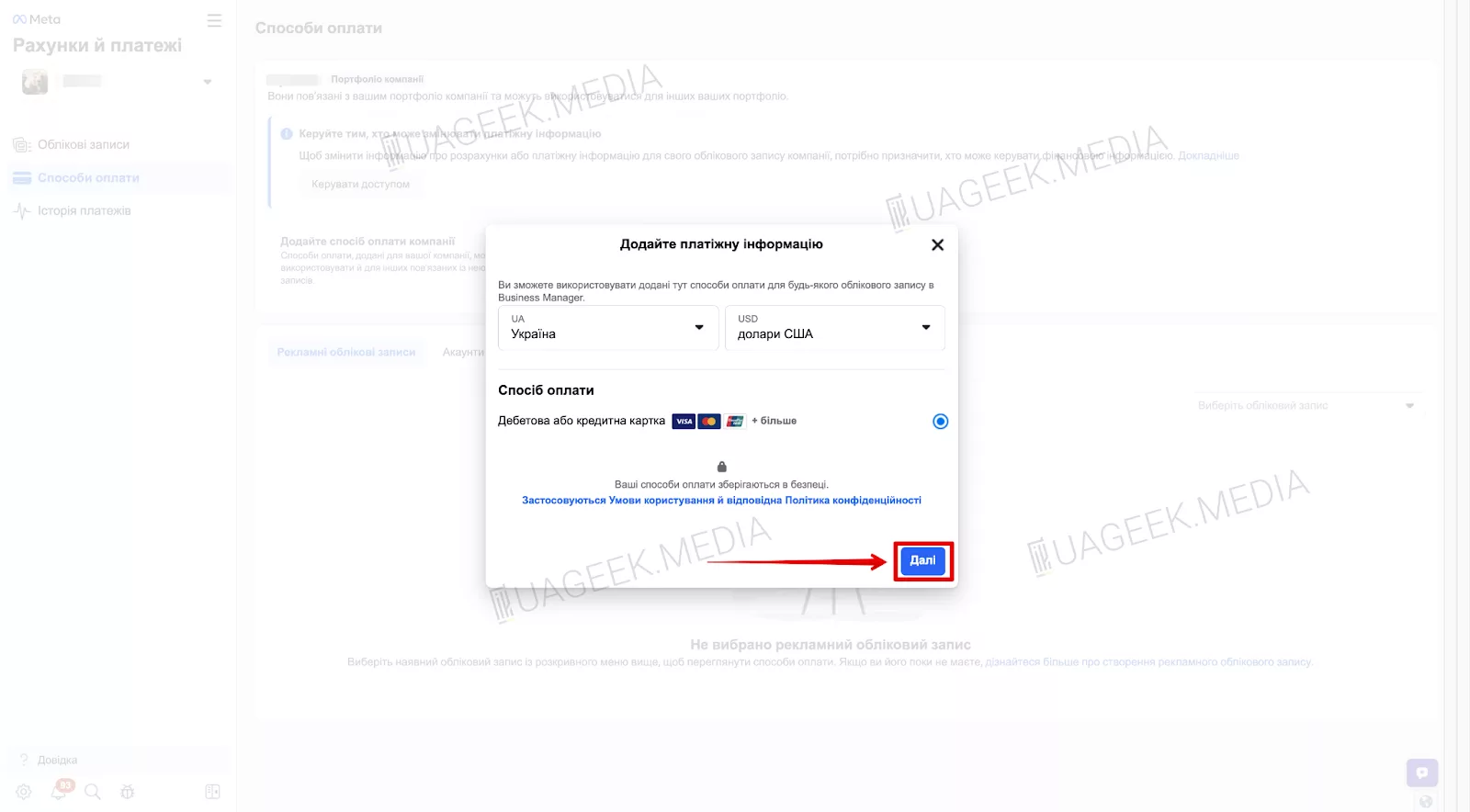
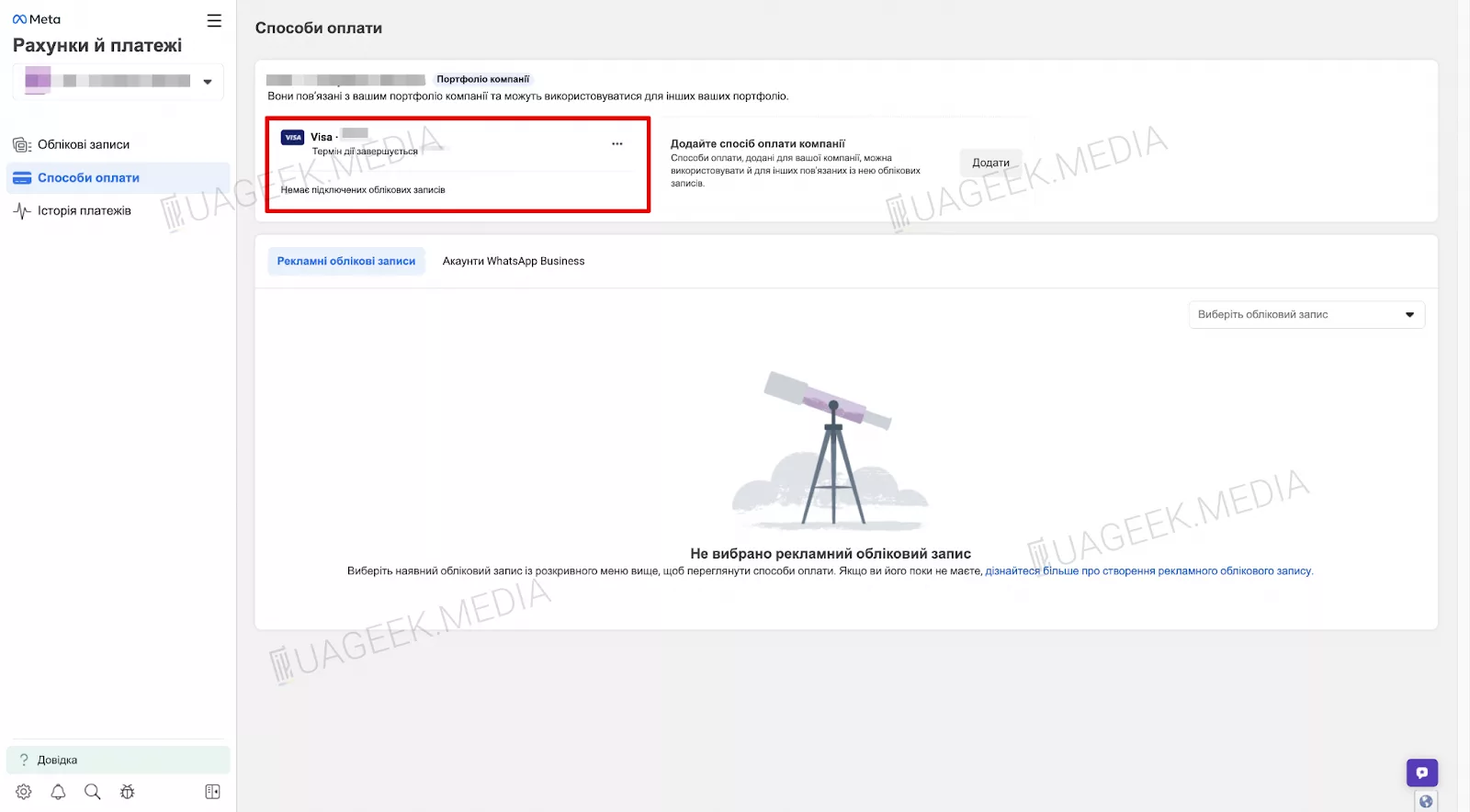
Fill in the payment details and the card will appear in Business Portfolio.
Go to “Accounts”, select the needed Ads account, and click “Add payment method”.
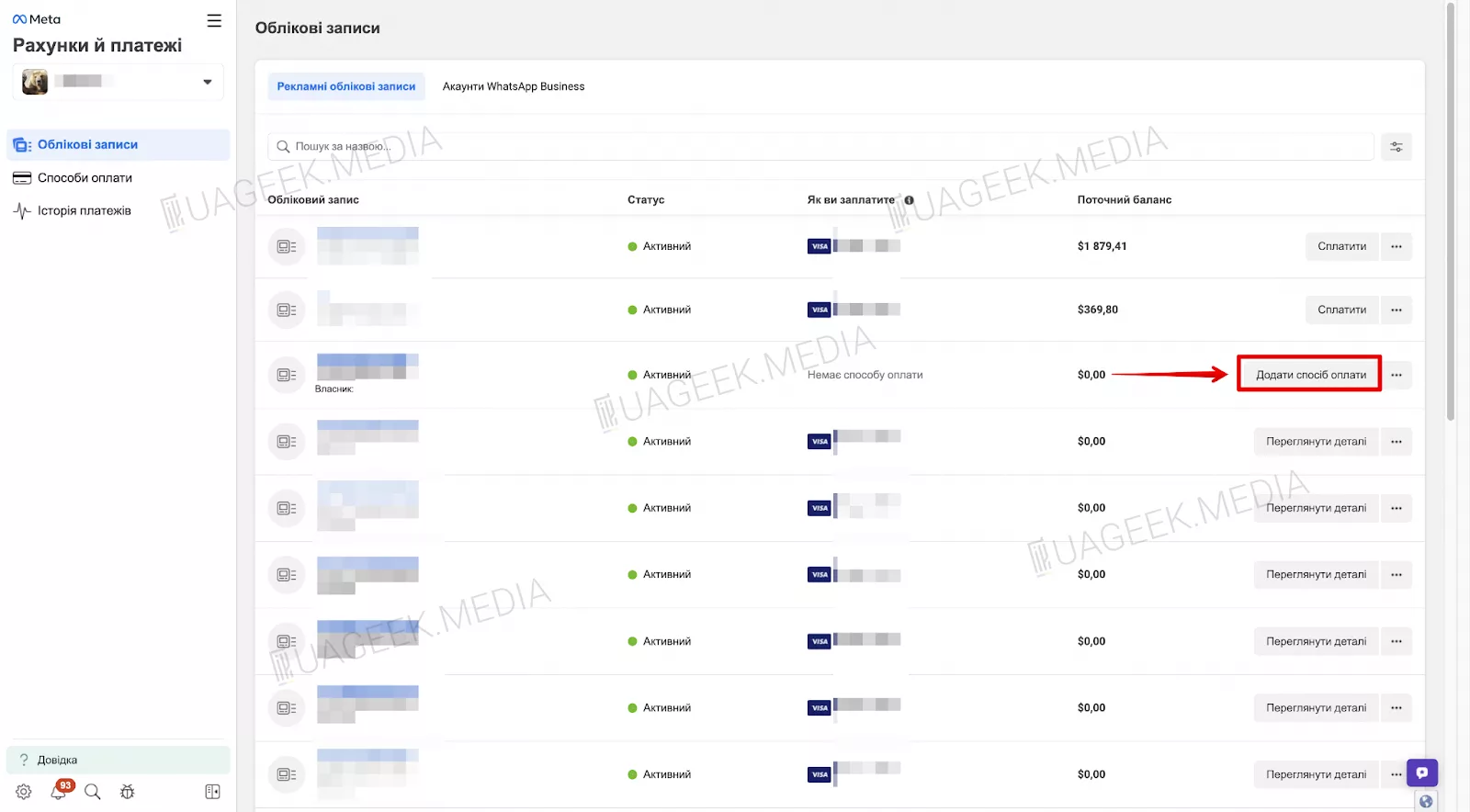
Select not a new card, but the one added through the Portfolio.
Done! The card is now successfully linked to the Ads account through BM.
Method 4: Adding a card through the FBAcc.io browser extension
Download and install FBAcc.io. Open Ads Manager and activate the extension. Enter your payment data and click “Set up payment method”.
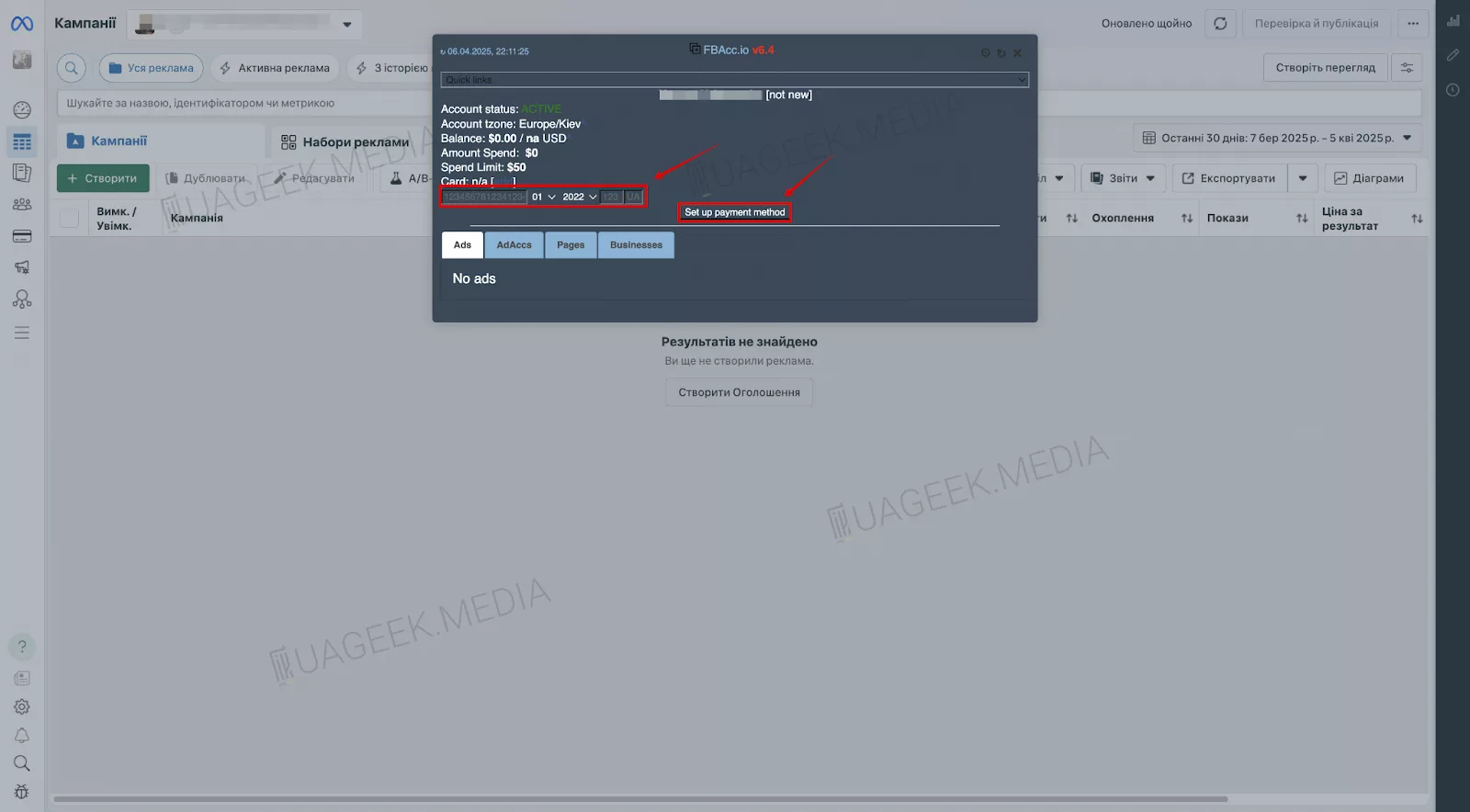
Done, the card is added to Facebook Ads.
Method 5: Adding a card through Facebook Support
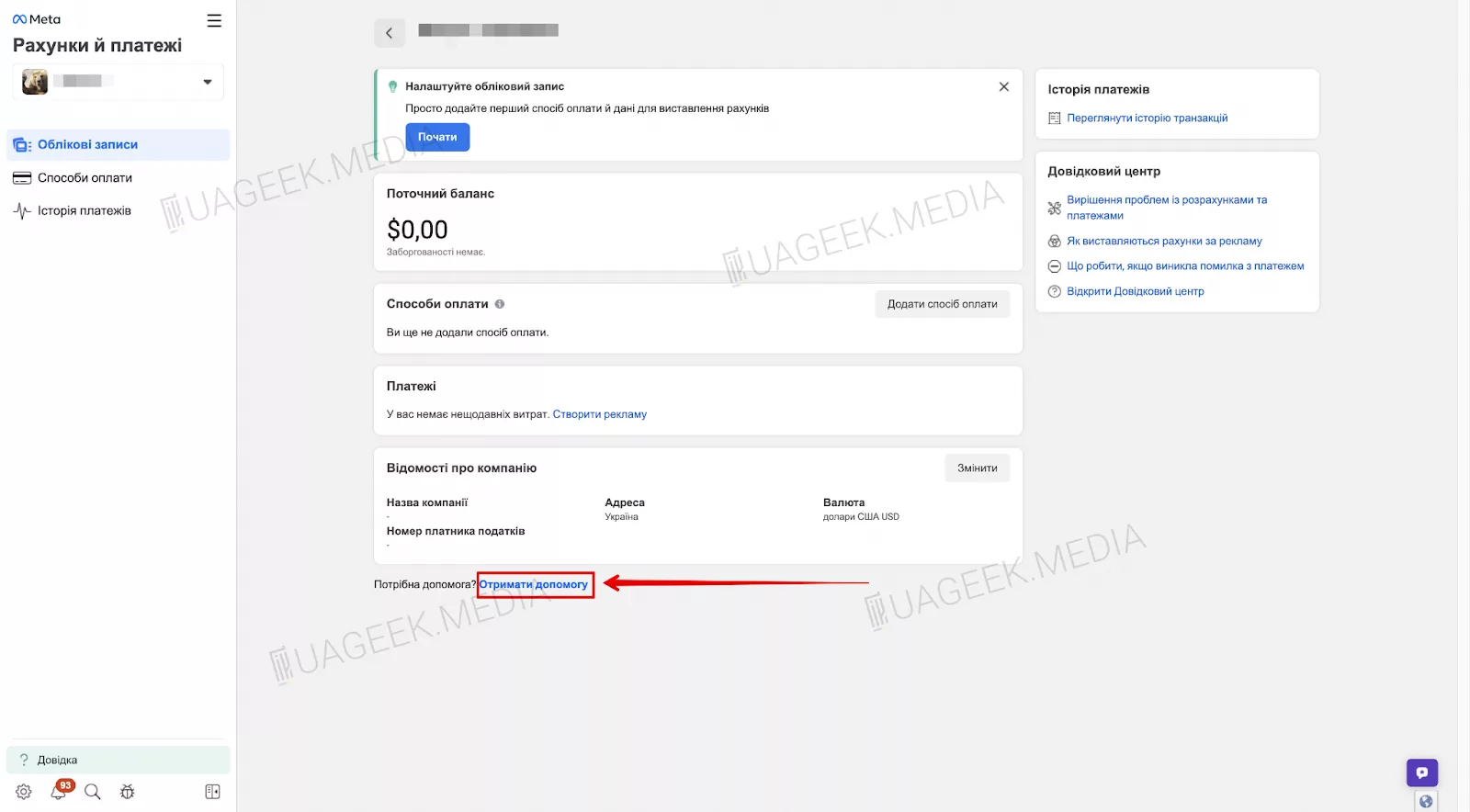
Go to Ads Manager → Billing & Payments. Scroll down and click “Get help”. You can also use the link: https://www.facebook.com/ads/manager/account_settings/account_billing.
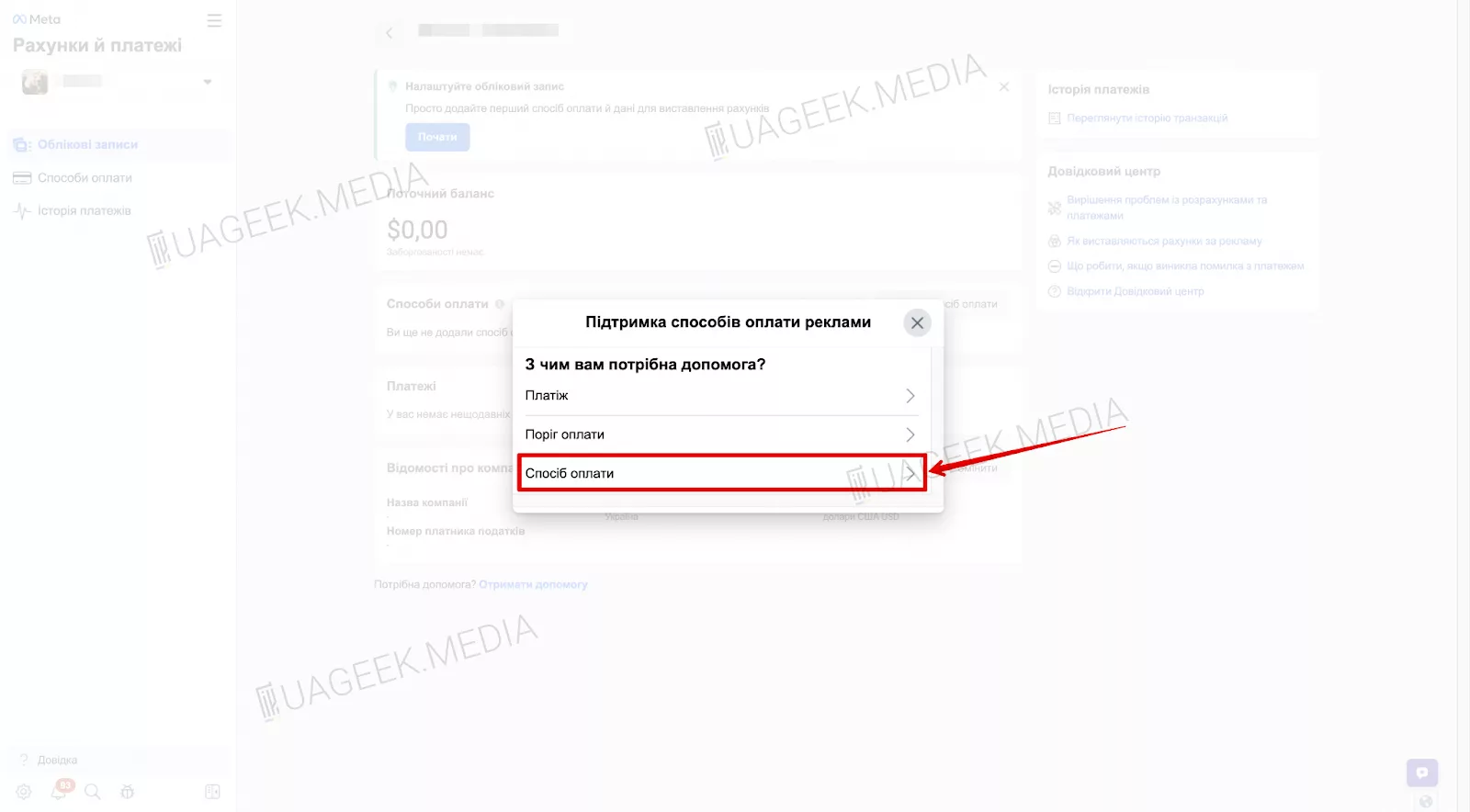
Select “Payment method”.
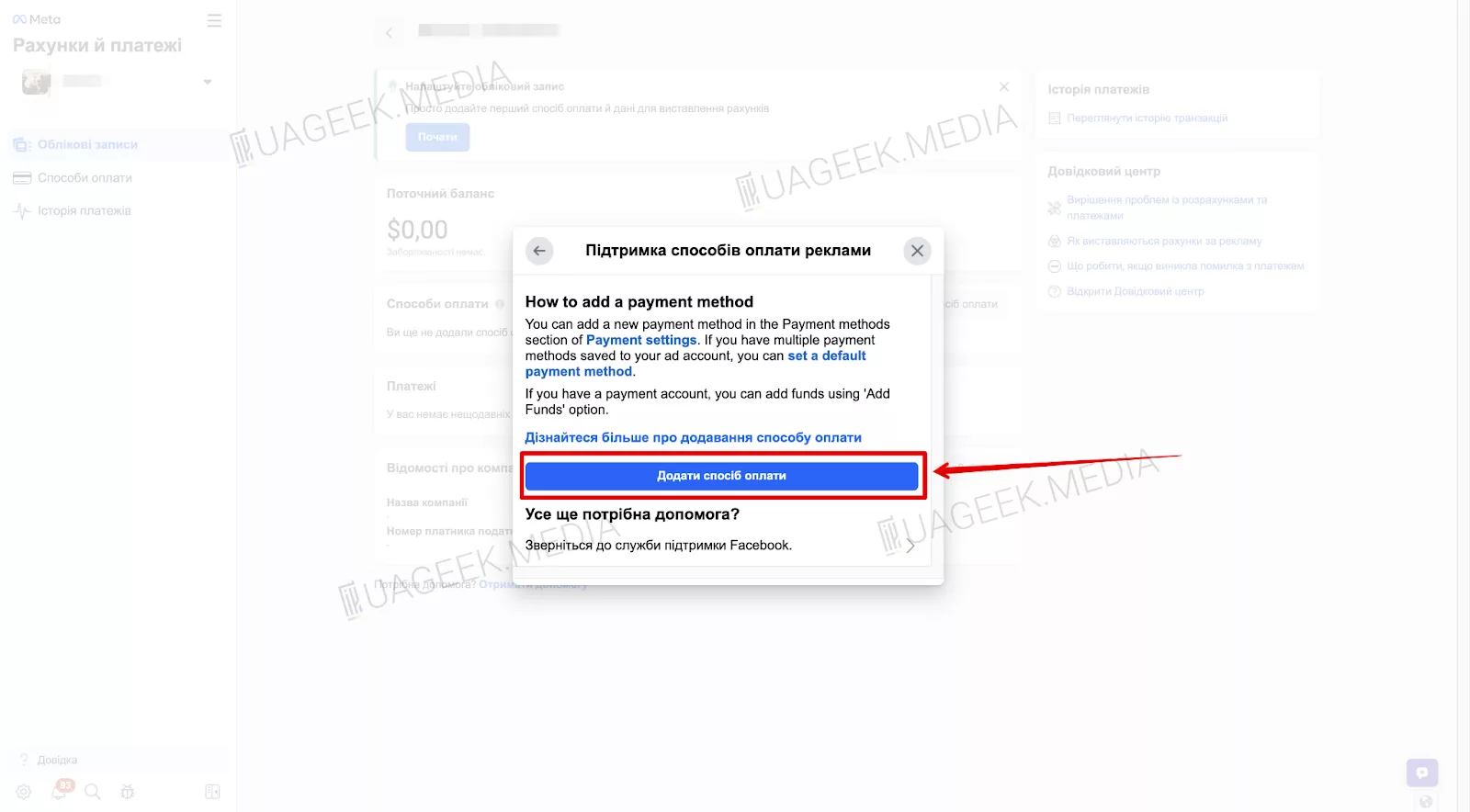
In the window that opens, click “I need to add a payment method”. Then click “Next”.
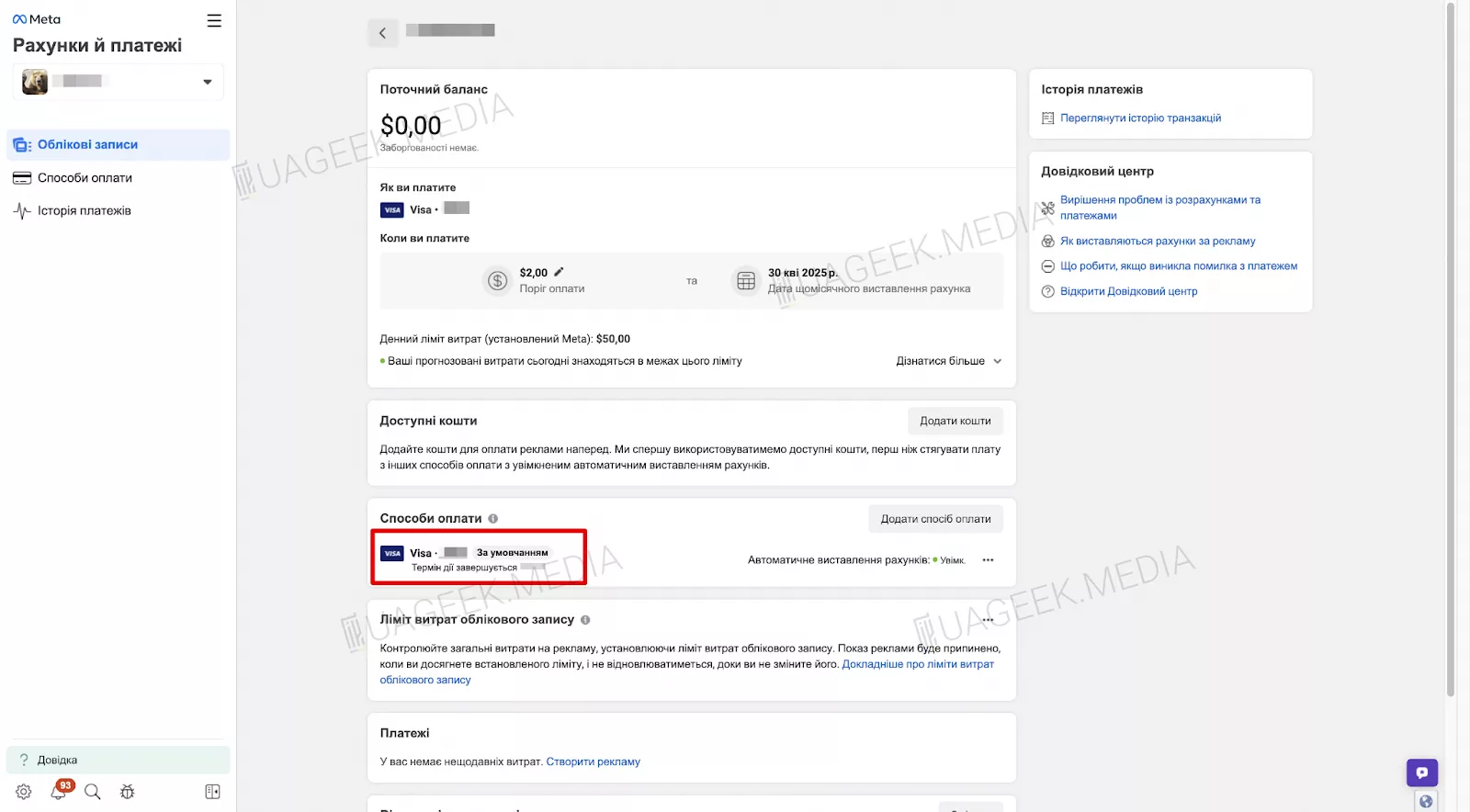
Fill in the data, confirm the information, and the card will appear in your account.
Method 6: Adding a card through the mobile app
Important: Since February 2024, Apple charges a 30% commission for ads paid through Facebook and Instagram iOS apps. It is recommended to add a card using the desktop version or Android.
Install and/or open the Facebook mobile app.
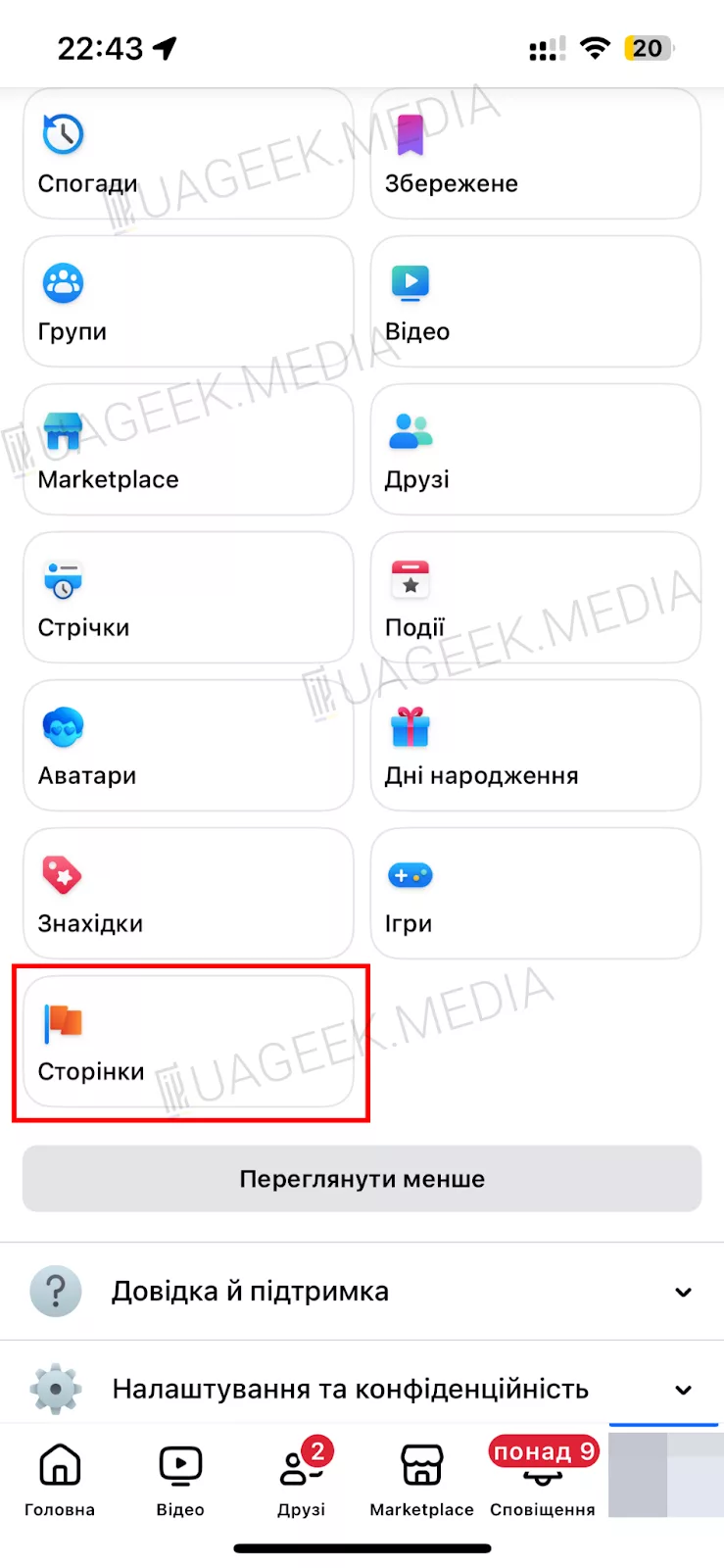
Go to “Pages” and open your Fanpage.

Tap “Ad Center”.
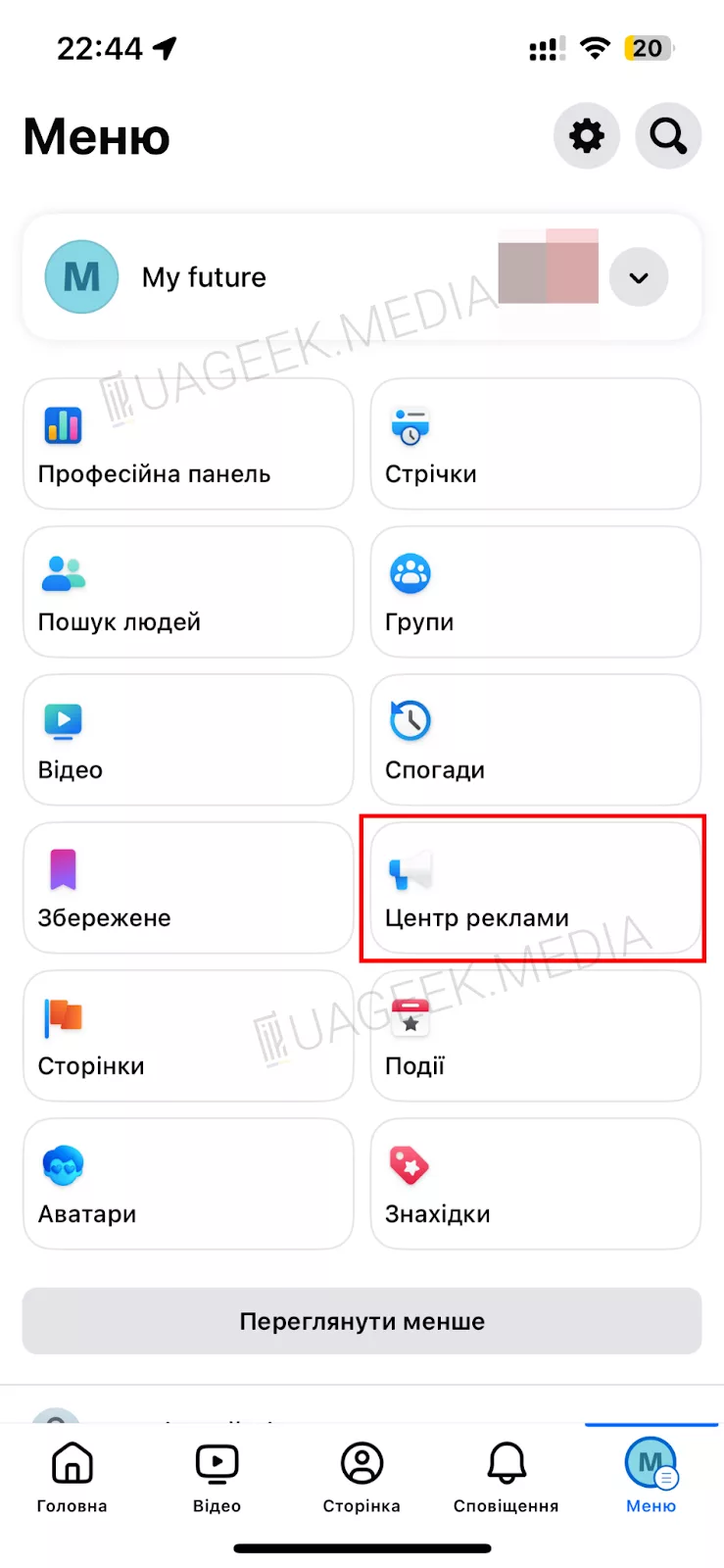
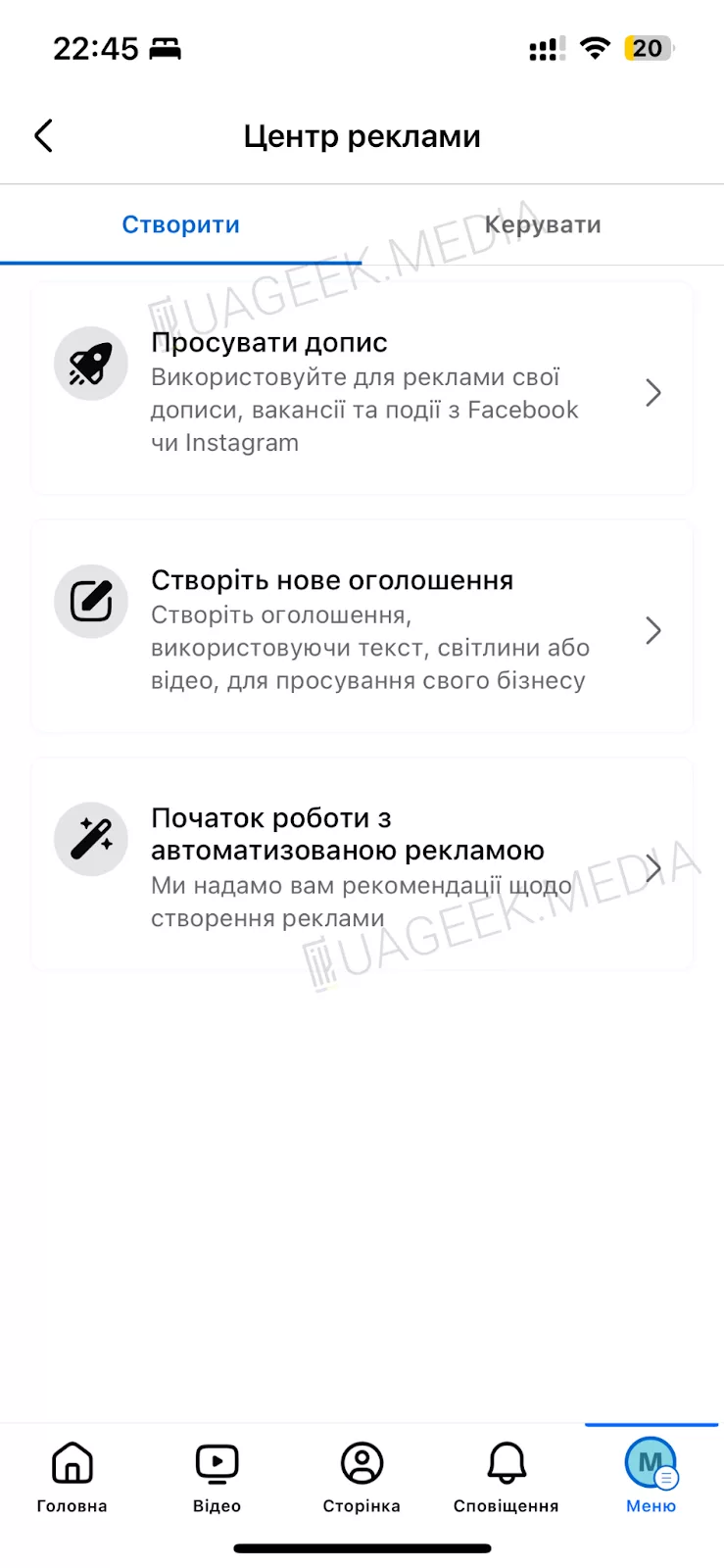
Select one of the three suggested ad types.
For example, “Create ad”. Scroll to “Payment method”.
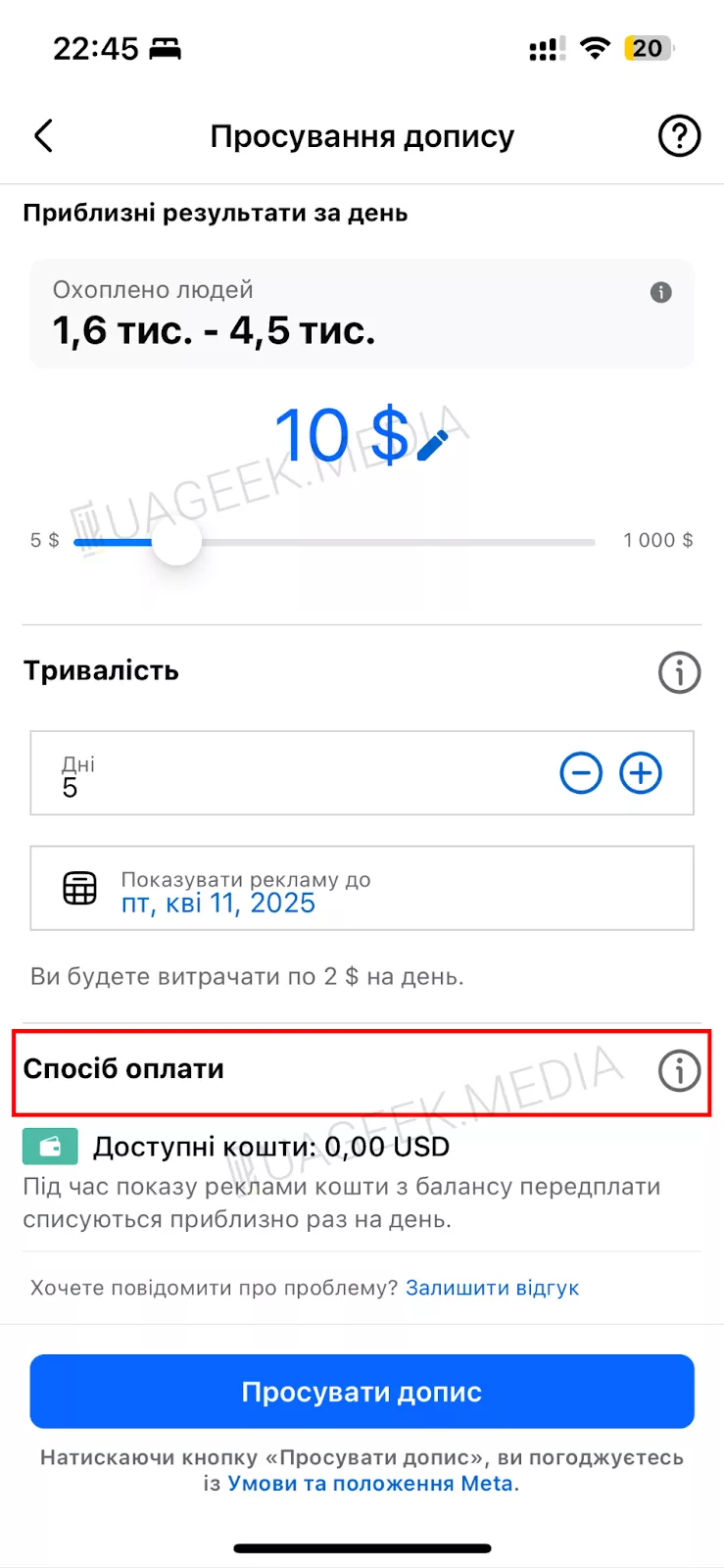
Fill in all fields and add the card. Save the information. The card is now added to Facebook Ads.
Method 7: Adding a card through Meta Ads Manager iOS
Download and/or open the Meta Ads Manager app.


Go to “Billing & Payments”.
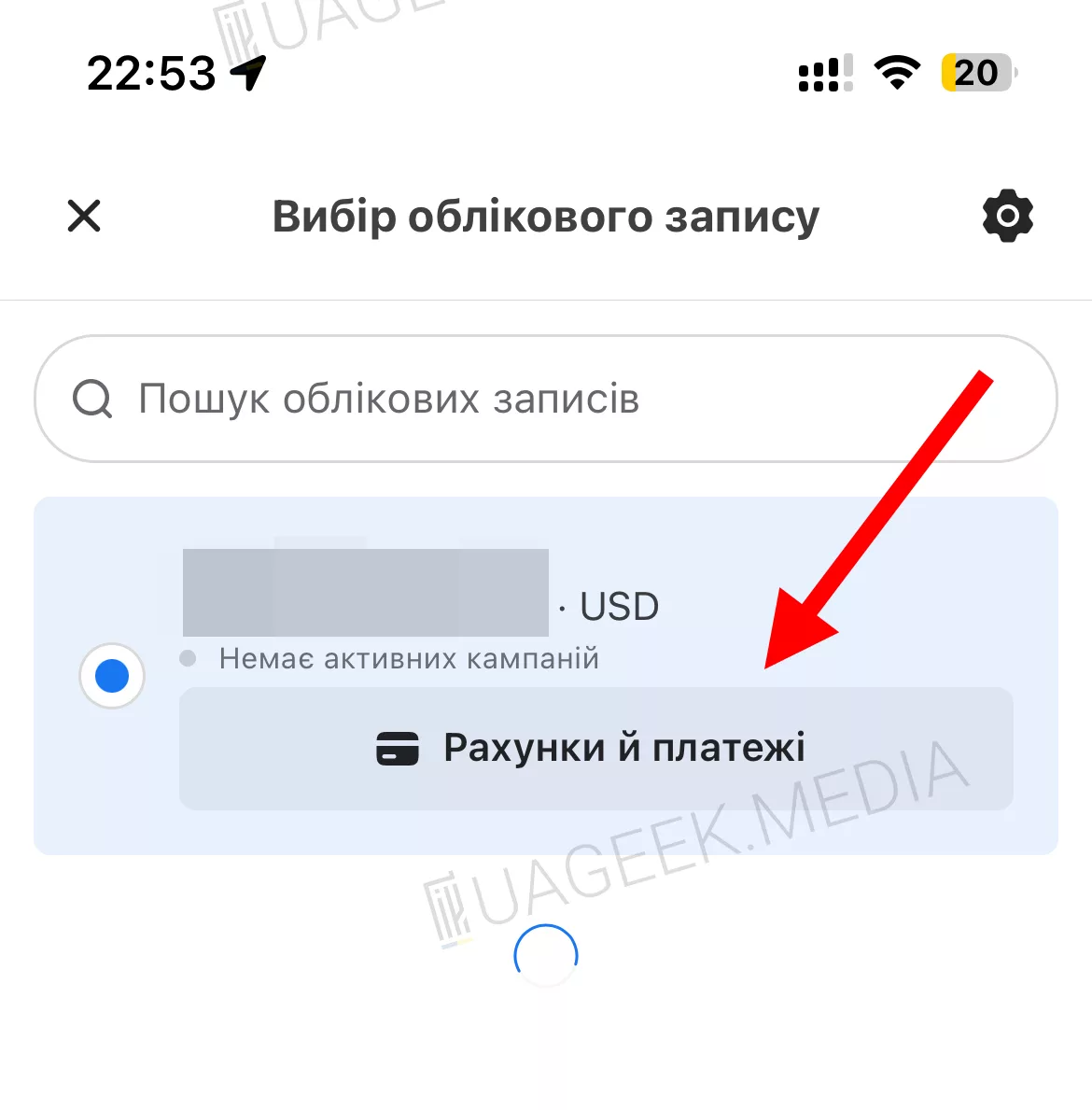
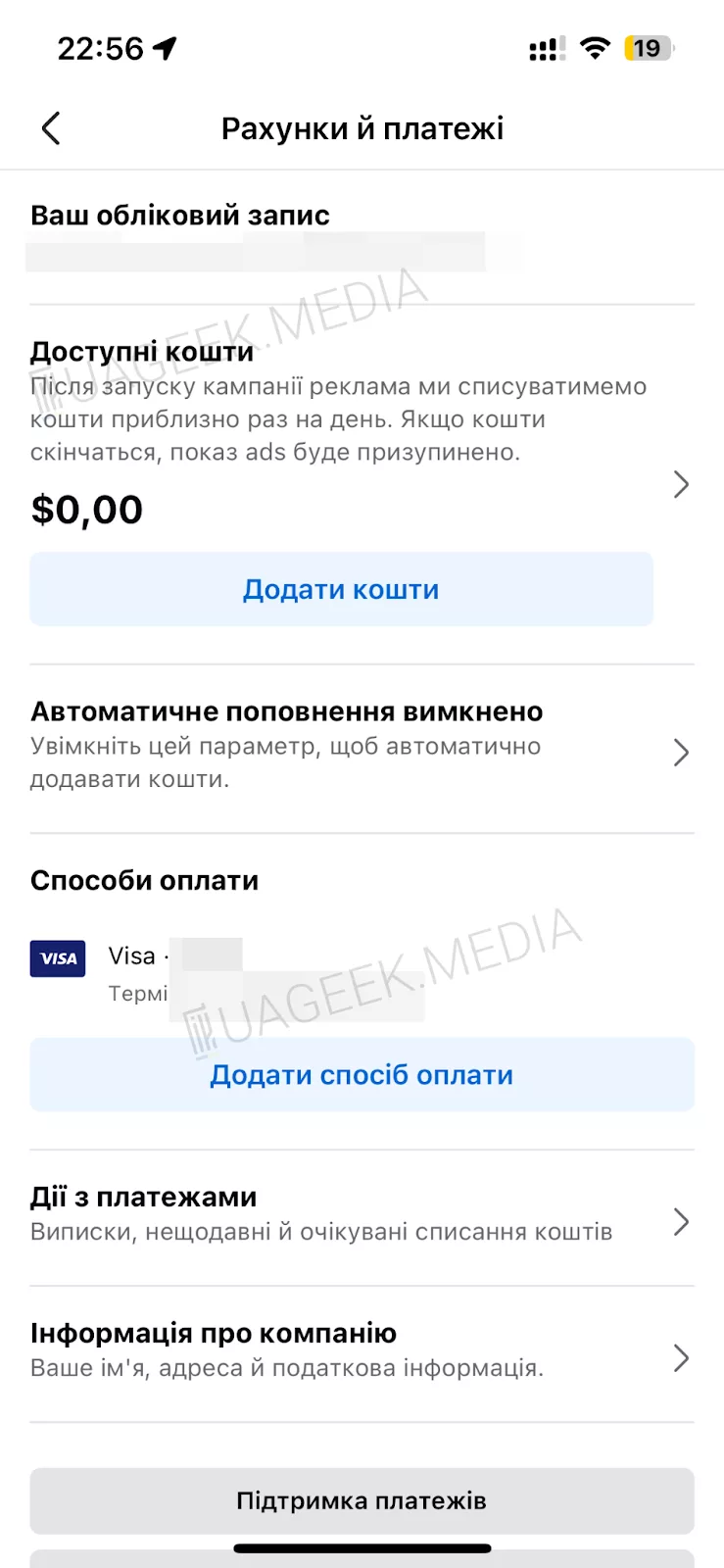
Tap “Add payment method”, enter your data (same as previous methods), and save.
If the standard Facebook Ads card-adding method doesn’t work, one of these methods definitely will. Use alternative options to avoid wasting time and continue running ads without interruptions.