

Scaling a business without Facebook advertising is almost an impossible task. This platform remains one of the most powerful tools for promoting products and services. In this article, we’ll walk through how to properly launch an ad campaign step by step, and which tips will help you get maximum results.
If you want to avoid wasting budget and run ads smoothly, you should focus on having a high-quality Facebook Ads account in 2026. This can be a standard account or an agency ad account.
Launching Facebook Ads: first steps
For work, you’ll use Facebook Ads Manager. Go to: adsmanager.facebook.com
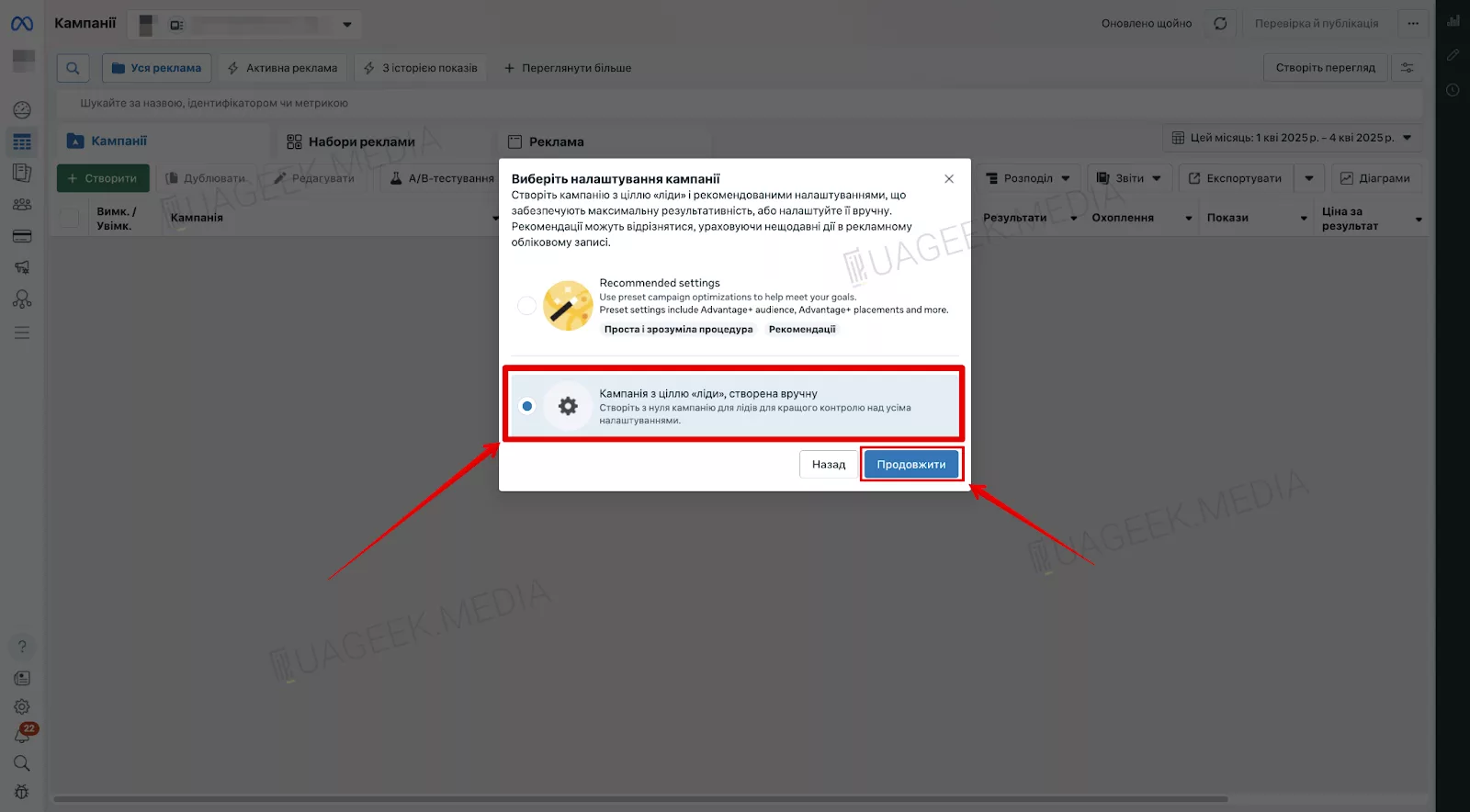
Next, it’s simple: create a campaign — click “Create”.
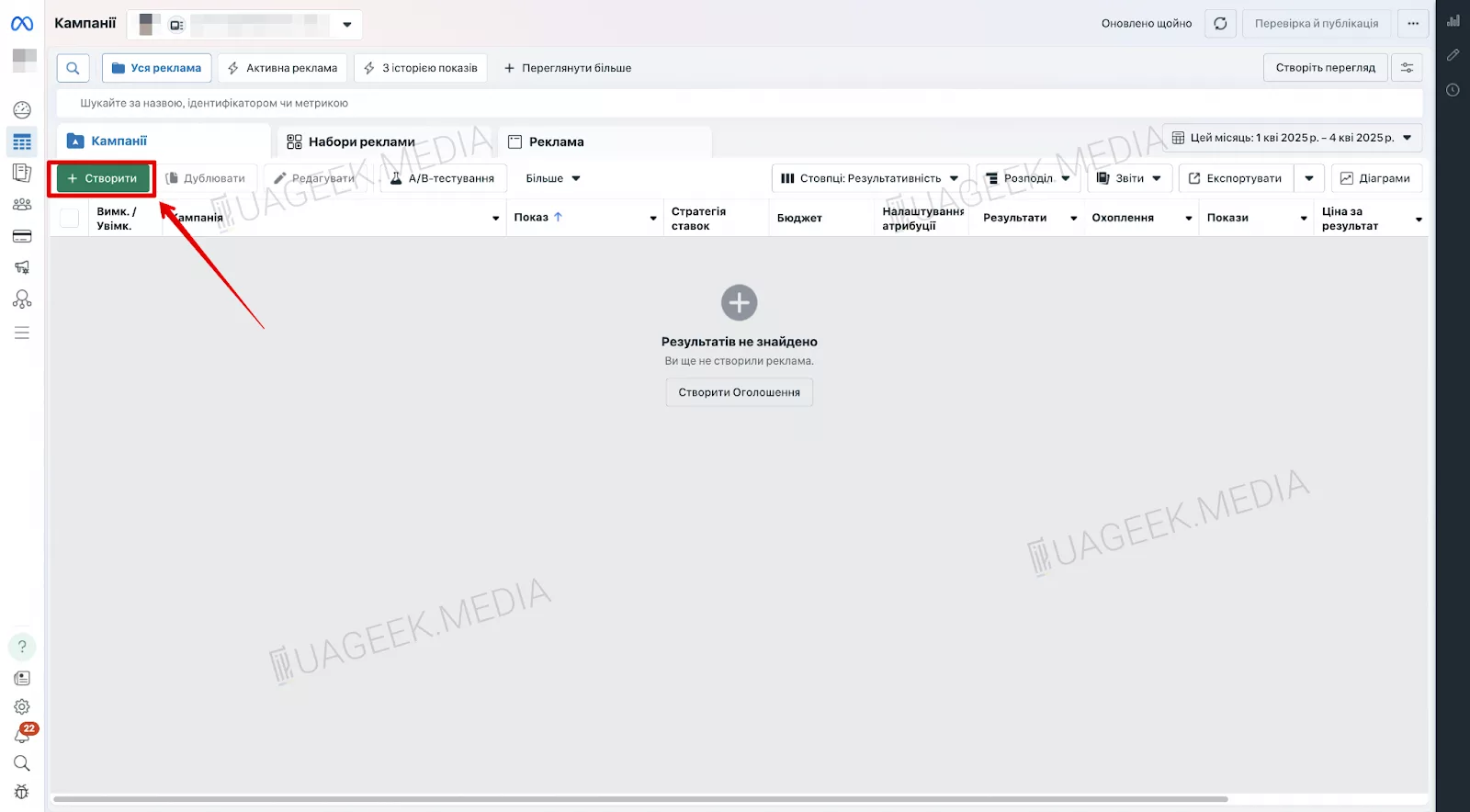
Select “Leads” as your campaign objective. This format is great for lead generation in nutra, e-commerce, crypto, and other niches. Click “Continue”.
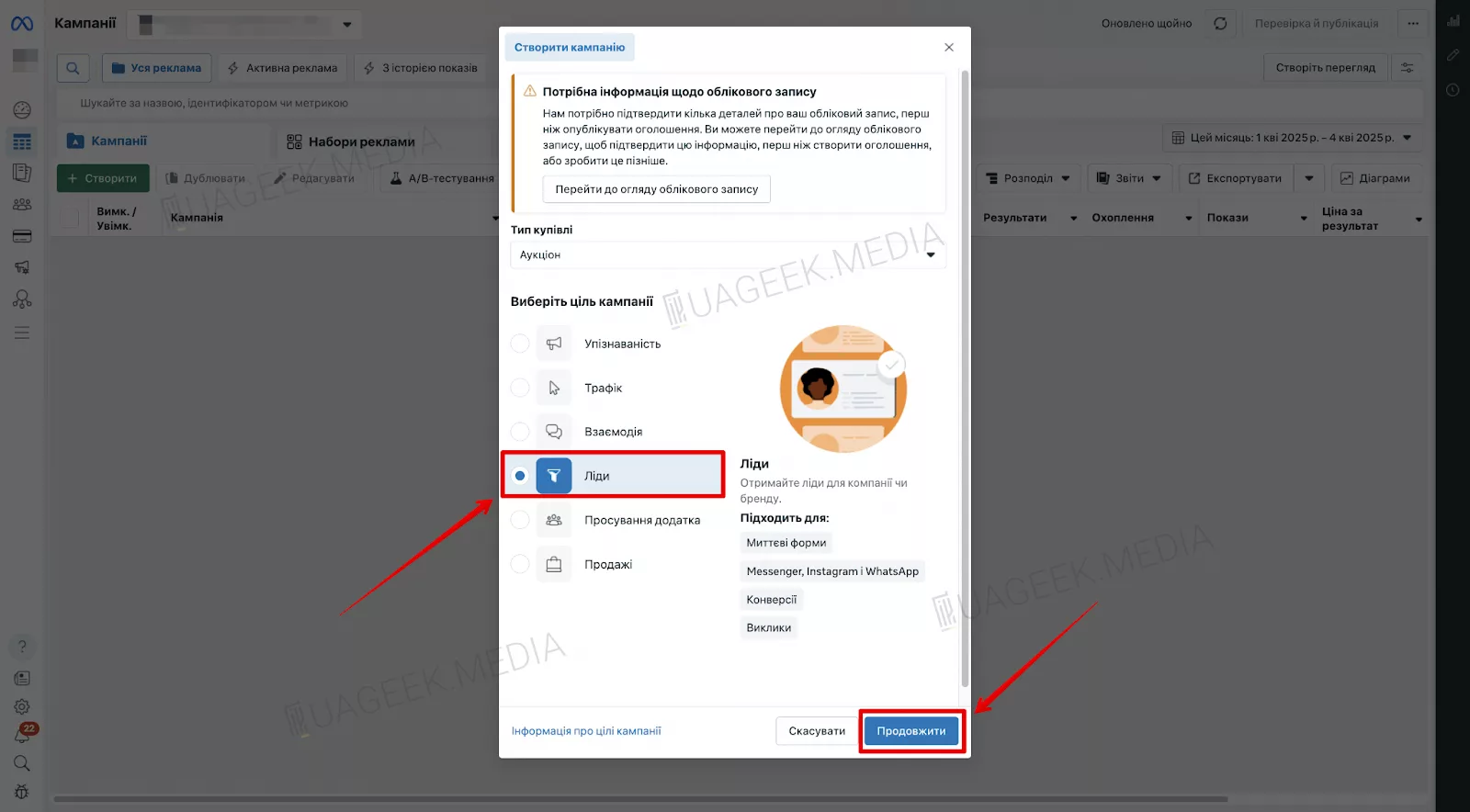
Choose “Leads campaign created manually” — this is manual campaign creation, which gives you more control over the settings. Click “Continue”.
Ad spend strategies
Before setting things up, you need to decide on a launch strategy. In affiliate marketing, there are three core models:
- 1-1-1 — one campaign, one ad set, one ad.
- 1-3-1 — one campaign, three ad sets, each with one ad.
- 1-1-3 — one campaign, one ad set, with three ads inside.
Other options are modifications and combinations of these schemes. It’s worth testing all three periodically, because their effectiveness changes depending on Facebook’s algorithms.
Campaign setup
To avoid confusion, give the campaign a clear name: specify the GEO and the offer name. This saves time if you manage multiple launches at once.
In the settings:
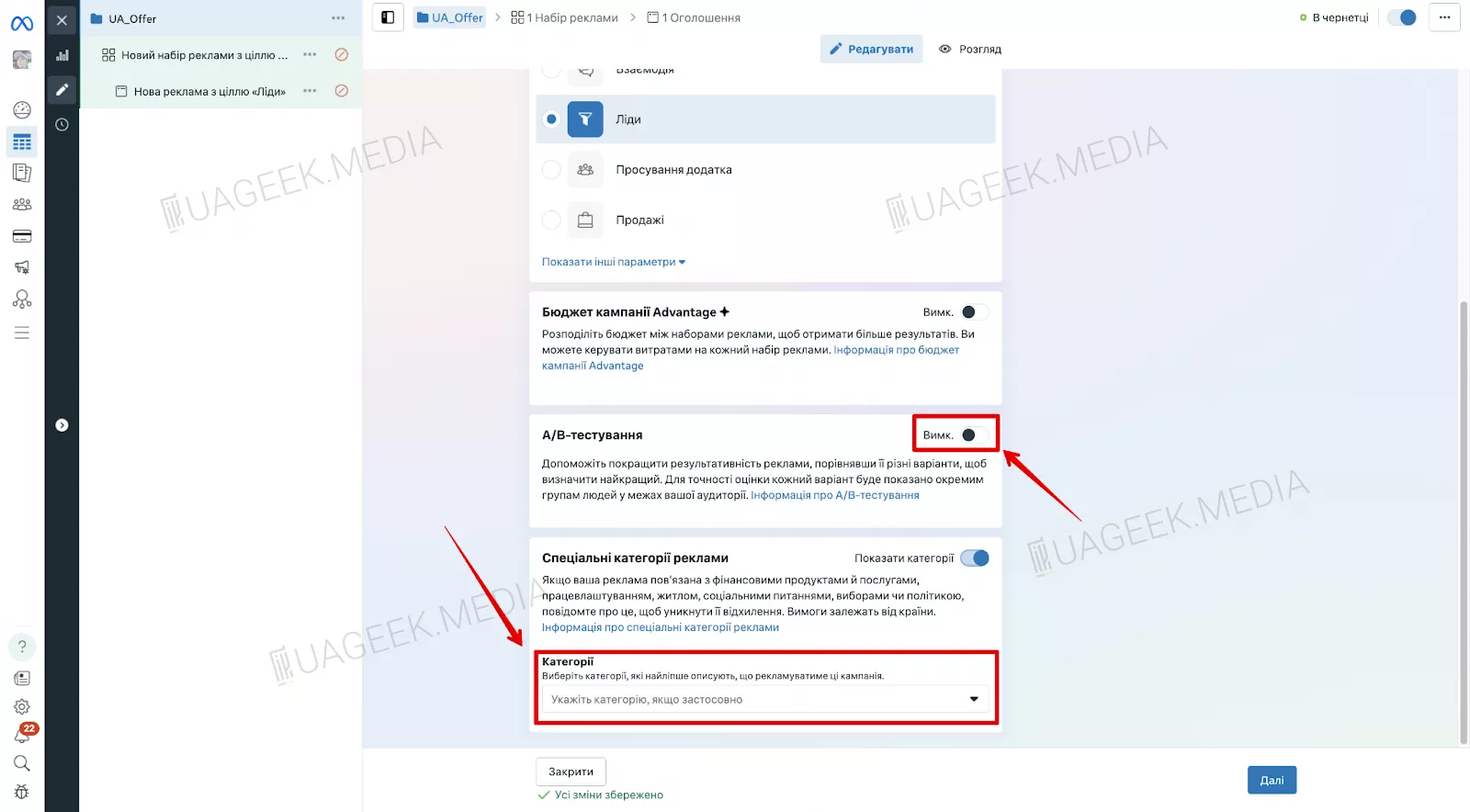
- Leave “Categories” empty (you only need to fill them in for niches like: credit, real estate, politics, and employment).
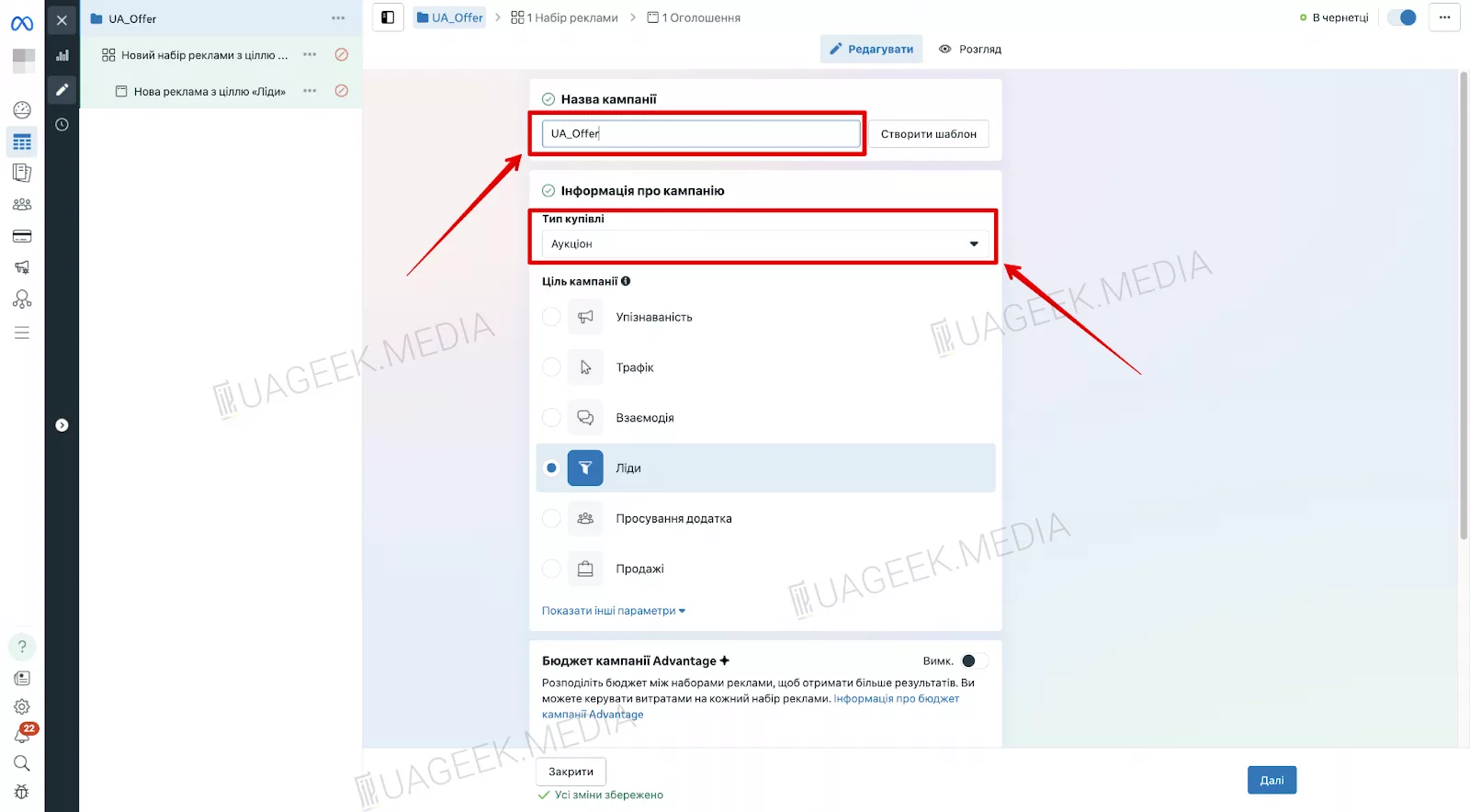
Auction — default; Leads — the primary campaign objective; A/B test — off.
Budget allocation: campaign or ad set?
Facebook offers two options:
- Campaign budget optimization — the system decides where to allocate funds.
- Ad set budgeting — a flexible option that lets you manually manage spend and boost high-performing ad sets.
If your campaign has only one ad set, you can set the budget at the campaign level. If there are multiple ad sets, it’s better to allocate budgets manually.

Budget setup
Enable “Advantage campaign budget”.
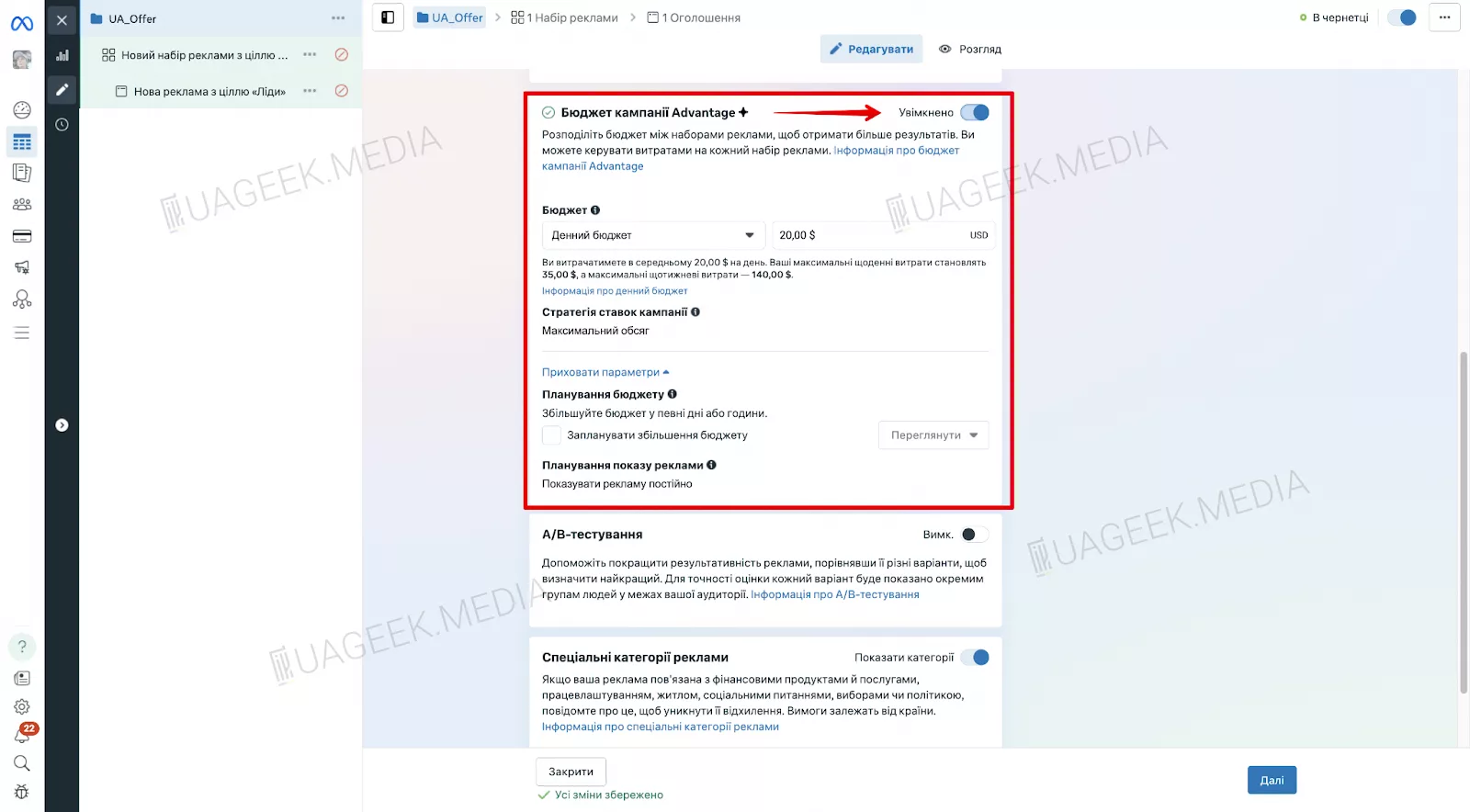
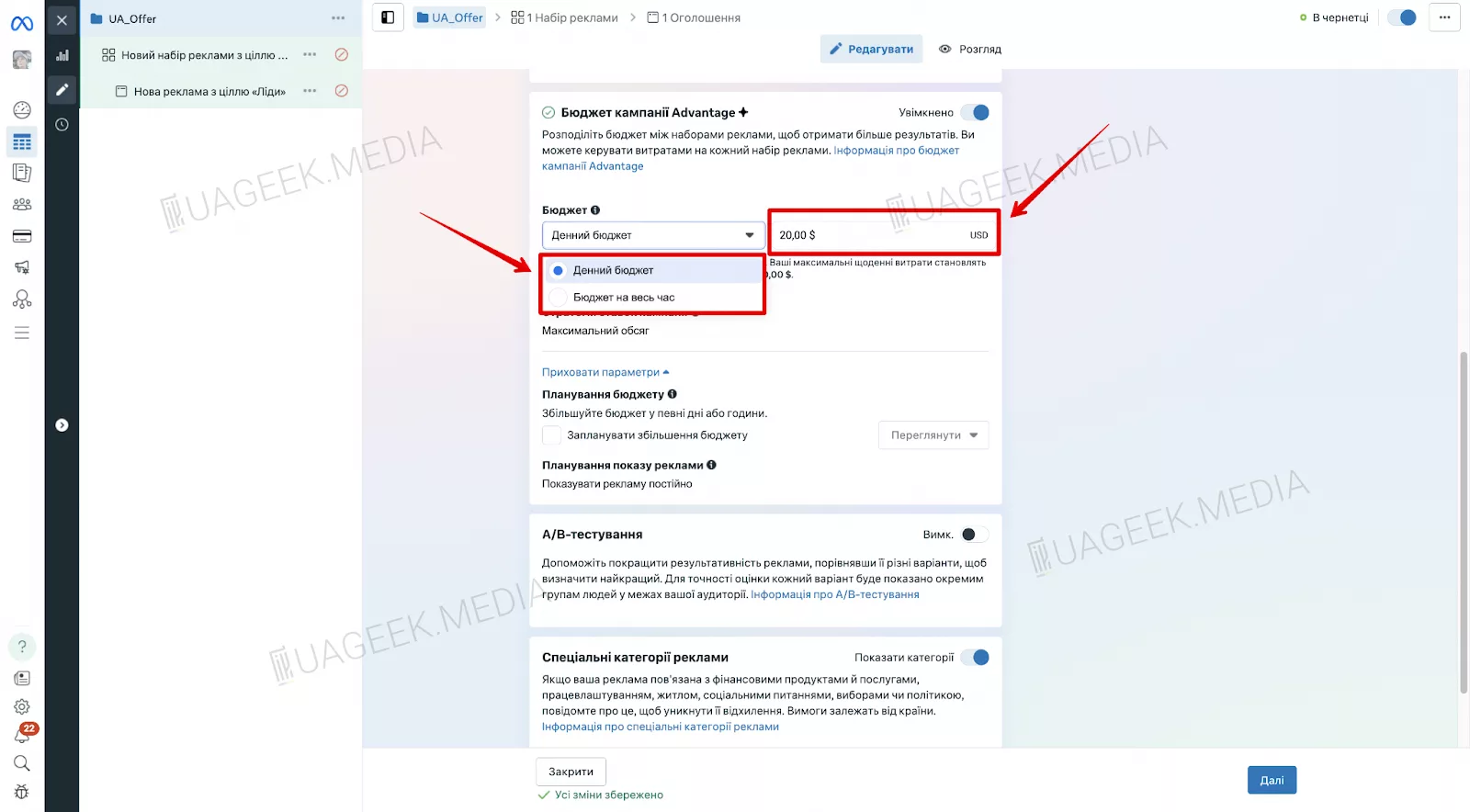
Choose a daily budget or a lifetime campaign budget. Enter an amount that fits within your account limit.
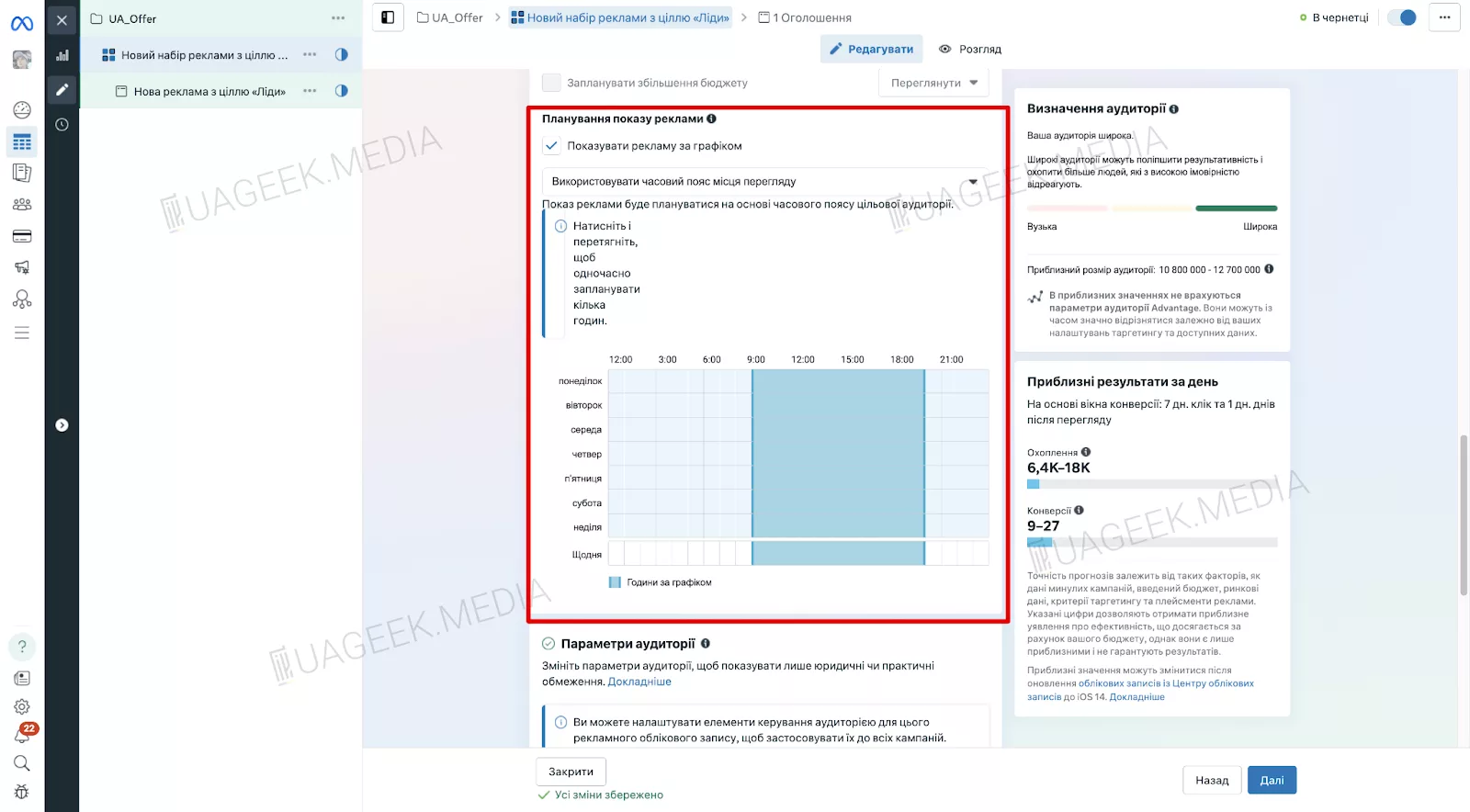
If you choose a lifetime budget, you can also set ad scheduling.
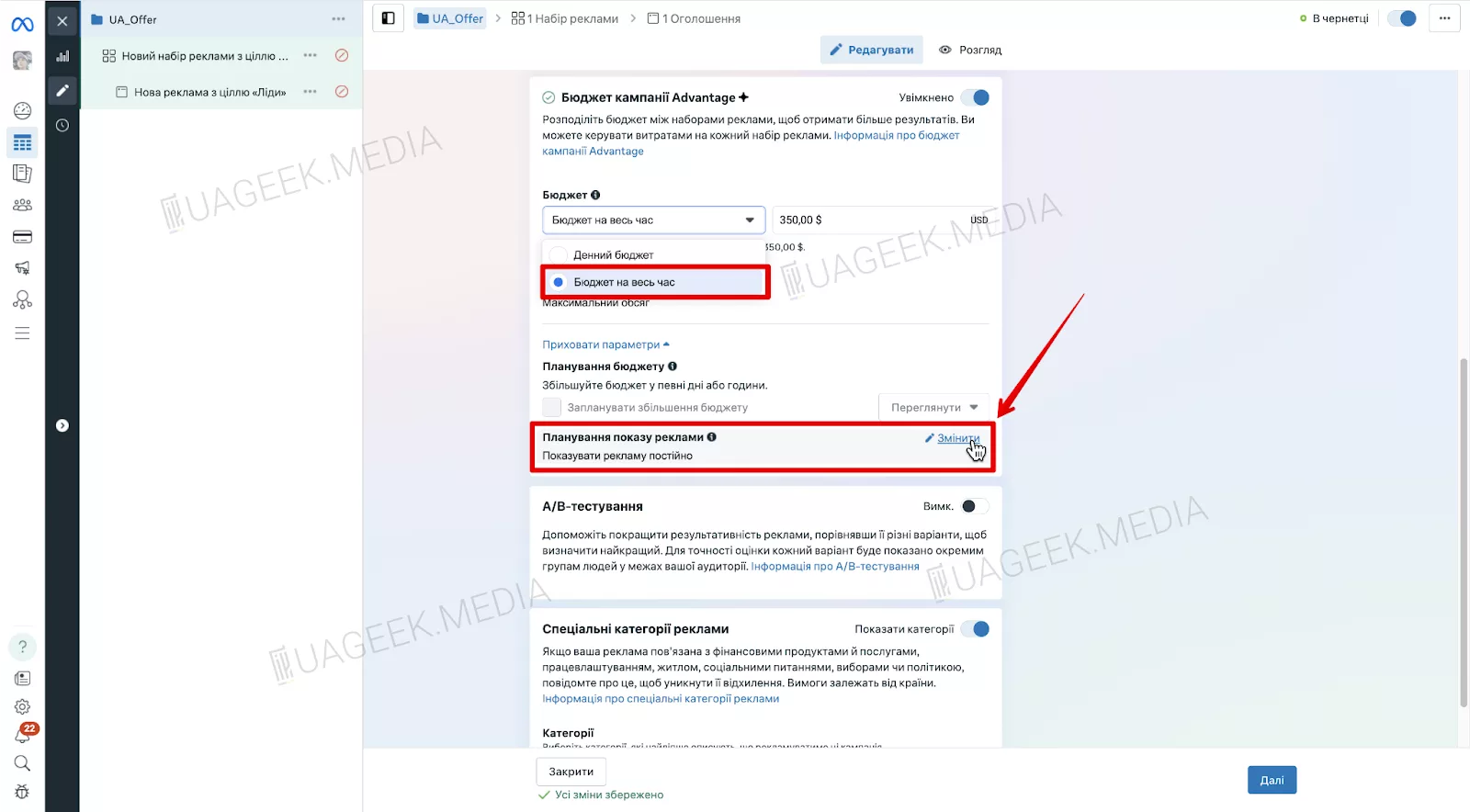
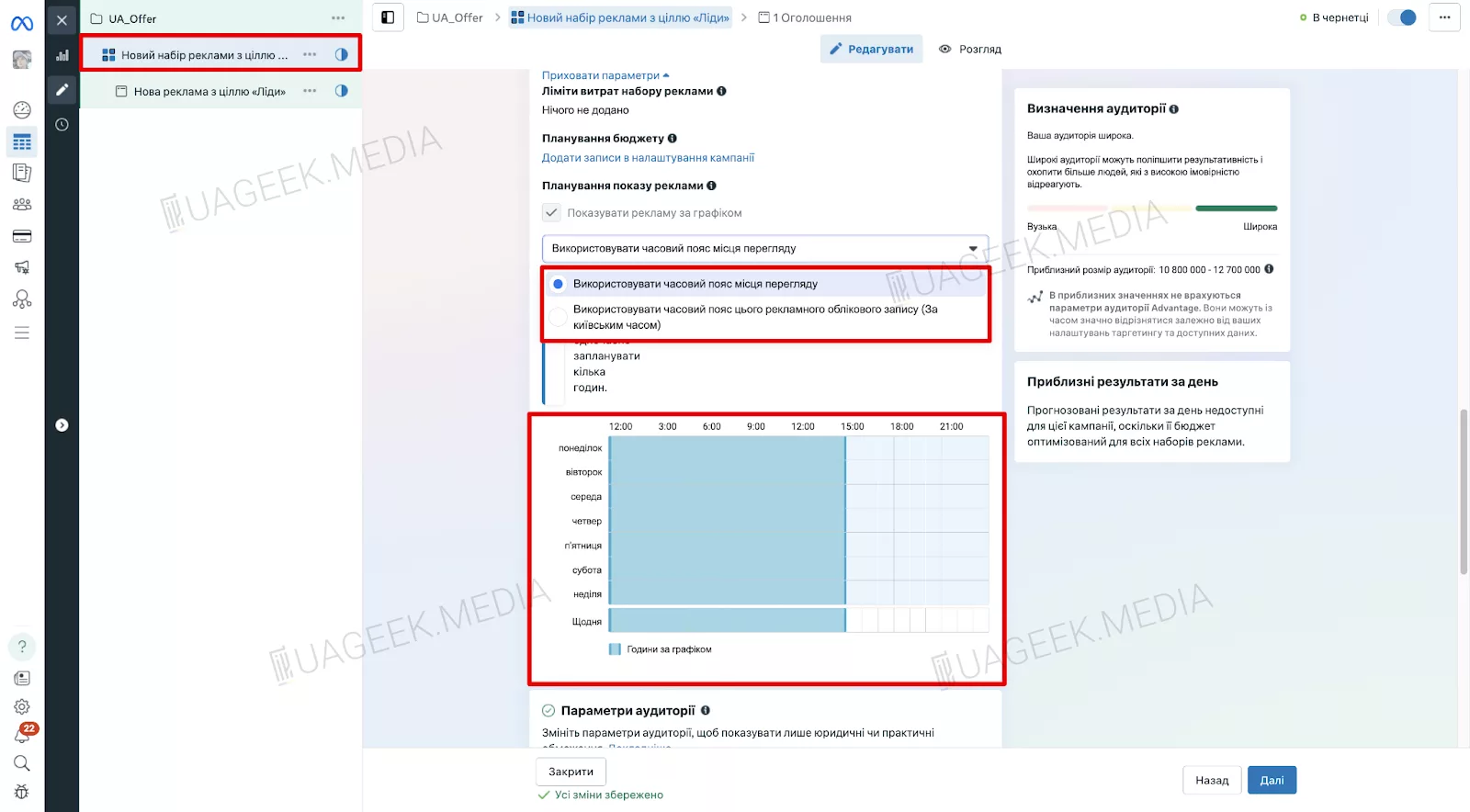
Click “Edit”. Select “Run ads on a schedule”.
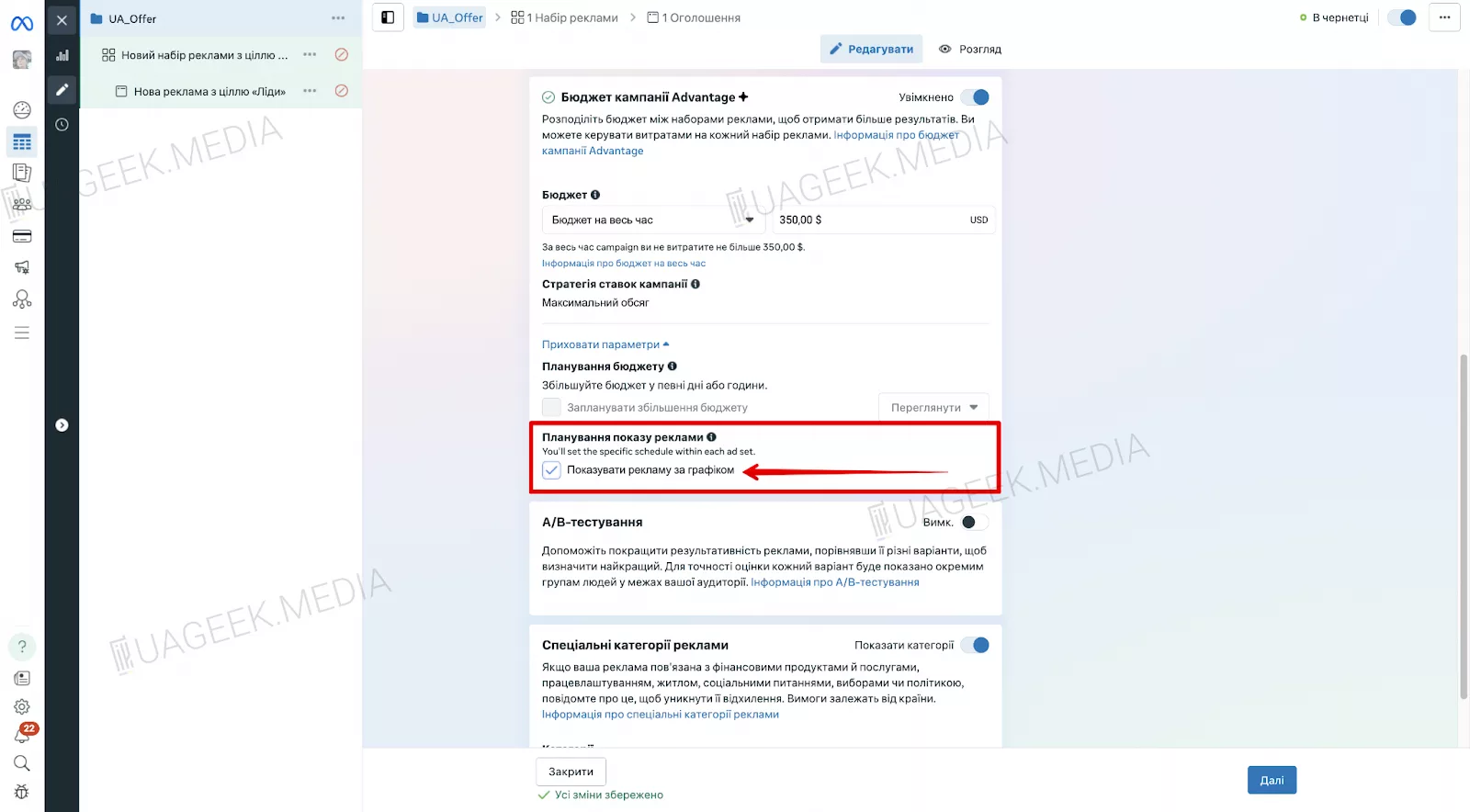
Set the hours and days of the week when the ad will run.
Ad set budget
If you choose a lifetime budget, you can also set ad scheduling. To do this, enable the toggle and click “Next”.
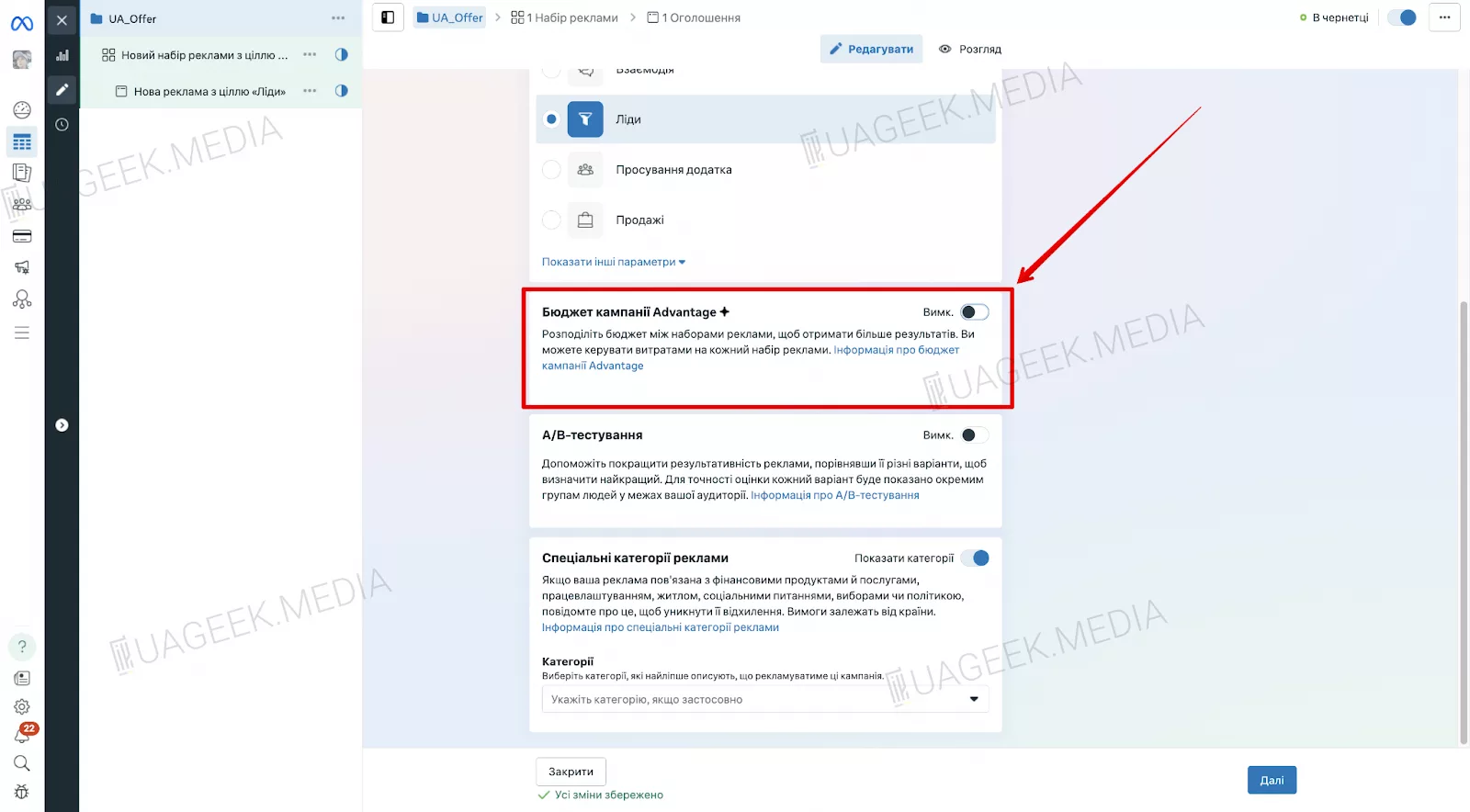
Scroll down a bit and you’ll find the same budget settings menu as in campaigns:
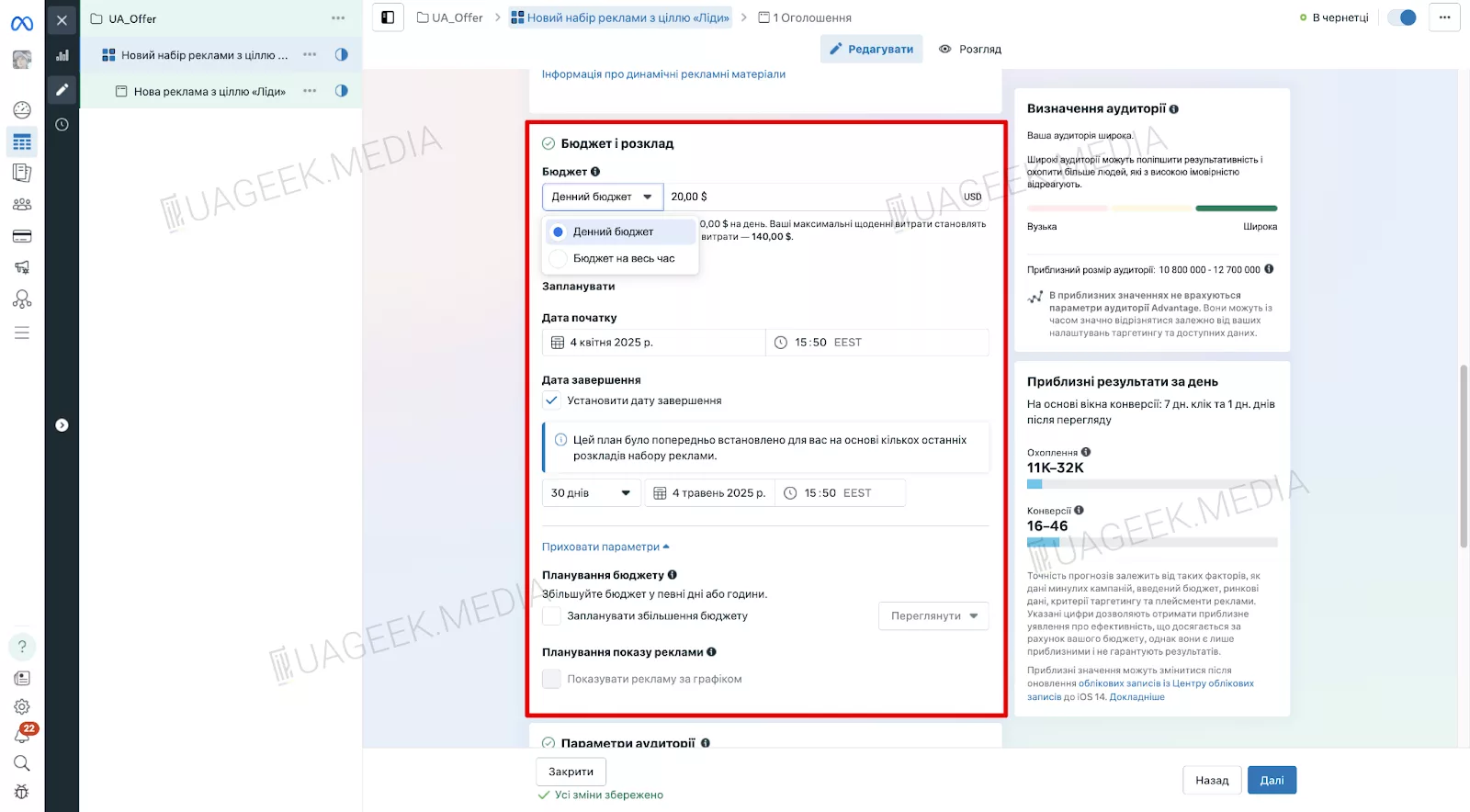
To run ads on a schedule, select “Run ads on a schedule”. Set the hours and days of the week when the ad will run.
Bidding strategies
By default, Facebook uses “Maximize number of leads”. However, manual options are also available:
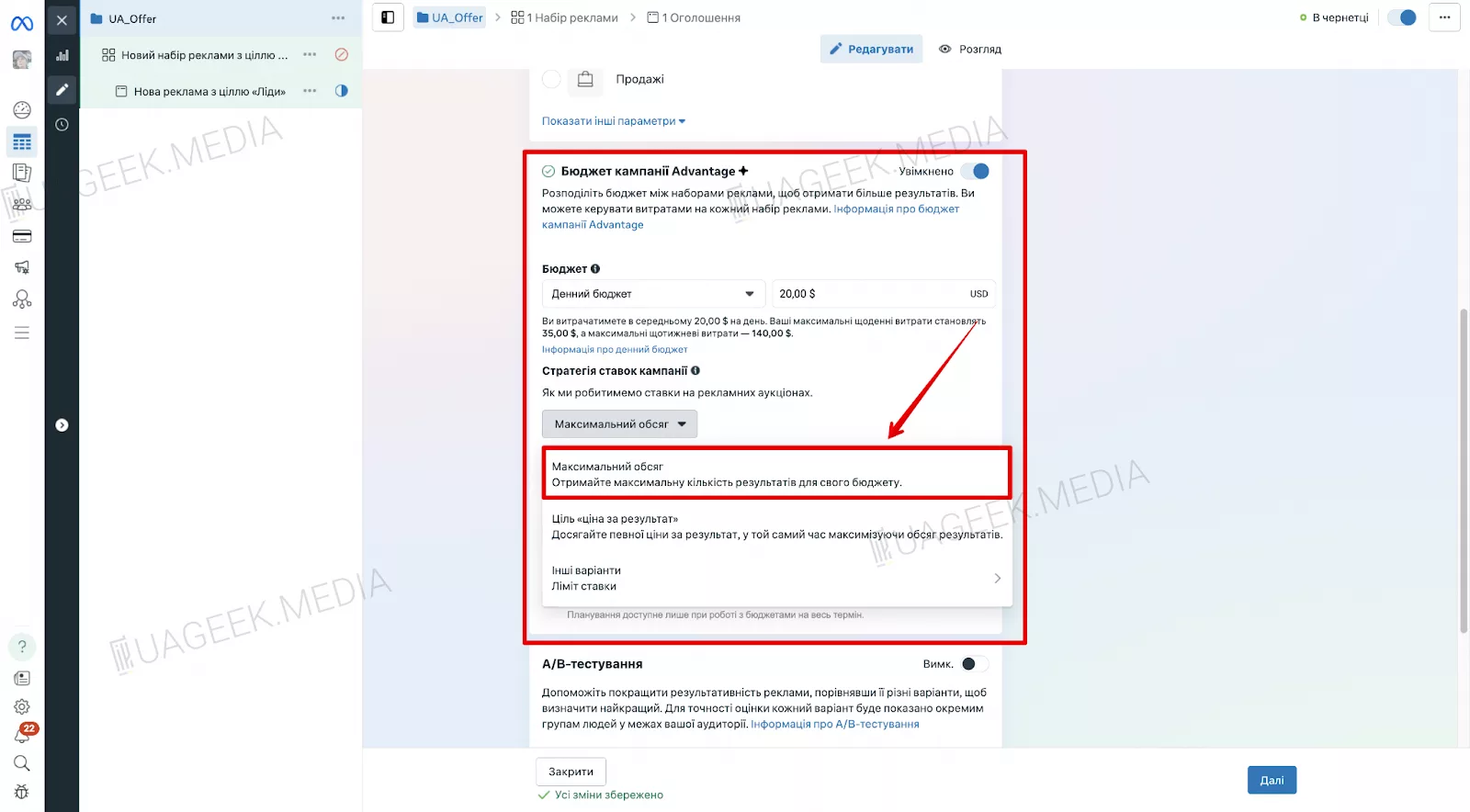
- Cost per result — the system will try to find leads at your specified cost, if possible.
- Bid cap — sets the maximum bid in the auction, helping you outbid competitors.
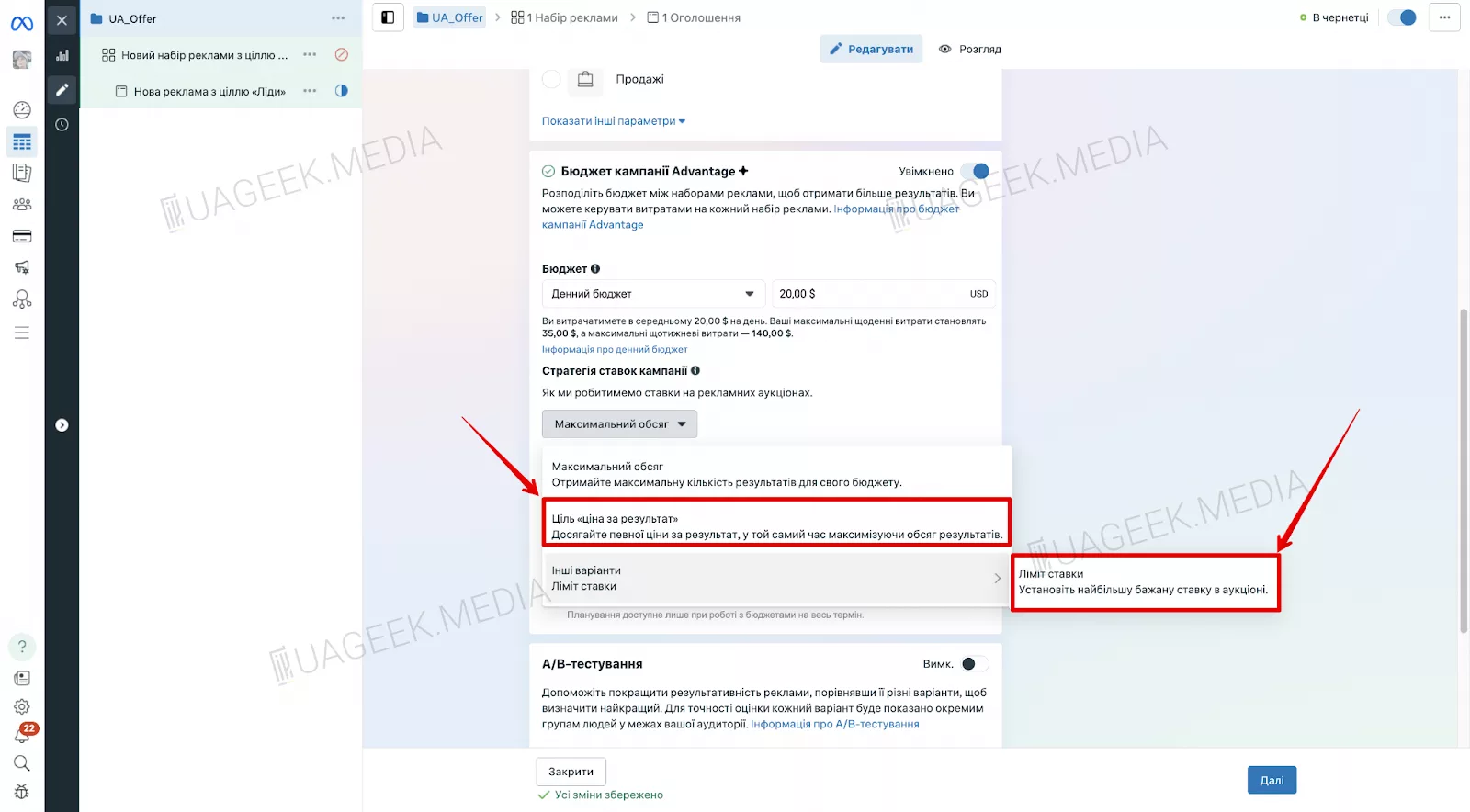
To configure these settings, first enter your lead cost. Facebook will then offer a choice between Cost per result and Bid cap.
Launching ads at the right time
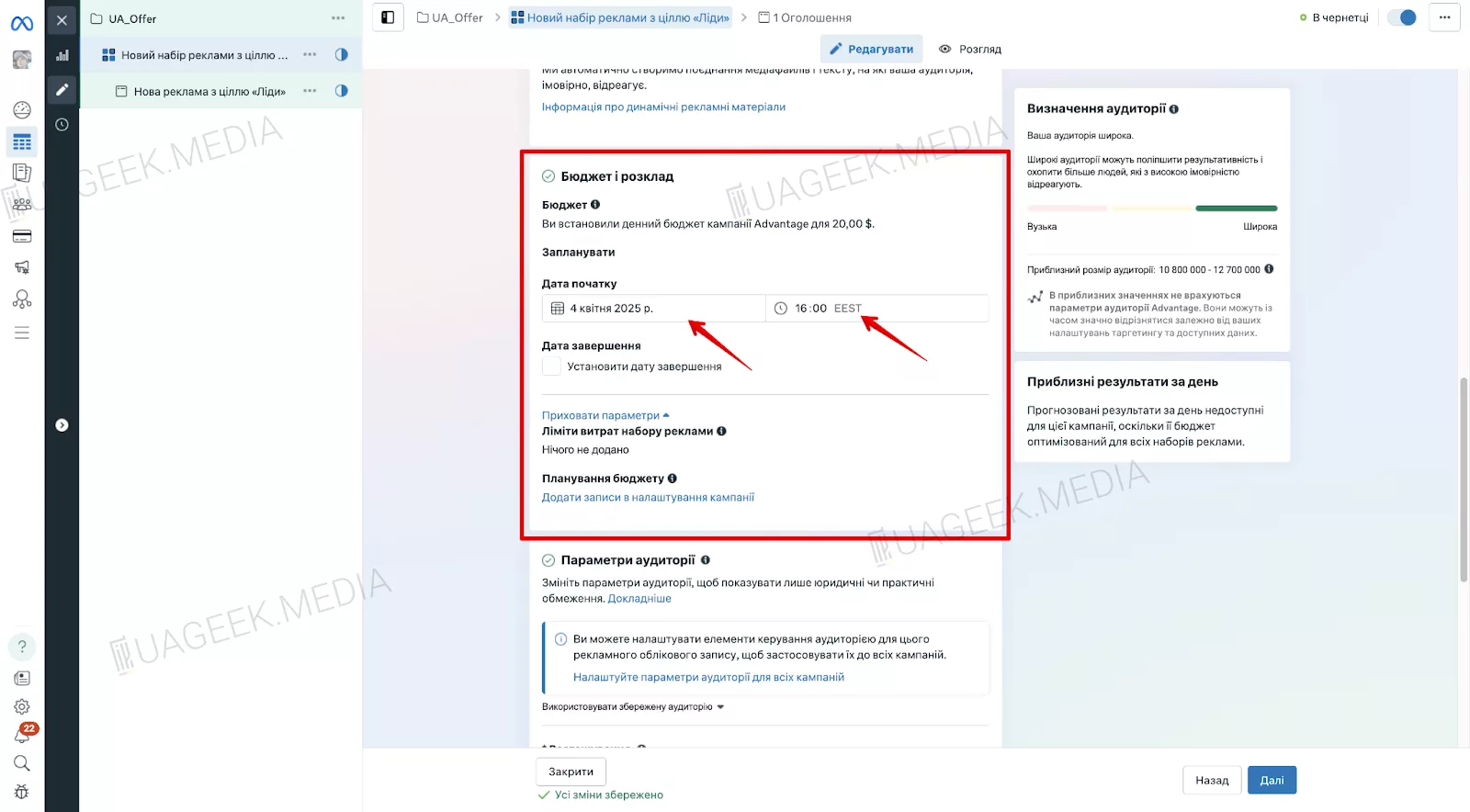
To prevent your budget from being spent too quickly, campaigns are typically started at 00:00. This allows the algorithms to distribute impressions evenly throughout the day. You can also set a scheduled start — simply choose the date and time.
Setting up an Ad Set in Facebook Ads
An Ad Set is a group of ads that combines a specific audience, budget, and delivery settings. To avoid confusion, assign a logical name that reflects the key launch parameters. Select “Website”.
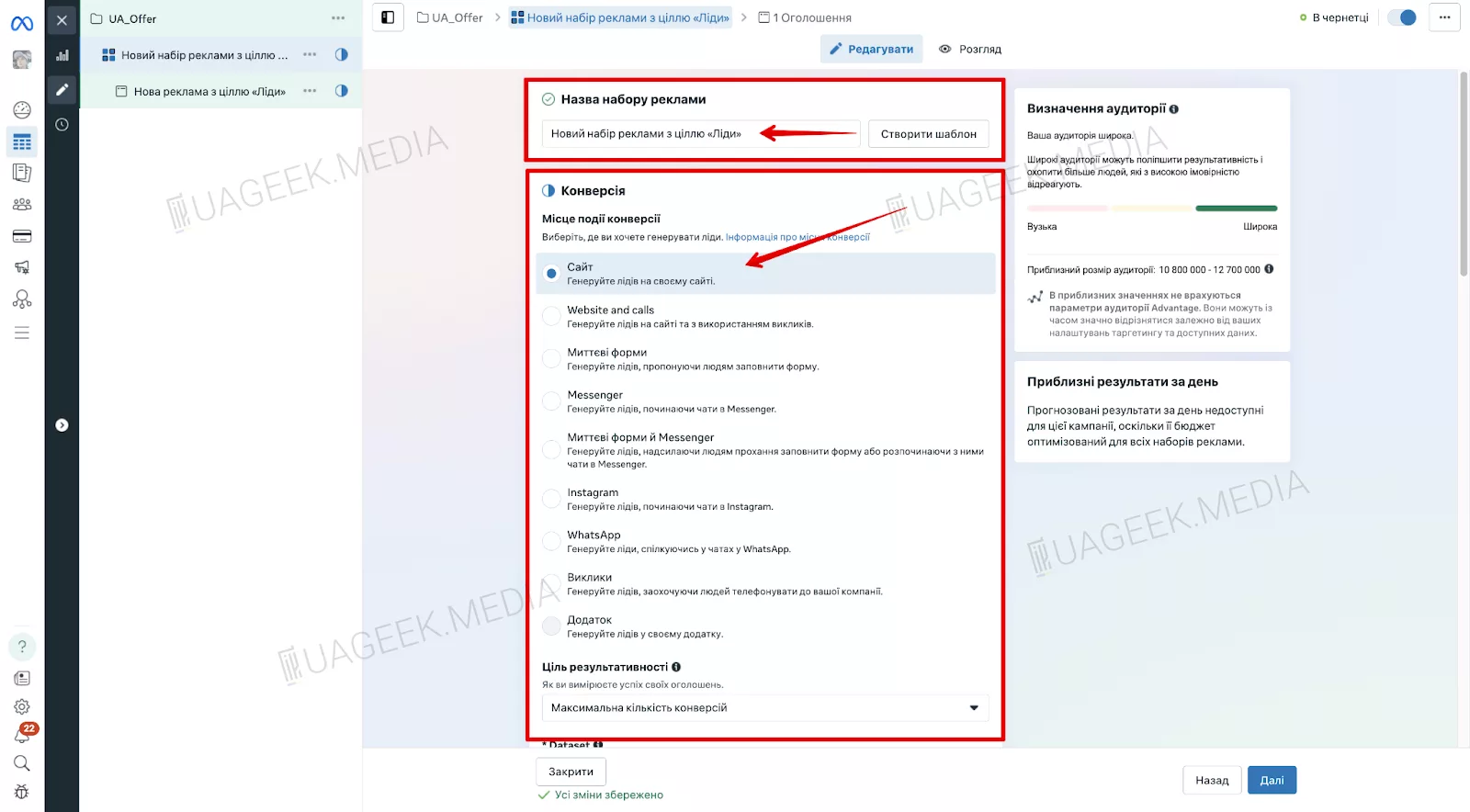
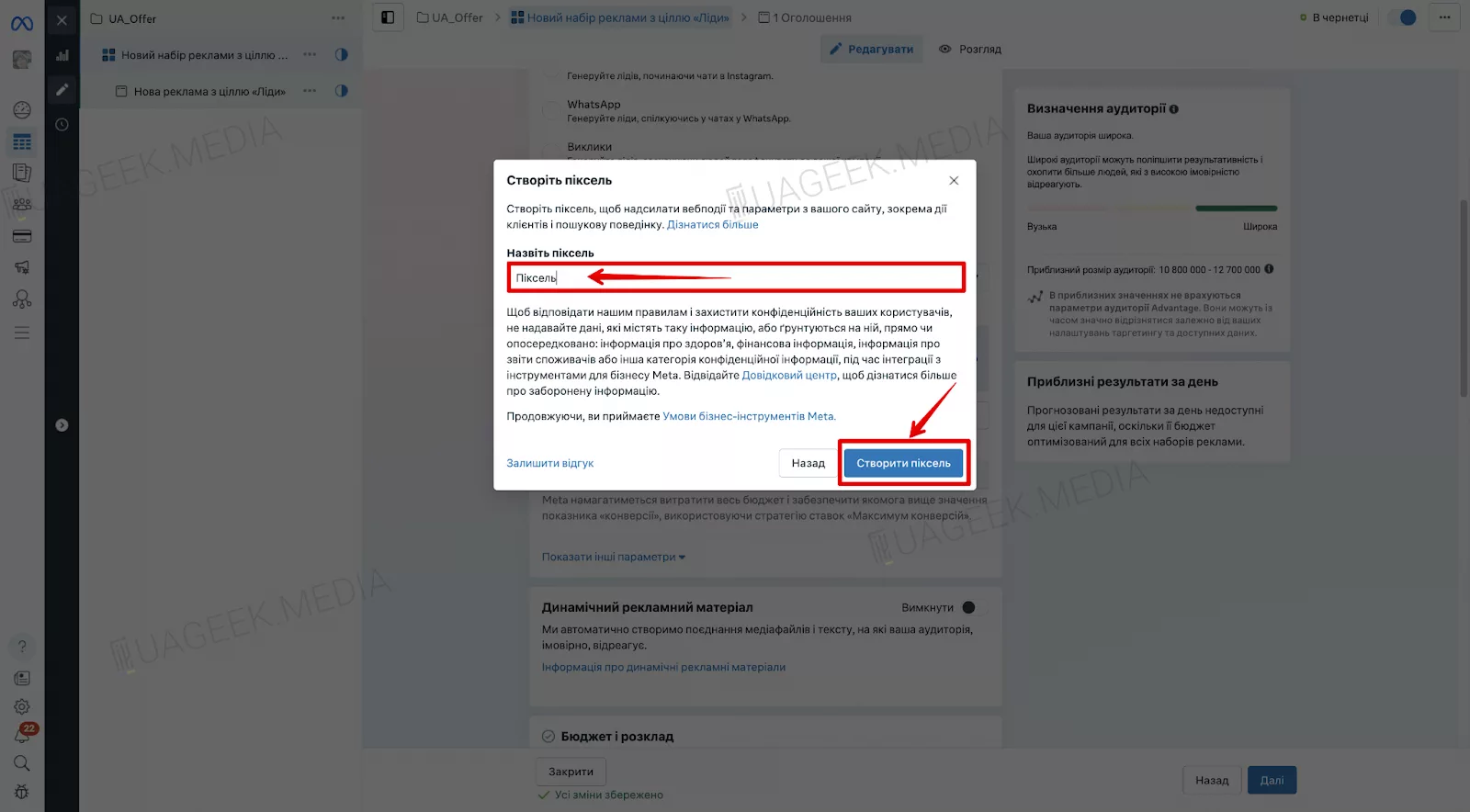
Next, create a pixel.


Its name/value can be anything. Click “Create pixel”.
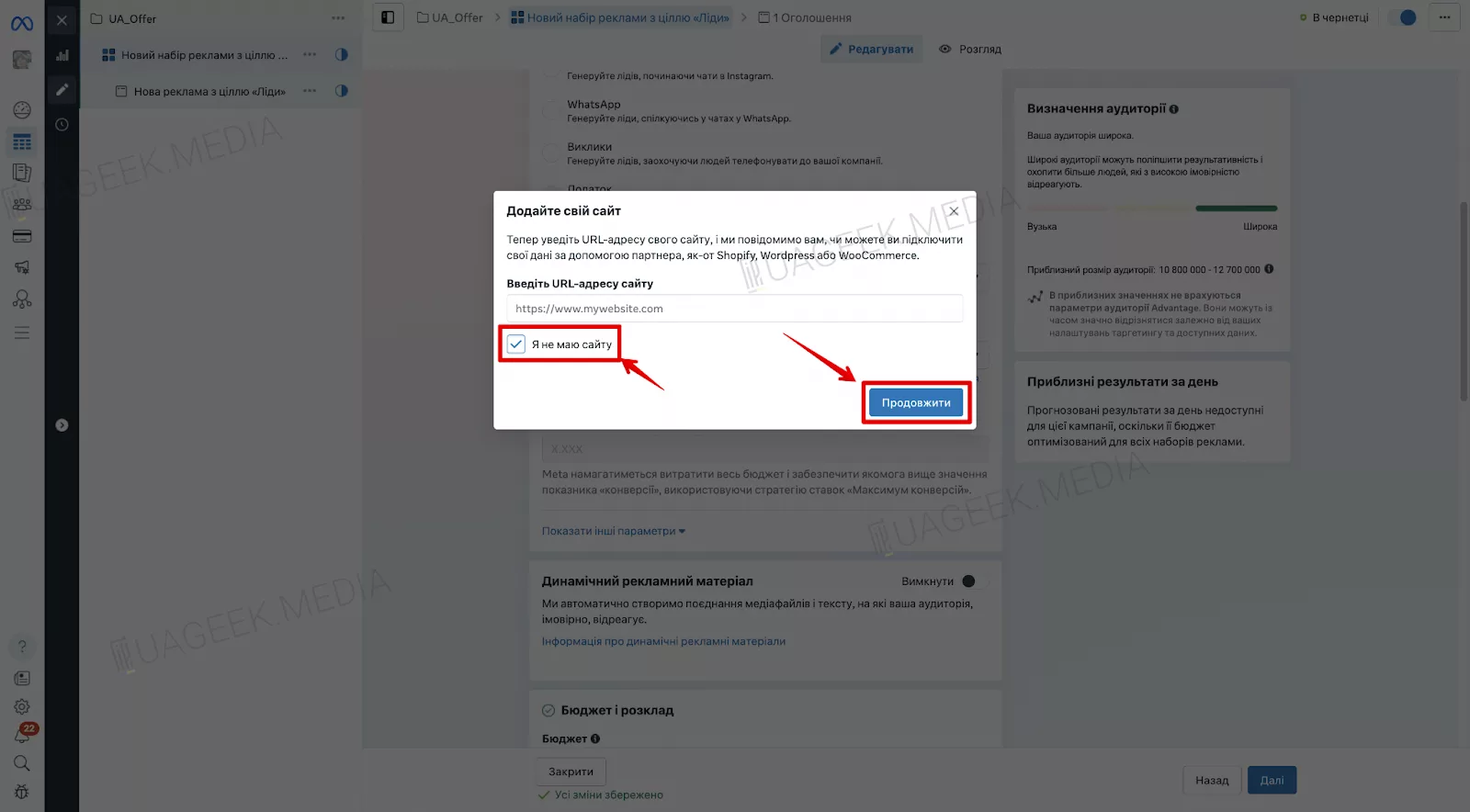
Check the box “I don’t have a website”. To continue, click “Continue” and refresh the page.
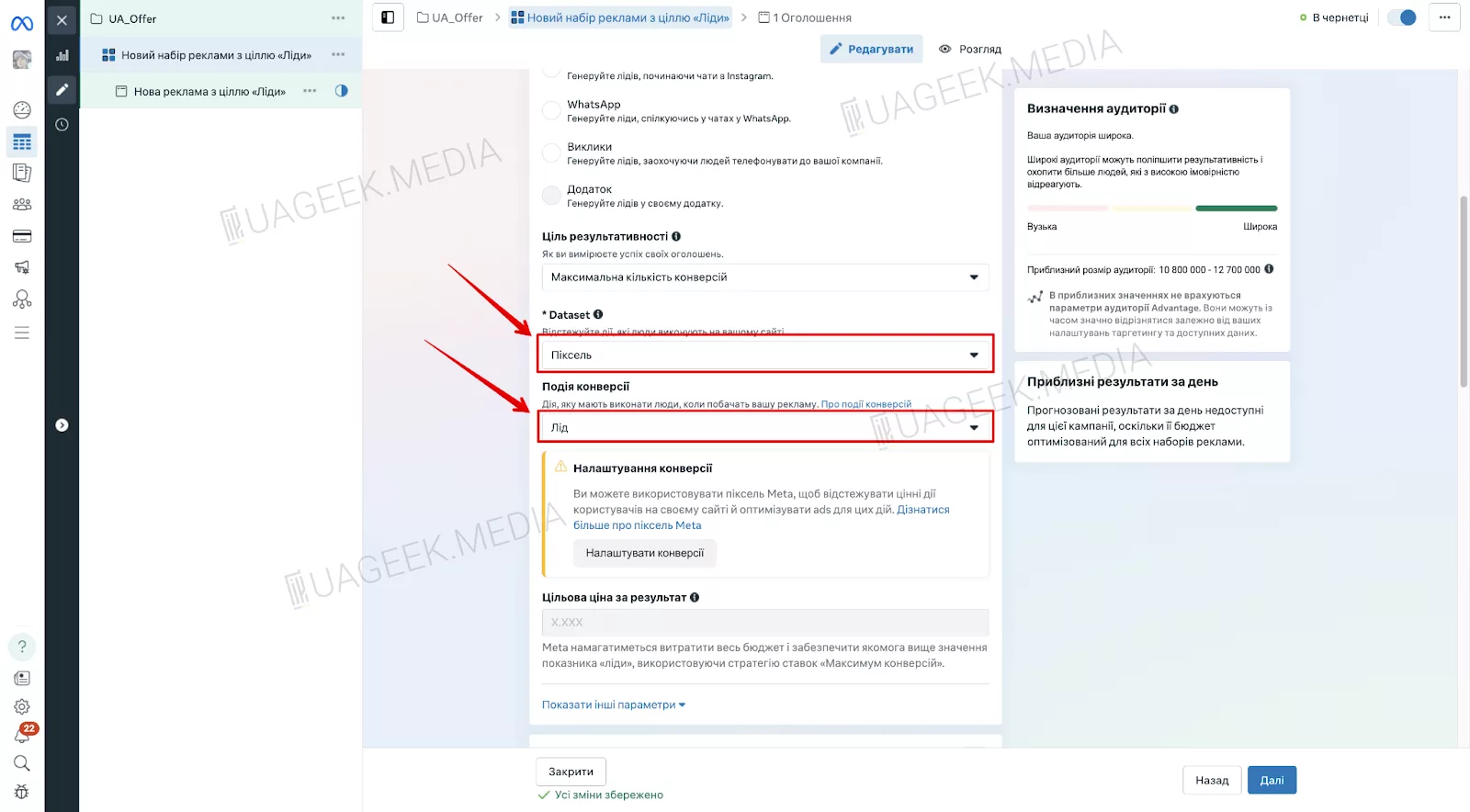
Select the pixel you created and, in the “Conversion event” field, choose Lead.
Move on to targeting settings.
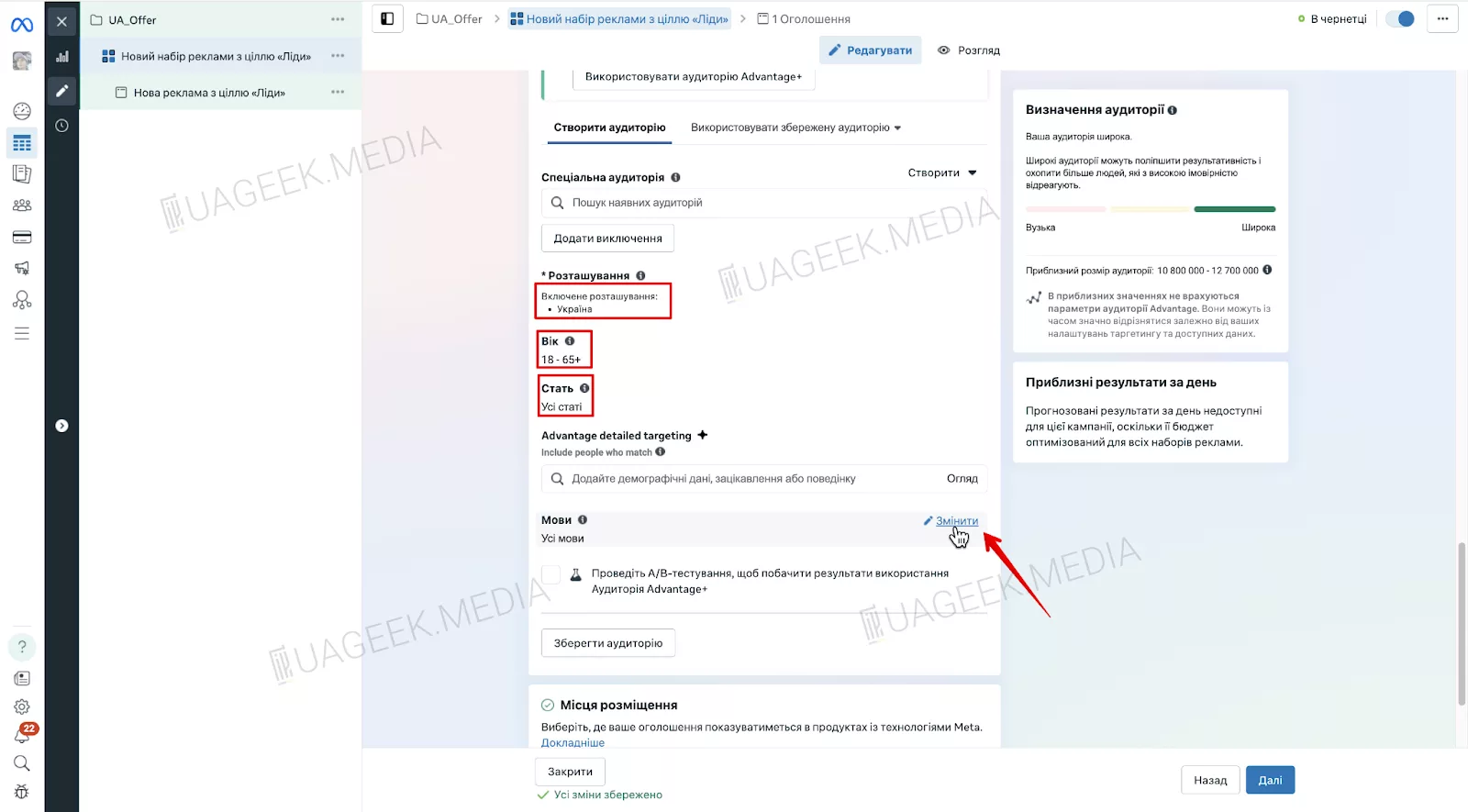
- In the “Audience controls” tab, set the country, age, gender, and language.
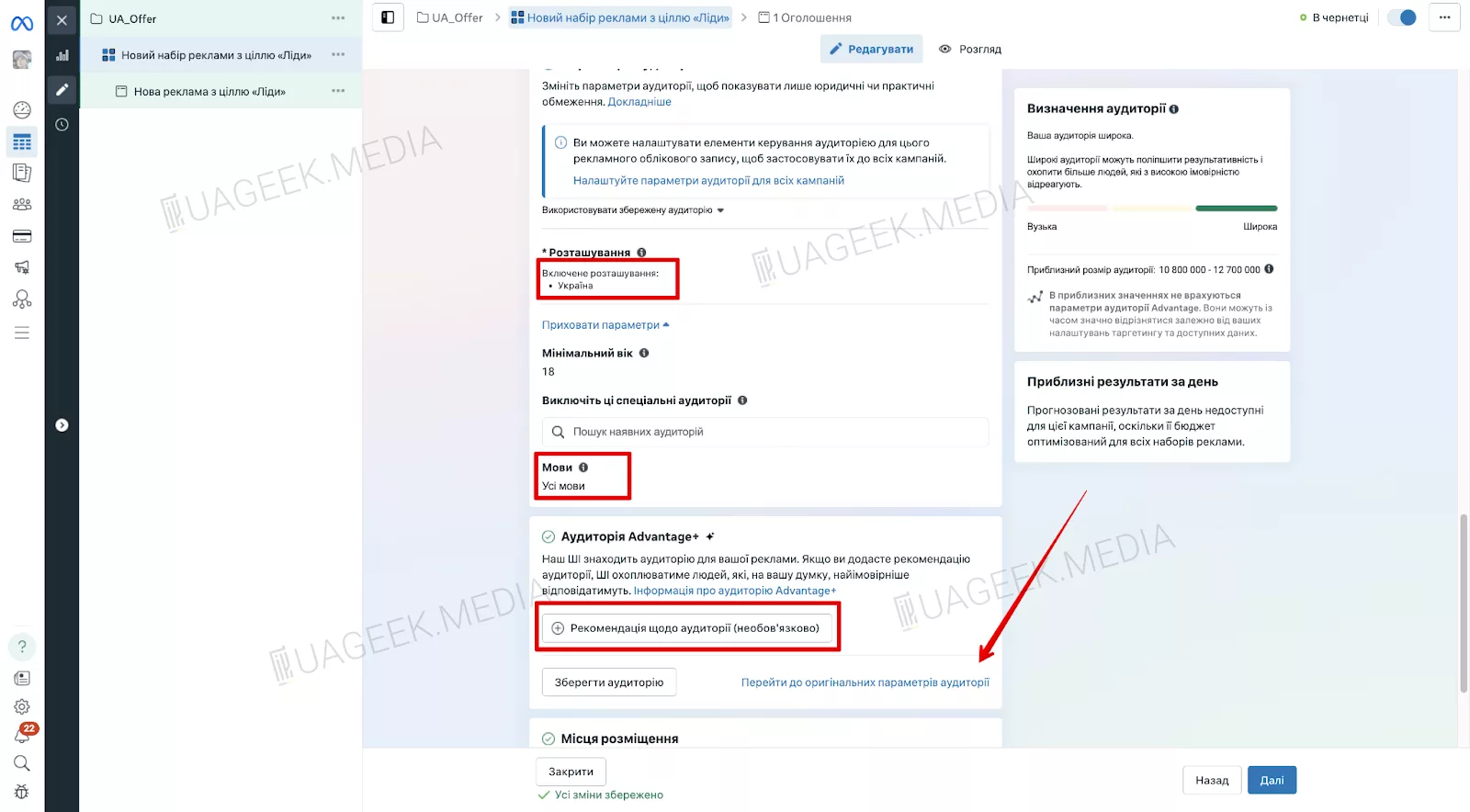
- In “Advantage+ audience”, choose “Audience suggestion” to receive Facebook recommendations.
If you need basic settings:
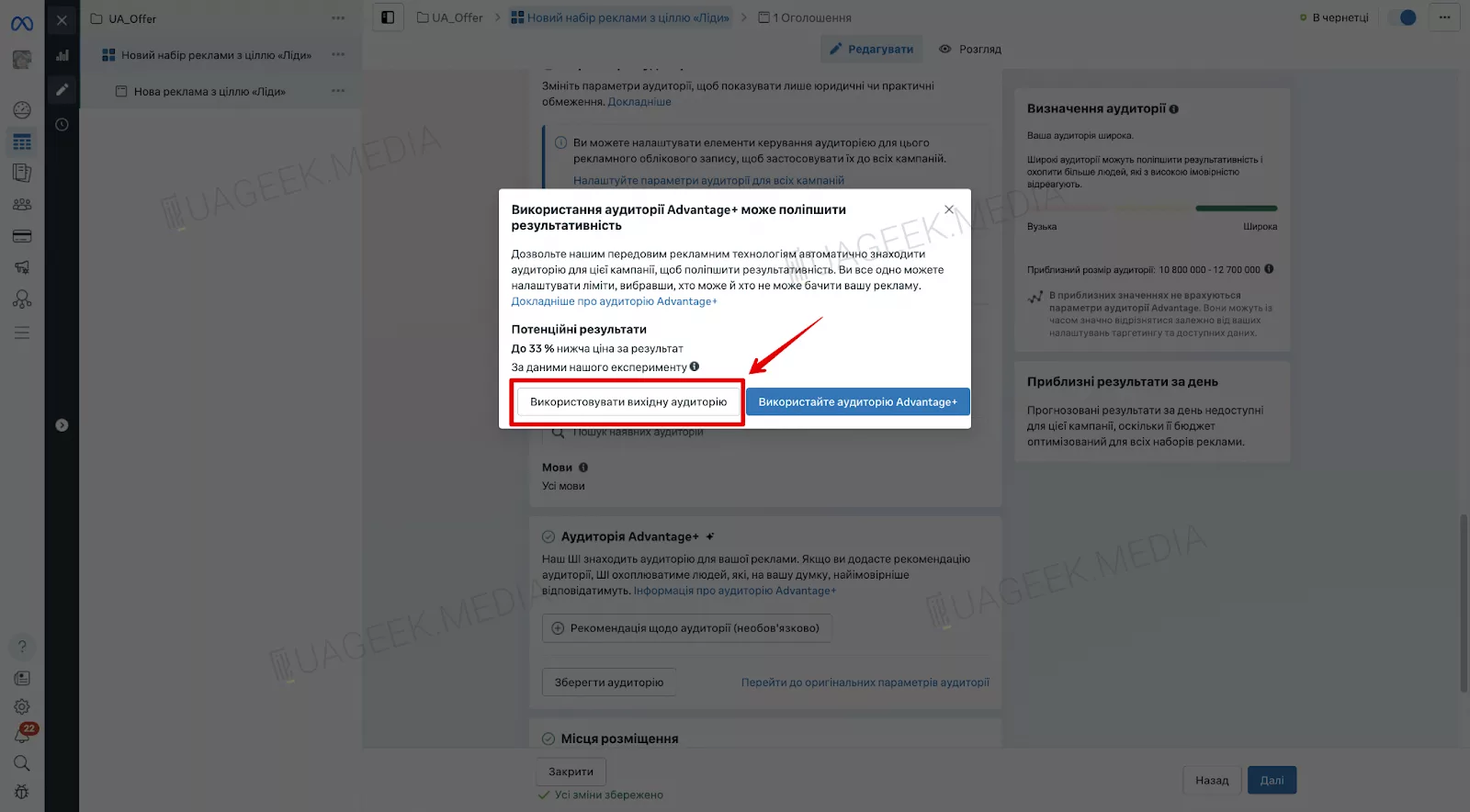
- Click “Switch to original audience options”.
- In the new window, click “Use original audience”.
This will open the legacy targeting version, where you can fine-tune parameters in more detail. For example, you can specify the “language of your audience”.
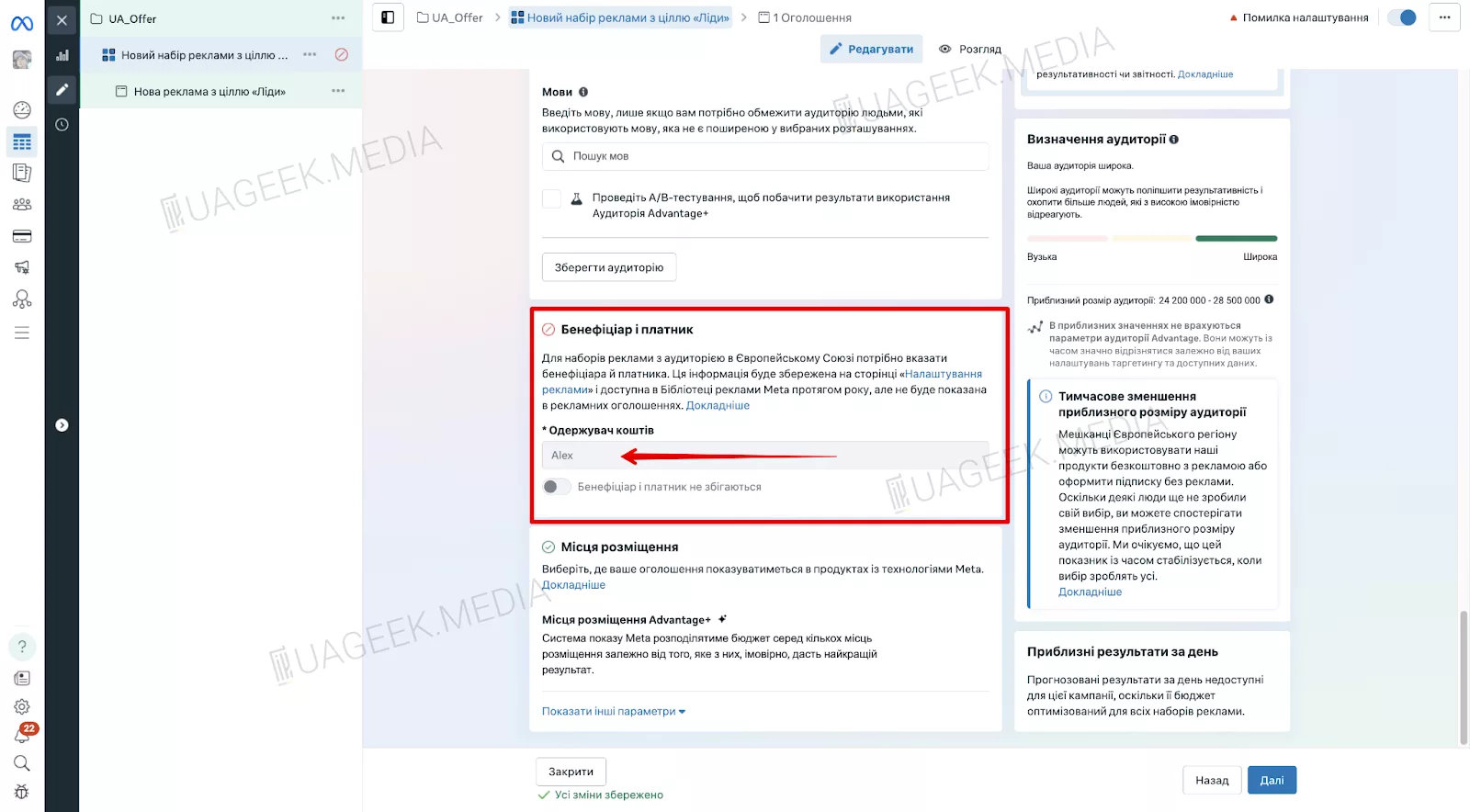
Important: if you are running ads in Europe, you must enter a Beneficiary (a fictional name), otherwise Facebook may reject the campaign.
Placement selection
By default, automatic placements are enabled — Facebook chooses the best inventory for ad delivery.
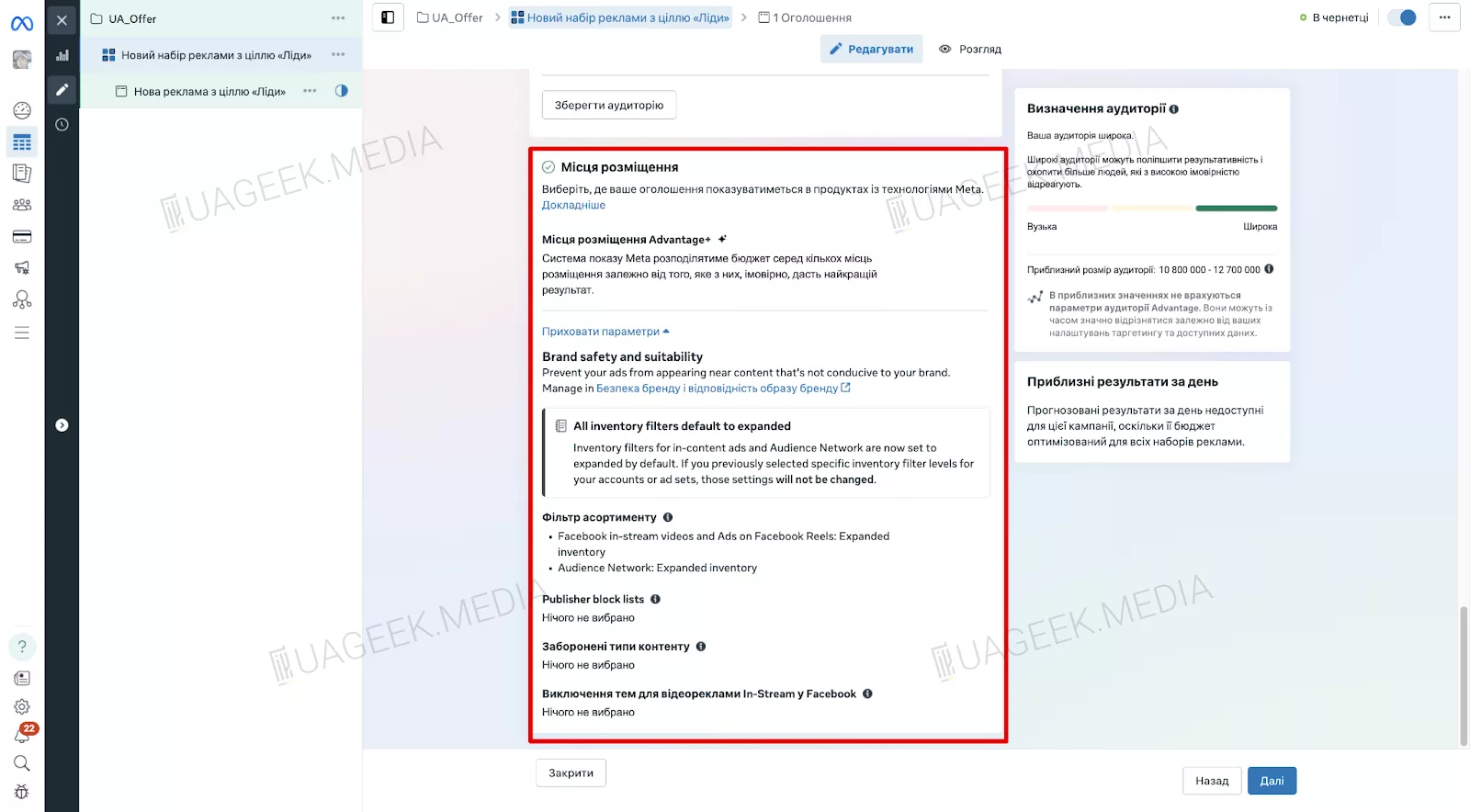
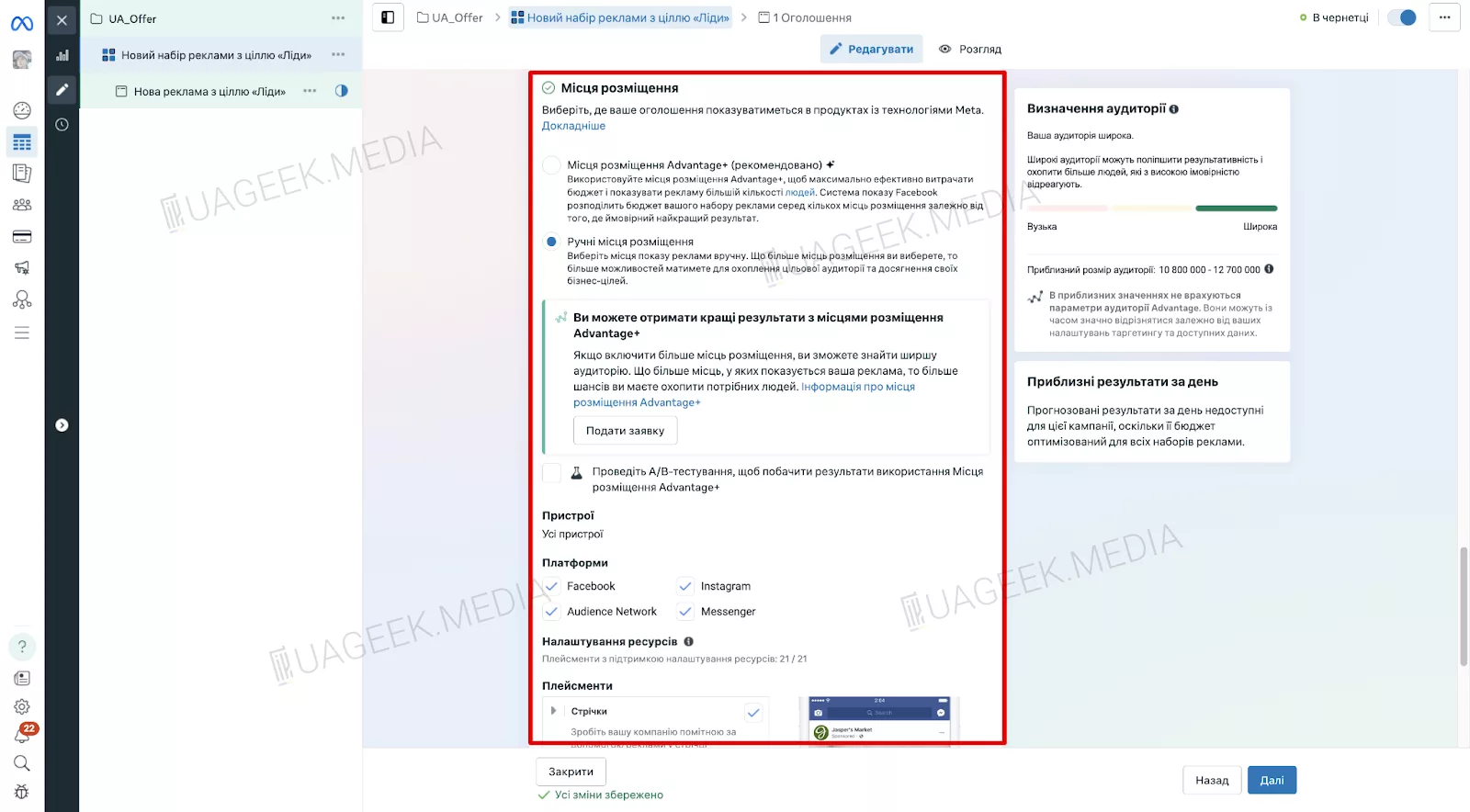
But if you need manual control:
- Click “Edit”, then choose “Manual placements”.
- Select where and how your ads should appear.
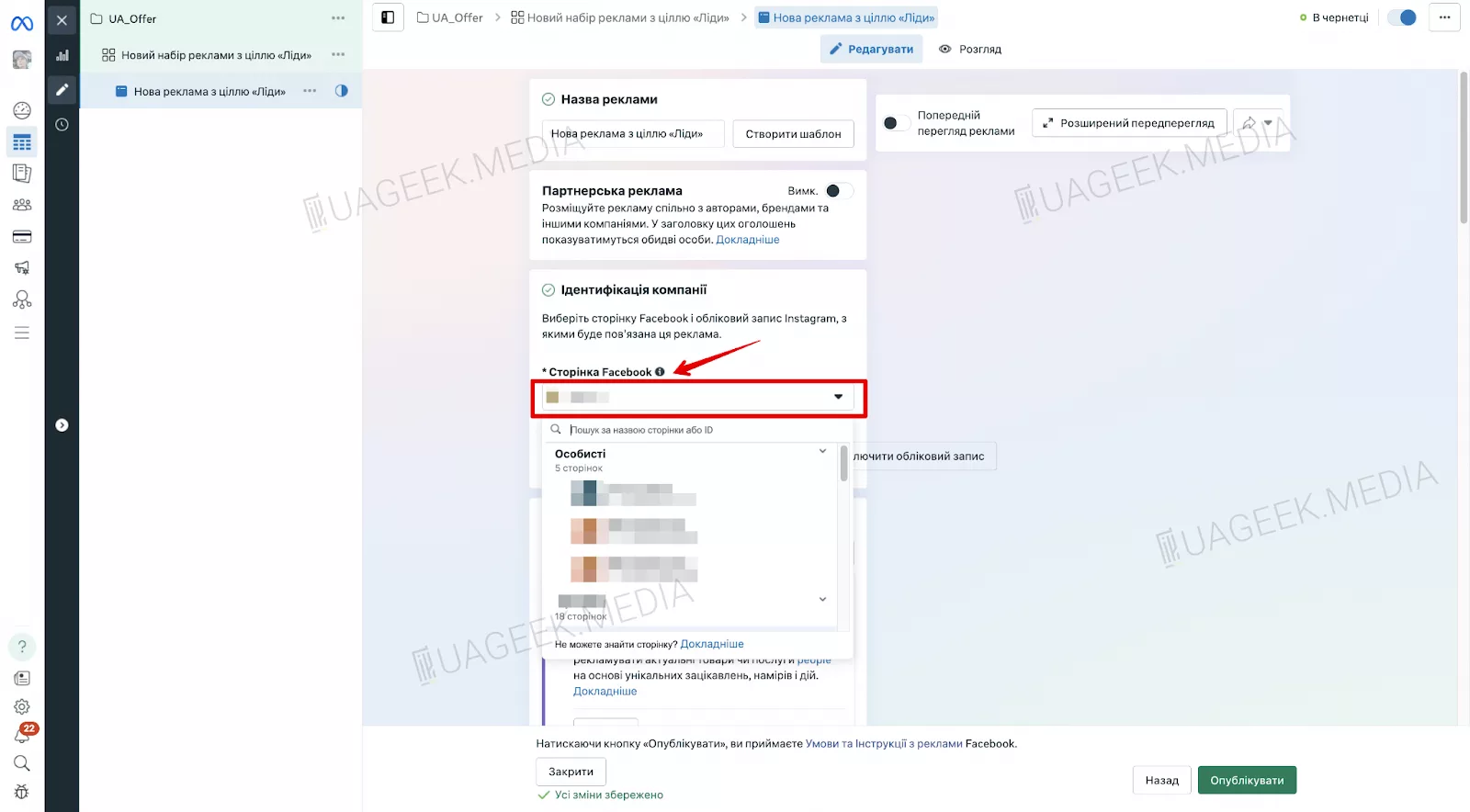
Ad setup
Now decide how users will see your ad.
What you need to do:
- Select the Page from which the ads will run. If you don’t have one, create a new Page.
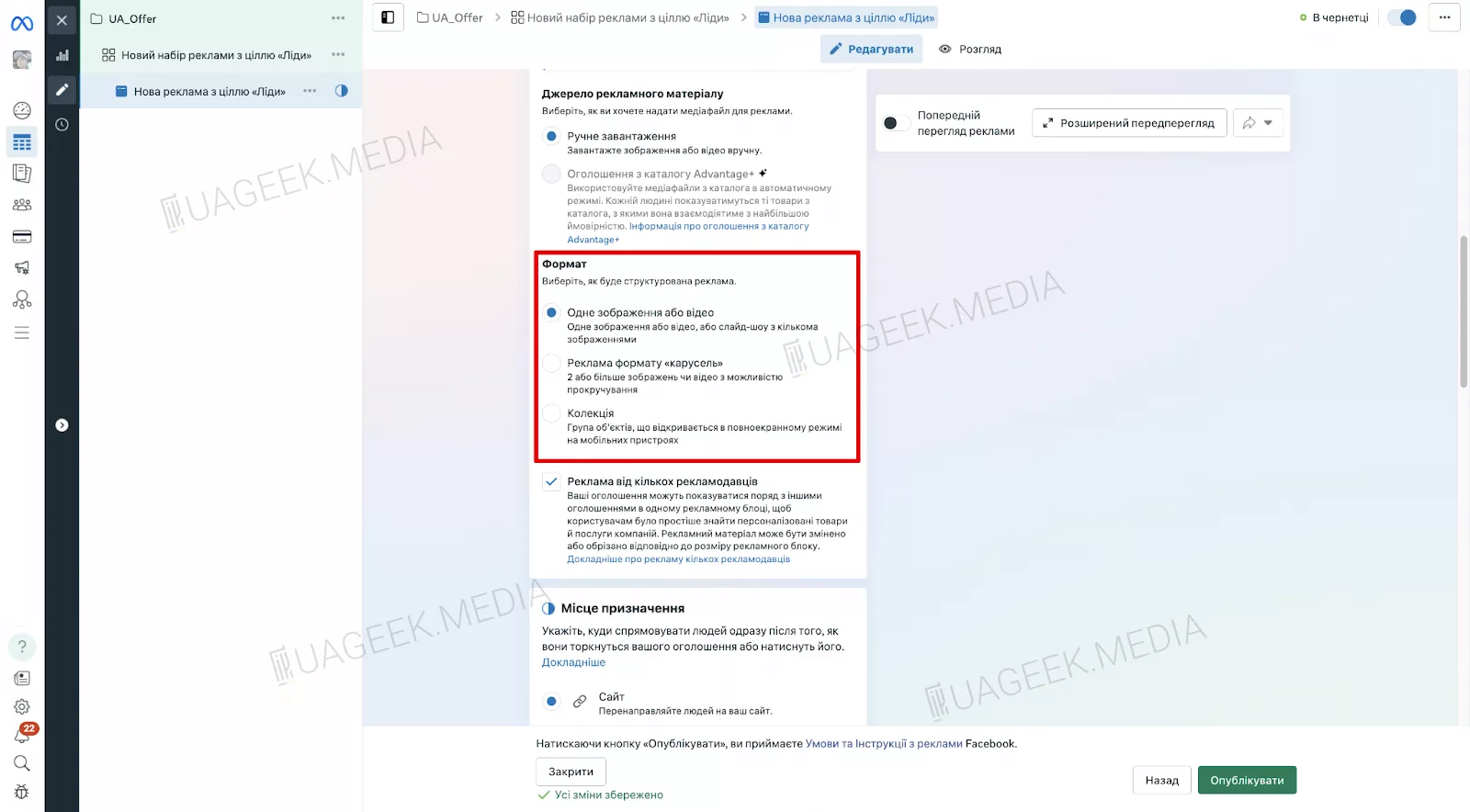
In “Format”, choose an image or video (Carousel is not recommended for now — it may affect moderation).
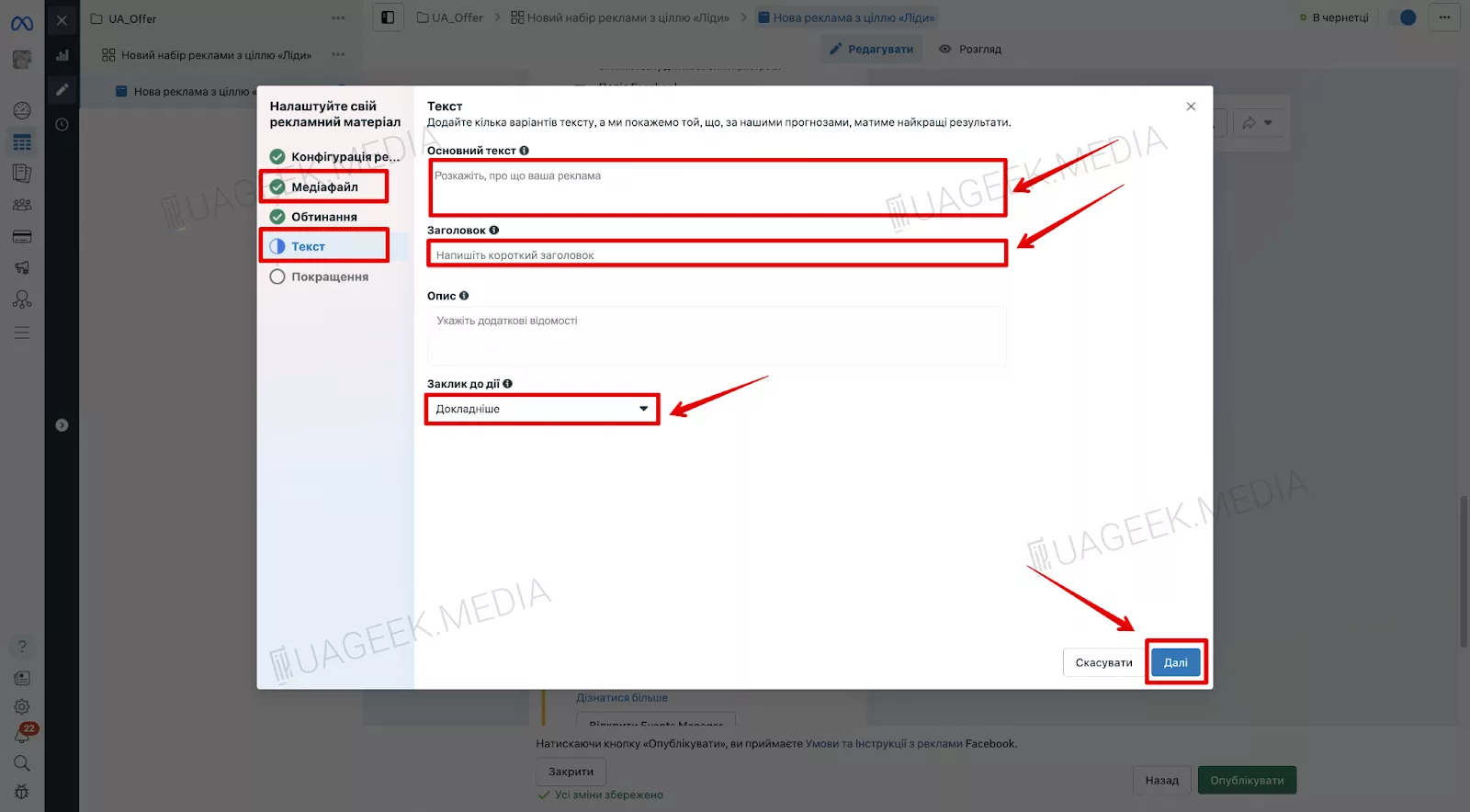
Upload the creative, add the primary text, headline, and a short description (if you have one).
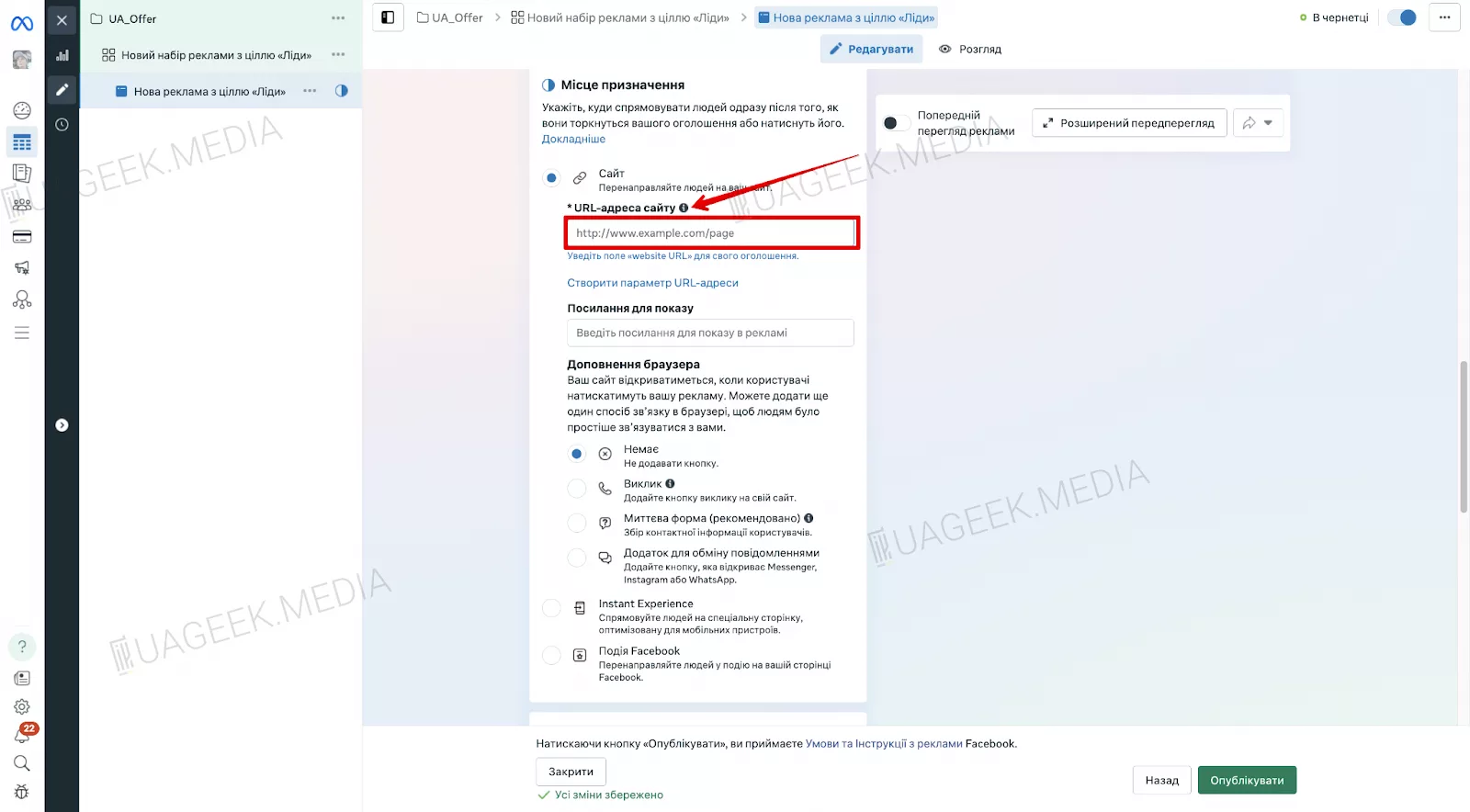
Paste the website link into the “Website URL” field and click “Publish”.
If a card has already been linked, the ad will be sent for review. If not, you’ll need to add a payment method first.
Facebook Ads in 2026 offers massive opportunities, but it also requires precise setup. Use these instructions — and your campaigns will deliver consistent results.